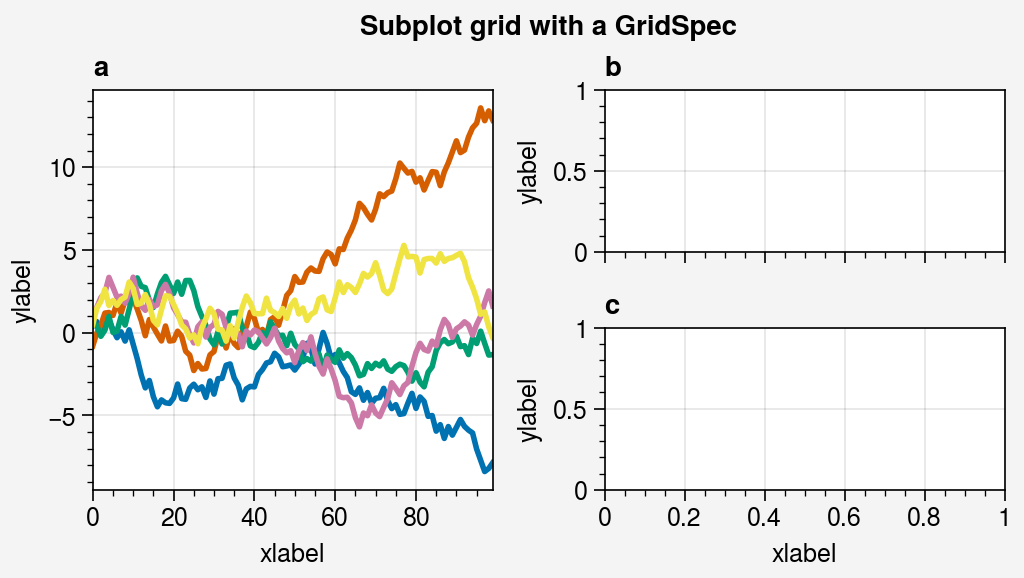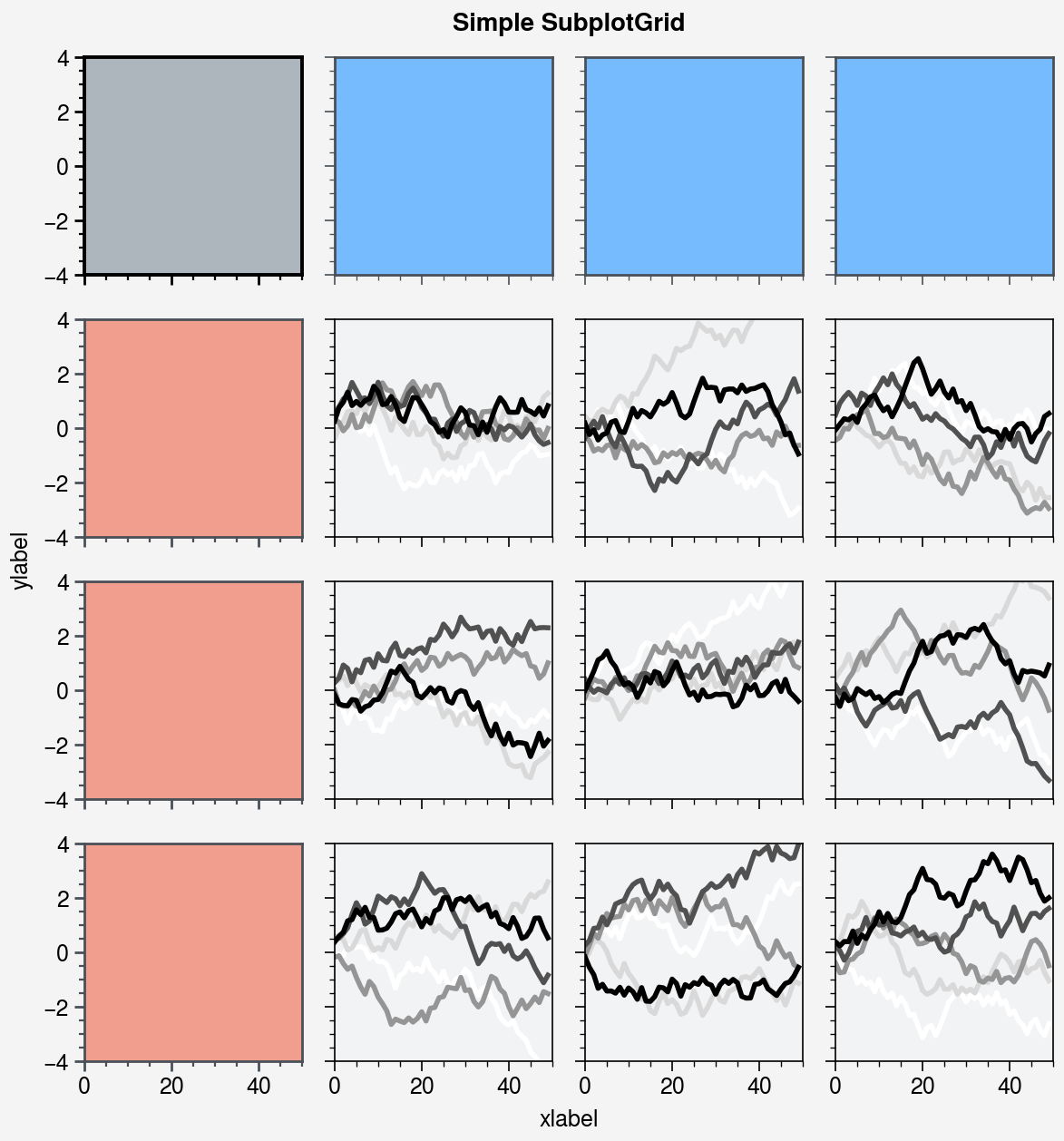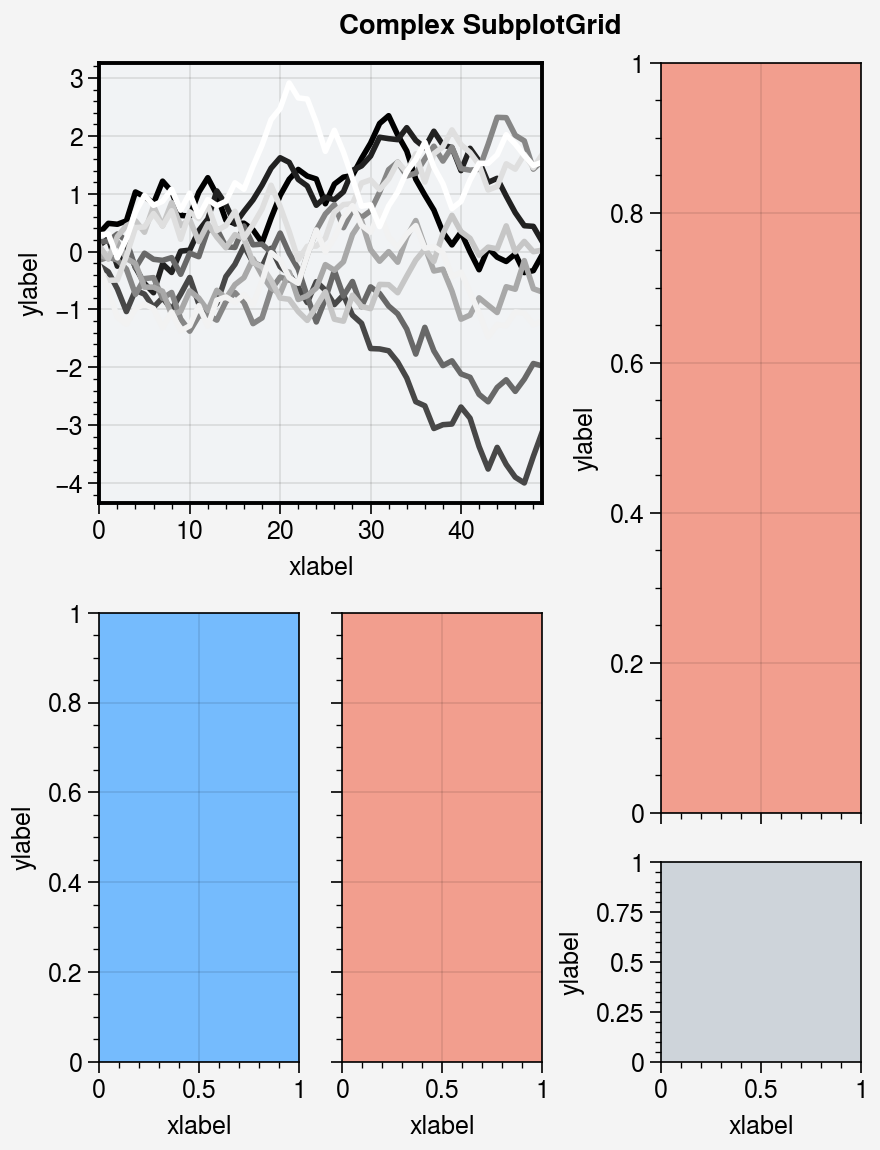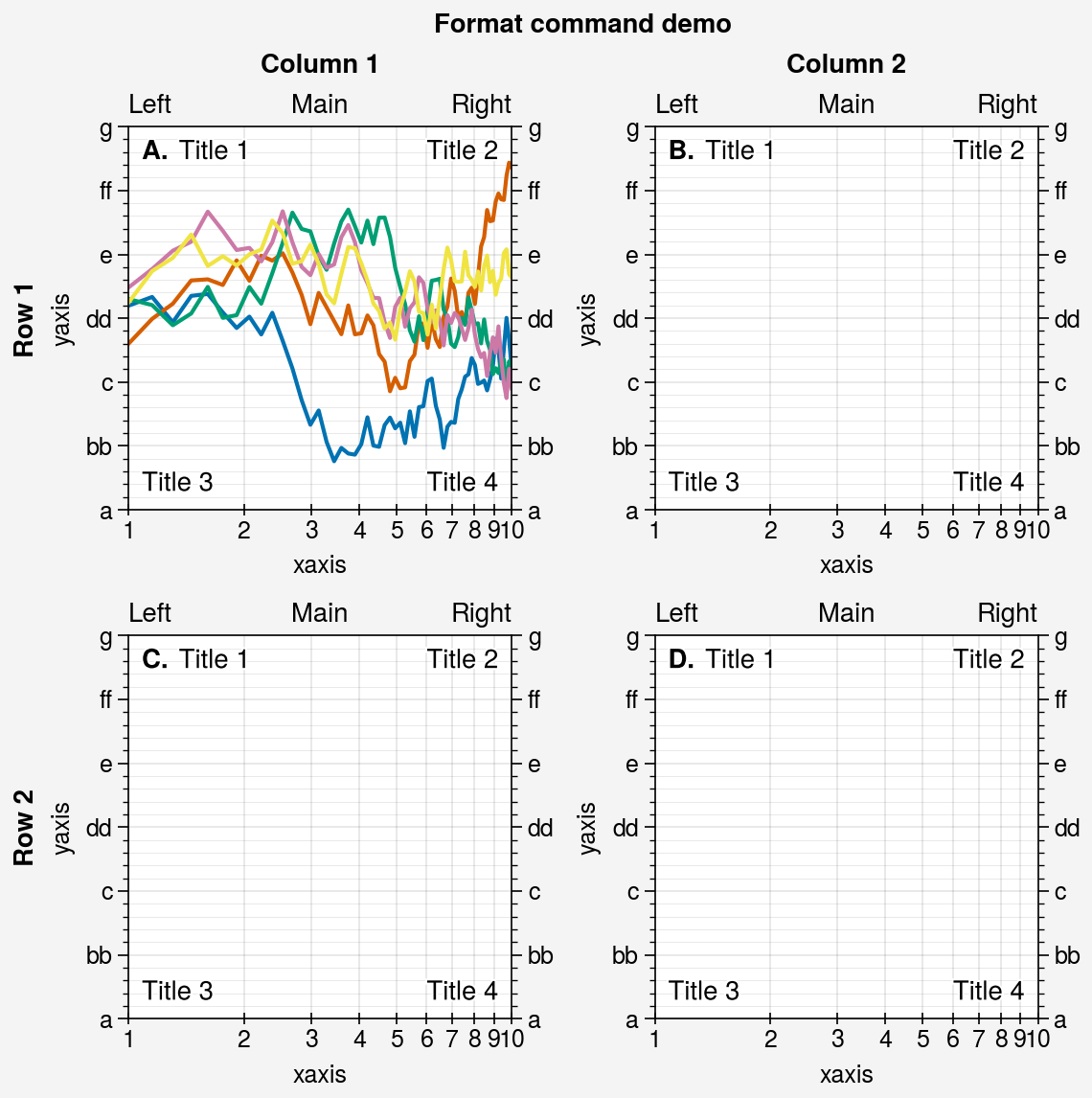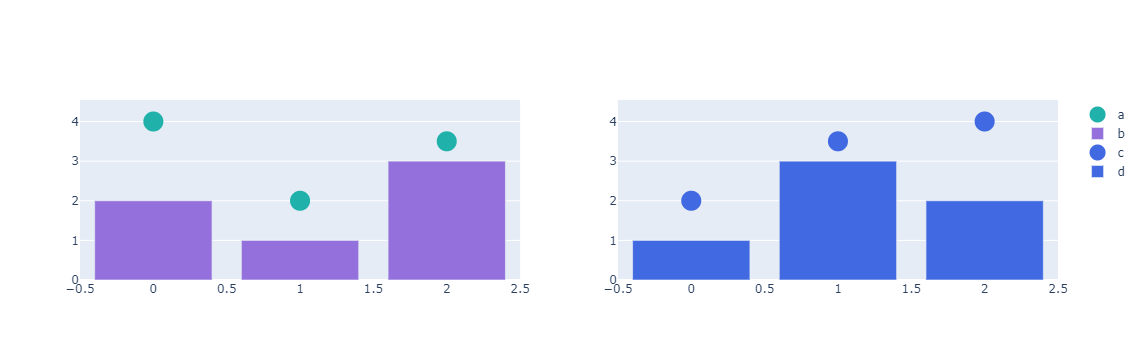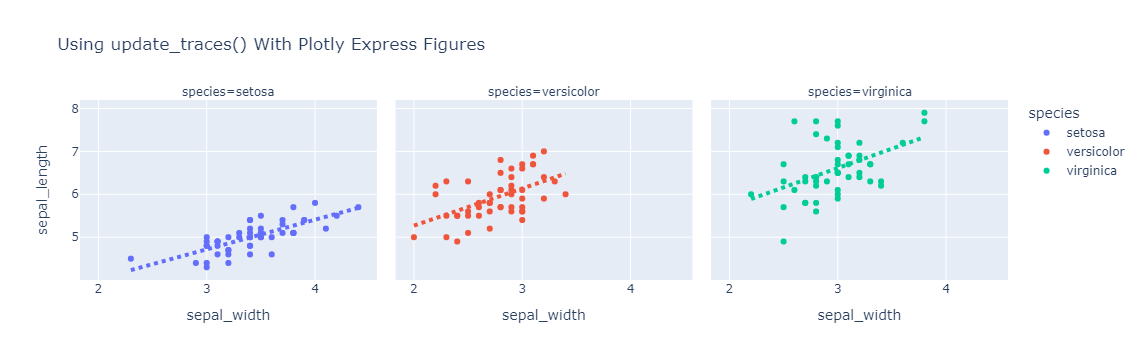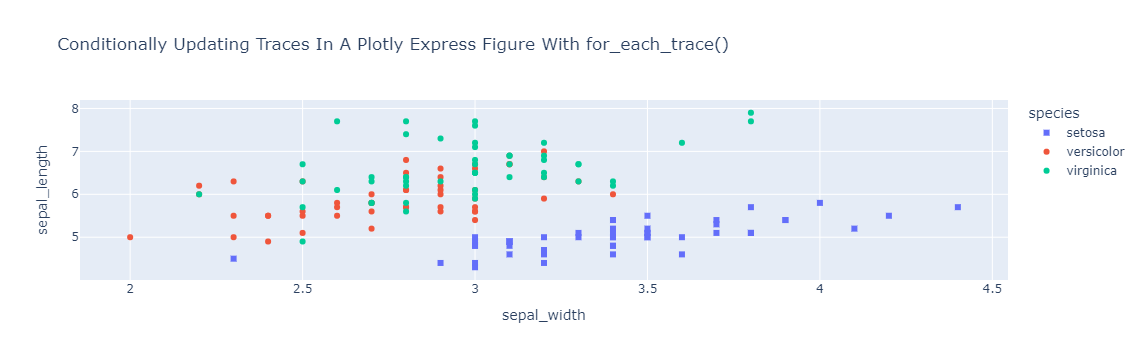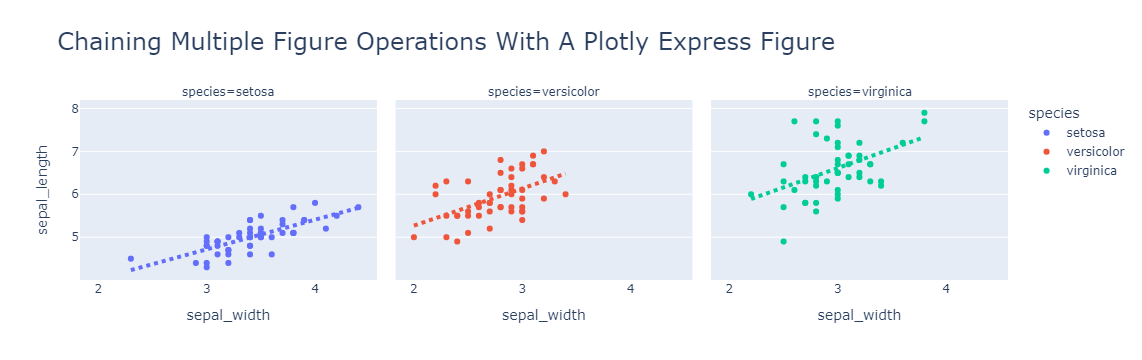
<?xml version="1.0" encoding="utf-8"?>
<feed xmlns="http://www.w3.org/2005/Atom">
            <title type="text">小怪兽的博客</title>
    <updated>2024-07-07T22:19:05+08:00</updated>
        <id>https://lymboy.com</id>
        <link rel="alternate" type="text/html" href="https://lymboy.com" />
        <link rel="self" type="application/atom+xml" href="https://lymboy.com/atom.xml" />
    <rights>Copyright © 2026, 小怪兽的博客</rights>
    <generator uri="https://halo.run/" version="1.5.1">Halo</generator>
            <entry>
                <title><![CDATA[Java工具框架收集]]></title>
                <link rel="alternate" type="text/html" href="https://lymboy.com/archives/java-gong-ju-kuang-jia-shou-ji" />
                <id>tag:https://lymboy.com,2024-06-10:java-gong-ju-kuang-jia-shou-ji</id>
                <published>2024-06-10T13:11:03+08:00</published>
                <updated>2024-07-07T22:19:05+08:00</updated>
                <author>
                    <name>sairo</name>
                    <uri>https://lymboy.com</uri>
                </author>
                <content type="html">
                        <![CDATA[<iframe frameborder="no" border="0" marginwidth="0" marginheight="0" width=330 height=86 src="//music.163.com/outchain/player?type=2&id=20744782&auto=1&height=66"></iframe><h1 id="%E6%95%8F%E6%84%9F%E8%AF%8D%E6%A3%80%E6%B5%8B" tabindex="-1">敏感词检测</h1><p><a href="https://github.com/houbb/sensitive-word.git" target="_blank">https://github.com/houbb/sensitive-word.git</a></p><h1 id="%E6%B1%89%E5%AD%97%E8%BD%AC%E6%8B%BC%E9%9F%B3" tabindex="-1">汉字转拼音</h1><p><a href="https://github.com/houbb/pinyin" target="_blank">https://github.com/houbb/pinyin</a></p><h1 id="%E4%B8%AD%E6%96%87%E5%88%86%E8%AF%8D" tabindex="-1">中文分词</h1><p><a href="https://github.com/houbb/segment" target="_blank">https://github.com/houbb/segment</a></p><h1 id="%E7%AE%80%E7%B9%81%E8%BD%AC%E6%8D%A2" tabindex="-1">简繁转换</h1><p><a href="https://github.com/houbb/opencc4j" target="_blank">https://github.com/houbb/opencc4j</a></p><h1 id="%E6%B1%89%E5%AD%97%E7%9B%B8%E4%BC%BC%E6%80%A7" tabindex="-1">汉字相似性</h1><p><a href="https://github.com/houbb/nlp-hanzi-similar" target="_blank">https://github.com/houbb/nlp-hanzi-similar</a></p><h1 id="%E5%8D%95%E8%AF%8D%E6%8B%BC%E5%86%99%E6%A3%80%E6%9F%A5" tabindex="-1">单词拼写检查</h1><p><a href="https://github.com/houbb/word-checker" target="_blank">https://github.com/houbb/word-checker</a></p>]]>
                </content>
            </entry>
            <entry>
                <title><![CDATA[垃圾收集算法]]></title>
                <link rel="alternate" type="text/html" href="https://lymboy.com/archives/la-ji-shou-ji-suan-fa" />
                <id>tag:https://lymboy.com,2022-11-15:la-ji-shou-ji-suan-fa</id>
                <published>2022-11-15T16:43:37+08:00</published>
                <updated>2022-11-15T16:43:37+08:00</updated>
                <author>
                    <name>sairo</name>
                    <uri>https://lymboy.com</uri>
                </author>
                <content type="html">
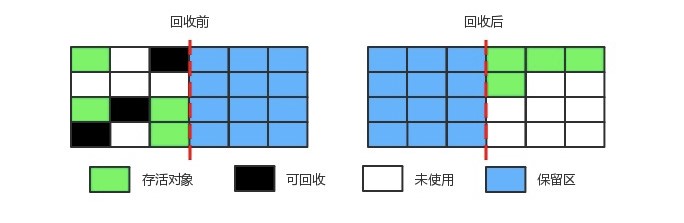
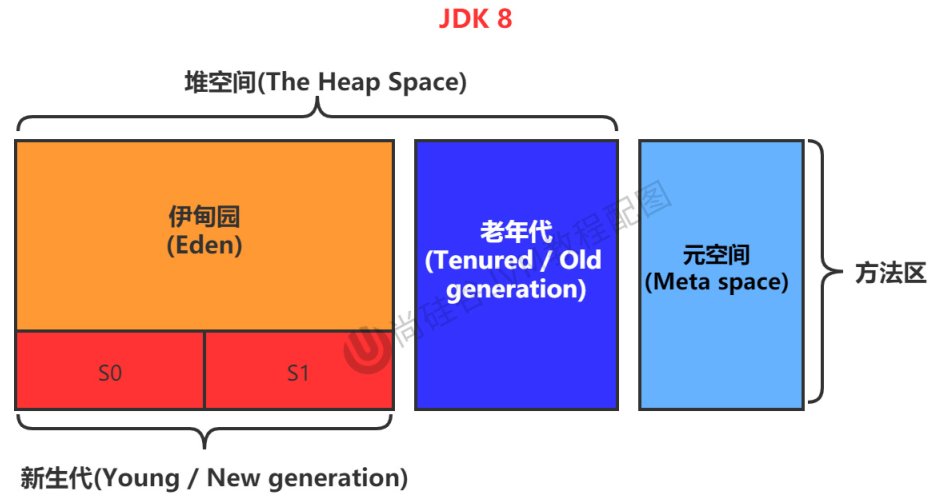
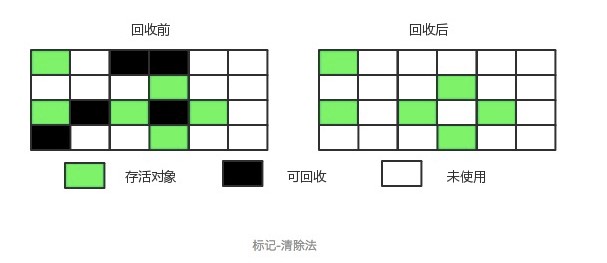
                        <![CDATA[<h3 id="%E5%9E%83%E5%9C%BE%E6%94%B6%E9%9B%86%E7%AE%97%E6%B3%95" tabindex="-1">垃圾收集算法</h3><p><strong>标记-清除</strong></p><p><img src="https://itbird.oss-cn-beijing.aliyuncs.com/img/2022/11/15/a4248c4b-6c1d-4fb8-a557-86da92d3a294.jpg" alt="" /></p><p>将存活的对象进行标记，然后清理掉未被标记的对象。</p><p>不足:</p><ul><li>标记和清除过程效率都不高；</li><li>会产生大量不连续的内存碎片，导致无法给大对象分配内存。</li></ul><p><strong>标记-整理</strong></p><p><img src="https://itbird.oss-cn-beijing.aliyuncs.com/img/2022/11/15/902b83ab-8054-4bd2-898f-9a4a0fe52830.jpg" alt="" /></p><p>让所有存活的对象都向一端移动，然后直接清理掉端边界以外的内存。</p><p><strong>复制</strong></p><p><img src="https://itbird.oss-cn-beijing.aliyuncs.com/img/2022/11/15/e6b733ad-606d-4028-b3e8-83c3a73a3797.jpg" alt="" /></p><p>将内存划分为大小相等的两块，每次只使用其中一块，当这一块内存用完了就将还存活的对象复制到另一块上面，然后再把使用过的内存空间进行一次清理。</p><p>主要不足是只使用了内存的一半。</p><p><strong>分代收集策略</strong></p><p>JDK1.8采用分代收集策略</p><pre><code class="language-shell">$ java -XX:+PrintCommandLineFlags -version...UseParallelGC = Parallel Scavenge + Parallel Old</code></pre><p><strong>分代收集</strong>是根据对象的存活时间把内存分为新生代和老年代，根据个代对象的存活特点，每个代采用不同的垃圾回收算法。新生代采用标记—复制算法，老年代采用标记—整理算法。</p><p><img src="https://itbird.oss-cn-beijing.aliyuncs.com/img/2022/11/15/image-20221115151554366.png" alt="" /></p><pre><code class="language-java">import java.util.UUID;/** * @author 小怪兽 * @version 1.0 * @since 2022-11-15 */public class Jmap {    private byte[] buffer = new byte[500*1024];    private String h = UUID.randomUUID().toString();    public static void main(String[] args) throws Exception {        int n = 100000;        for (int i = 0; i &lt; n; i++) {            Jmap jmap = new Jmap();            Thread.sleep(10);        }    }}</code></pre><p>可以使用如下脚本监控jvm的内存使用情况</p><pre><code class="language-shell">pid=&#96;jps | grep Jmap | awk &#39;{print $1}&#39;&#96;echo PID: $pidwatch -n 2 -d &quot;jmap -heap $pid&quot;</code></pre><pre><code class="language-">Every 2.0s: jmap -heap 25834                                                                                                         Tue Nov 15 23:31:43 2022Attaching to process ID 25834, please wait...Debugger attached successfully.Server compiler detected.JVM version is 25.202-b08using thread-local object allocation.Parallel GC with 13 thread(s)Heap Configuration:   MinHeapFreeRatio         = 0   MaxHeapFreeRatio         = 100   MaxHeapSize              = 16846422016 (16066.0MB)   NewSize                  = 351272960 (335.0MB)   MaxNewSize               = 5615124480 (5355.0MB)   OldSize                  = 703594496 (671.0MB)   NewRatio                 = 2   SurvivorRatio            = 8   MetaspaceSize            = 21807104 (20.796875MB)   CompressedClassSpaceSize = 1073741824 (1024.0MB)   MaxMetaspaceSize         = 17592186044415 MB   G1HeapRegionSize         = 0 (0.0MB)Heap Usage:PS Young GenerationEden Space:   capacity = 264241152 (252.0MB)   used     = 95229184 (90.817626953125MB)     free     = 169011968 (161.182373046875MB)     36.038740854414684% usedFrom Space:   capacity = 43515904 (41.5MB)   used     = 0 (0.0MB)   free     = 43515904 (41.5MB)   0.0% usedTo Space:   capacity = 43515904 (41.5MB)   used     = 0 (0.0MB)   free     = 43515904 (41.5MB)   0.0% usedPS Old Generation   capacity = 703594496 (671.0MB)   used     = 0 (0.0MB)   free     = 703594496 (671.0MB)   0.0% used1070 interned Strings occupying 78624 bytes.</code></pre><pre><code class="language-">Heap Usage:PS Young GenerationEden Space:   capacity = 264241152 (252.0MB)   used     = 206210320 (196.65748596191406MB)   free     = 58030832 (55.34251403808594MB)   78.03868490552145% usedFrom Space:   capacity = 43515904 (41.5MB)   used     = 0 (0.0MB)   free     = 43515904 (41.5MB)   0.0% usedTo Space:   capacity = 43515904 (41.5MB)   used     = 0 (0.0MB)   free     = 43515904 (41.5MB)   0.0% usedPS Old Generation   capacity = 703594496 (671.0MB)   used     = 0 (0.0MB)   free     = 703594496 (671.0MB)   0.0% used1070 interned Strings occupying 78624 bytes.</code></pre><pre><code class="language-">Heap Usage:PS Young GenerationEden Space:   capacity = 264241152 (252.0MB)   used     = 264241152 (252.0MB)                free     = 0 (0.0MB)                        100.0% used            From Space:   capacity = 43515904 (41.5MB)   used     = 0 (0.0MB)   free     = 43515904 (41.5MB)   0.0% usedTo Space:   capacity = 43515904 (41.5MB)   used     = 0 (0.0MB)   free     = 43515904 (41.5MB)   0.0% usedPS Old Generation   capacity = 703594496 (671.0MB)   used     = 0 (0.0MB)   free     = 703594496 (671.0MB)   0.0% used1073 interned Strings occupying 78792 bytes.</code></pre><pre><code class="language-">Heap Usage:PS Young GenerationEden Space:   capacity = 264241152 (252.0MB)   used     = 10466912 (9.982025146484375MB)   free     = 253774240 (242.01797485351562MB)   3.961121089874752% usedFrom Space:   capacity = 43515904 (41.5MB)   used     = 524320 (0.500030517578125MB)   free     = 42991584 (40.999969482421875MB)   1.204892813441265% usedTo Space:   capacity = 43515904 (41.5MB)   used     = 0 (0.0MB)   free     = 43515904 (41.5MB)   0.0% usedPS Old Generation   capacity = 703594496 (671.0MB)   used     = 8192 (0.0078125MB)   free     = 703586304 (670.9921875MB)   0.0011643070044709389% used1058 interned Strings occupying 77752 bytes.</code></pre><pre><code class="language-">Heap Usage:PS Young GenerationEden Space:   capacity = 264241152 (252.0MB)   used     = 15956744 (15.217536926269531MB)   free     = 248284408 (236.78246307373047MB)   6.038705129472036% used From Space:   capacity = 43515904 (41.5MB)   used     = 425984 (0.40625MB)   free     = 43089920 (41.09375MB)   0.9789156626506024% usedTo Space:   capacity = 43515904 (41.5MB)   used     = 0 (0.0MB)   free     = 43515904 (41.5MB)   0.0% usedPS Old Generation   capacity = 703594496 (671.0MB)   used     = 8192 (0.0078125MB)   free     = 703586304 (670.9921875MB)   0.0011643070044709389% used1058 interned Strings occupying 77752 bytes.</code></pre><pre><code class="language-">Heap Usage:PS Young GenerationEden Space:   capacity = 257949696 (246.0MB)   used     = 20690464 (19.731964111328125MB)   free     = 237259232 (226.26803588867188MB)   8.021123622491107% usedFrom Space:   capacity = 524288 (0.5MB)   used     = 442384 (0.4218902587890625MB)   free     = 81904 (0.0781097412109375MB)   84.3780517578125% usedTo Space:   capacity = 1048576 (1.0MB)   used     = 0 (0.0MB)   free     = 1048576 (1.0MB)   0.0% usedPS Old Generation   capacity = 703594496 (671.0MB)   used     = 16384 (0.015625MB)   free     = 703578112 (670.984375MB)   0.0023286140089418777% used1058 interned Strings occupying 77752 bytes.</code></pre><pre><code class="language-">Heap Usage:PS Young GenerationEden Space:   capacity = 257949696 (246.0MB)   used     = 58366424 (55.662559509277344MB)   free     = 199583272 (190.33744049072266MB)   22.62705671108835% usedFrom Space:   capacity = 43515904 (41.5MB)   used     = 442384 (0.4218902587890625MB)   free     = 43073520 (41.07810974121094MB)   1.0166030332266567% usedTo Space:   capacity = 524288 (0.5MB)      used     = 0 (0.0MB)   free     = 524288 (0.5MB)      0.0% usedPS Old Generation   capacity = 703594496 (671.0MB)   used     = 24576 (0.0234375MB)   free     = 703569920 (670.9765625MB)   0.003492921013412817% used </code></pre><p>可以看出，创建新对象是总是在<code>Eden</code>区操作，随着不断<code>new</code>对象，<code>Eden</code>区内存使用不断上升，当<code>Eden</code>区空间使用达<code>100%</code>时会执行复制算法将对象复制到<code>From</code>区, 虽然<code>From</code>区的容量远小于<code>Eden</code>区但仍然使Eden的内存使用降到了<code>0%</code>，这是因为当Eden区满了之后会触发<code>YoungGC（Minor GC）</code>清理掉垃圾对象。</p><p>当再次触发<code>YoungGC（Minor GC）</code>并且<code>From</code>区满了之后会将存活对象复制到<code>To</code>区，就这样循环往复一定次数（默认15次）之后，存活的数据会复制到老年代（<code>Old Generation</code>）</p><p>当老年代的内存不足时会触发<code>Old GC(Major GC)</code></p><blockquote><p>从概念上讲Old GC(Major GC)指的是针对老年代的GC，Full GC指的是对整个堆空间的GC,不过也有说法是Major GC其实等价于Full GC，因为Major GC其实就是老年代空间不足，新生代的对象没法转移到老年代所以需要先对老年代GC，然后再对新生代GC，可以说Major GC的目的就是为了Minor GC，这其实就是Full GC了。</p></blockquote><blockquote><p>这里老年代空间不足指的探讨，不足指的是老年代空间使用100%还是超过了一定阈值？这个笔者尚没有看到相关定论，后续可以再深究。</p></blockquote><h4 id="%E5%8F%82%E8%80%83%E8%B5%84%E6%96%99" tabindex="-1">参考资料</h4><ul><li><a href="https://blog.csdn.net/weixin_40739833/article/details/80717638" target="_blank">https://blog.csdn.net/weixin_40739833/article/details/80717638</a></li><li><a href="https://blog.csdn.net/yanghenan19870513/article/details/115669223" target="_blank">https://blog.csdn.net/yanghenan19870513/article/details/115669223</a></li><li><a href="https://pdai.tech/md/java/jvm/java-jvm-gc.html#full-gc-%E7%9A%84%E8%A7%A6%E5%8F%91%E6%9D%A1%E4%BB%B6" target="_blank">https://pdai.tech/md/java/jvm/java-jvm-gc.html#full-gc-的触发条件</a></li><li><a href="https://cloud.tencent.com/developer/article/1830320" target="_blank">https://cloud.tencent.com/developer/article/1830320</a></li><li><a href="https://blog.csdn.net/mccand1234/article/details/52078645" target="_blank">https://blog.csdn.net/mccand1234/article/details/52078645</a></li></ul>]]>
                </content>
            </entry>
            <entry>
                <title><![CDATA[LEETCODE 817. 链表组件]]></title>
                <link rel="alternate" type="text/html" href="https://lymboy.com/archives/leetcode817-lian-biao-zu-jian" />
                <id>tag:https://lymboy.com,2022-10-12:leetcode817-lian-biao-zu-jian</id>
                <published>2022-10-12T13:34:01+08:00</published>
                <updated>2022-10-12T13:34:01+08:00</updated>
                <author>
                    <name>sairo</name>
                    <uri>https://lymboy.com</uri>
                </author>
                <content type="html">
                        <![CDATA[<h2 id="ac%E4%BB%A3%E7%A0%81" tabindex="-1">AC代码</h2><pre><code class="language-java">class Solution {    /**     * 因为题目说链表节点值是不重复的，所以可以用HashSet存储数组中元素，便于查询     * flag 变量表示当前元素是否属于某个集合，true: 当前元素属于某个集合（组件）， false: 不属于某个集合（组件）     * @param head     * @param nums     * @return     */    public int numComponents(ListNode head, int[] nums) {        Set&lt;Integer&gt; set = new HashSet&lt;&gt;();        for (int num : nums) {            set.add(num);        }        boolean flag = false;        int ans = 0;        while (head != null) {            if (!set.contains(head.val)) {                flag = false;            }            if (set.contains(head.val) &amp;&amp; !flag) {                ans++;                flag = true;            }            head = head.next;        }        return ans;    }}</code></pre><p><img src="https://itbird.oss-cn-beijing.aliyuncs.com/img/2022/10/12/image-20221012114530231.png" alt="" /></p>]]>
                </content>
            </entry>
            <entry>
                <title><![CDATA[LeetCode 200. 岛屿数量]]></title>
                <link rel="alternate" type="text/html" href="https://lymboy.com/archives/leetcode200-dao-yu-shu-liang" />
                <id>tag:https://lymboy.com,2022-09-11:leetcode200-dao-yu-shu-liang</id>
                <published>2022-09-11T14:59:15+08:00</published>
                <updated>2022-09-11T14:59:15+08:00</updated>
                <author>
                    <name>sairo</name>
                    <uri>https://lymboy.com</uri>
                </author>
                <content type="html">
                        <![CDATA[<p>链接：<a href="https://leetcode.cn/problems/number-of-islands/" target="_blank">200. 岛屿数量</a></p><p>深度优先搜索</p><h2 id="%E7%89%88%E6%9C%AC1" tabindex="-1">版本1</h2><pre><code class="language-java">class Solution {    // 上下左右四个方向遍历    int[][] direction = {{0, 1}, {0, -1}, {1, 0}, {-1, 0}};    // 记录行，列数    int m, n;    // 标记数组，判断是否已经访问过    boolean[][] visited = null;    public int numIslands(char[][] grid) {        if (grid == null || grid[0].length == 0) {            return 0;        }        int res = 0;        m = grid.length;        n = grid[0].length;        visited = new boolean[m][n];        for (int i = 0; i &lt; m; i++) {            for (int j = 0; j &lt; n; j++) {                if (grid[i][j] == &#39;1&#39; &amp;&amp; !visited[i][j]) {                    res++;                    dfs(grid, i, j);                }            }        }        return res;    }    /**     * @param grid     * @param x     * @param y     * @return     */    private boolean dfs(char[][] grid, int x, int y) {        // 如果当前遍历的字符是陆地，则继续访问后续位置        if (grid[x][y] == &#39;1&#39;) {            visited[x][y] = true;            // 依次从四个方向分别计算            for (int i = 0; i &lt; 4; i++) {                int newX = x + direction[i][0];                int newy = y + direction[i][1];                if (inArea(newX, newy) &amp;&amp; !visited[newX][newy]) {                    if (dfs(grid, newX, newy)) {                        return true;                    }                }            }        }        return false;    }    /**     * 判断当前坐标点是否越界     *     * @param x     * @param y     * @return     */    private boolean inArea(int x, int y) {        return x &gt;= 0 &amp;&amp; x &lt; m &amp;&amp; y &gt;= 0 &amp;&amp; y &lt; n;    }}</code></pre><p><img src="https://itbird.oss-cn-beijing.aliyuncs.com/img/2022/09/11/image-20220911125042945.png" alt="" /></p><h2 id="%E7%89%88%E6%9C%AC2" tabindex="-1">版本2</h2><pre><code class="language-java">class Solution {    // 上下左右四个方向遍历    int[][] direction = {{0, 1}, {0, -1}, {1, 0}, {-1, 0}};    // 记录行，列数    int m, n;    public int numIslands(char[][] grid) {        if (grid == null || grid[0].length == 0) {            return 0;        }        int res = 0;        m = grid.length;        n = grid[0].length;        visited = new boolean[m][n];        for (int i = 0; i &lt; m; i++) {            for (int j = 0; j &lt; n; j++) {                if (grid[i][j] == &#39;1&#39;) {                    res++;                    dfs(grid, i, j);                }            }        }        return res;    }    /**     * @param grid     * @param x     * @param y     * @return     */    private boolean dfs(char[][] grid, int x, int y) {        // 如果当前遍历的字符是陆地，则继续访问后续位置        if (grid[x][y] == &#39;1&#39;) {            // 一点小改进，直接将当前字符改为0，变相的设置为已访问，节省内存消耗，避免开辟visited内存            //visited[x][y] = true;            grid[x][y] = &#39;0&#39;;            // 依次从四个方向分别计算            for (int i = 0; i &lt; 4; i++) {                int newX = x + direction[i][0];                int newy = y + direction[i][1];                if (inArea(newX, newy) &amp;&amp; grid[newX][newy] == &#39;1&#39;) {                    if (dfs(grid, newX, newy)) {                        return true;                    }                }            }        }        return false;    }    /**     * 判断当前坐标点是否越界     *     * @param x     * @param y     * @return     */    private boolean inArea(int x, int y) {        return x &gt;= 0 &amp;&amp; x &lt; m &amp;&amp; y &gt;= 0 &amp;&amp; y &lt; n;    }}</code></pre><p><img src="https://itbird.oss-cn-beijing.aliyuncs.com/img/2022/09/11/image-20220911124632782.png" alt="" /></p>]]>
                </content>
            </entry>
            <entry>
                <title><![CDATA[LeetCode 130. 被围绕的区域]]></title>
                <link rel="alternate" type="text/html" href="https://lymboy.com/archives/leetcode130-bei-wei-rao-de-qu-yu" />
                <id>tag:https://lymboy.com,2022-09-11:leetcode130-bei-wei-rao-de-qu-yu</id>
                <published>2022-09-11T14:56:34+08:00</published>
                <updated>2022-09-11T14:56:34+08:00</updated>
                <author>
                    <name>sairo</name>
                    <uri>https://lymboy.com</uri>
                </author>
                <content type="html">
                        <![CDATA[<p>链接：<a href="https://leetcode.cn/problems/surrounded-regions/" target="_blank">130. 被围绕的区域</a></p><p>给你一个 m x n 的矩阵 board ，由若干字符 ‘X’ 和 ‘O’ ，找到所有被 ‘X’ 围绕的区域，并将这些区域里所有的 ‘O’ 用 ‘X’ 填充。</p><p>示例 1：</p><p><img src="https://itbird.oss-cn-beijing.aliyuncs.com/img/2022/09/11/xogrid.jpg" alt="img" /></p><p><img src="https://itbird.oss-cn-beijing.aliyuncs.com/img/2022/09/11/image-20220911141430963.png" alt="" /></p><p>重要的就是这句话，替换的区域一定不与边界相连，所以可以吧与边界相连的区域标记出来，最后没有被标记的O一定就是被X围绕的。</p><p>具体过程：</p><ol><li>遍历四个边界上的点，分别从每个点出发使用DFS标记(#)与边界点相连的区域</li><li>边界遍历完成后，剩下的所有O一定是不与边界相连且被X围绕的</li><li>将违背标记的O置为X，将被标记的#还原为O</li></ol><pre><code class="language-java">class Solution {     // 上下左右四个方向遍历    int[][] direction = {{0, 1}, {0, -1}, {1, 0}, {-1, 0}};    // 记录行，列数    int m, n;    public void solve(char[][] board) {        if (board == null || board[0].length == 0) {            return;        }        m = board.length;        n = board[0].length;        // 从四个边界的点出发，将所有与边界相连的点标记        for (int i = 0; i &lt;= m-1; i++) {            dfs(board, i, 0);            dfs(board, i, n-1);        }        for (int i = 0; i &lt;= n-1; i++) {            dfs(board, 0, i);            dfs(board, m-1, i);        }        // 上面两个for循环执行后所有与边界相邻的点都会被标记为特殊字符        // 全部遍历一次        // 将所有被标记为#的点重新恢复成O, 仍旧是O的点则一定是被X包围且不与边界相连的，可以置为X        for (int i = 0; i &lt; m; i++) {            for (int j = 0; j &lt; n; j++) {                if (board[i][j] == &#39;#&#39;) {                    board[i][j] = &#39;O&#39;;                }else if (board[i][j] == &#39;O&#39;) {                    board[i][j] = &#39;X&#39;;                }            }        }    }    /**     * @param board     * @param x     * @param y     * @return     */    private void dfs(char[][] board, int x, int y) {        // 如果没有越界并且当前字符是&#39;O&#39;则继续递归遍历        if (inArea(x, y) &amp;&amp; board[x][y]==&#39;O&#39;) {            board[x][y] = &#39;#&#39;;            for (int i = 0; i &lt; direction.length; i++) {                int newX = x + direction[i][0];                int newY = y + direction[i][1];                dfs(board, newX, newY);            }        }    }    /**     * 判断当前坐标点是否越界     *     * @param x     * @param y     * @return     */    private boolean inArea(int x, int y) {        return x &gt;= 0 &amp;&amp; x &lt; m &amp;&amp; y &gt;= 0 &amp;&amp; y &lt; n;    }}</code></pre><p><img src="https://itbird.oss-cn-beijing.aliyuncs.com/img/2022/09/11/image-20220911141112933.png" alt="" /></p>]]>
                </content>
            </entry>
            <entry>
                <title><![CDATA[LeetCode 77. 组合]]></title>
                <link rel="alternate" type="text/html" href="https://lymboy.com/archives/leetcode77-zu-he" />
                <id>tag:https://lymboy.com,2022-09-04:leetcode77-zu-he</id>
                <published>2022-09-04T20:32:03+08:00</published>
                <updated>2022-09-04T20:33:06+08:00</updated>
                <author>
                    <name>sairo</name>
                    <uri>https://lymboy.com</uri>
                </author>
                <content type="html">
                        <![CDATA[<p><a href="https://leetcode.cn/problems/combinations/" target="_blank">77. 组合</a></p><p>使用递归和回溯</p><h2 id="ac%E4%BB%A3%E7%A0%81" tabindex="-1">AC代码</h2><pre><code class="language-java">class Solution {    List&lt;List&lt;Integer&gt;&gt; res = new LinkedList();    Map&lt;String, Integer&gt; memo = new HashMap&lt;&gt;();    public List&lt;List&lt;Integer&gt;&gt; combinationSum(int[] candidates, int target) {        if (candidates.length == 0) {            return res;        }        Arrays.sort(candidates);        f(candidates, target, 0, new LinkedList&lt;&gt;());        return res;    }    void f(int[] candidates, int target, int start, LinkedList&lt;Integer&gt; current) {        // 记忆化搜索，避免重复计算        if (memo.containsKey(generateKey(current))) {            return;        }        if (target == 0) {            res.add(current);            memo.put(generateKey(current), 0);            return;        }        // 因为排序了，所以当当前的target比数组中最小的数还要小时可以认为没有满足的元素了，直接结束当前递归        if (target &lt; candidates[0]) {            return;        }        for (int i = start; i &lt; candidates.length; i++) {            current.addLast(candidates[i]);                        // start == i表示下次计算仍从i位置开始，因为条件要求可以有重复元素            f(candidates, target - candidates[i], i, new LinkedList&lt;&gt;(current));            current.removeLast();        }    }    String generateKey(LinkedList&lt;Integer&gt; current) {        current.sort((a, b) -&gt; a - b);        return current.toString();    }}</code></pre><p><img src="https://itbird.oss-cn-beijing.aliyuncs.com/img/2022/09/04/image-20220904111456743.png" alt="" /></p>]]>
                </content>
            </entry>
            <entry>
                <title><![CDATA[LeetCode 39. 组合总和]]></title>
                <link rel="alternate" type="text/html" href="https://lymboy.com/archives/39-zu-he-zong-he" />
                <id>tag:https://lymboy.com,2022-09-04:39-zu-he-zong-he</id>
                <published>2022-09-04T20:29:32+08:00</published>
                <updated>2022-09-04T20:32:34+08:00</updated>
                <author>
                    <name>sairo</name>
                    <uri>https://lymboy.com</uri>
                </author>
                <content type="html">
                        <![CDATA[<h1 id="39.-%E7%BB%84%E5%90%88%E6%80%BB%E5%92%8C" tabindex="-1"><a href="https://leetcode.cn/problems/combination-sum/" target="_blank">39. 组合总和</a></h1><p>典型的递归回溯问题。因为要考虑到要可重复的问题，所以每一次都要重复遍历整个数组，考虑到重复计算问题，需要加上记忆化搜索。</p><h2 id="ac%E4%BB%A3%E7%A0%81" tabindex="-1">AC代码</h2><pre><code class="language-java">class Solution {    List&lt;List&lt;Integer&gt;&gt; res = new LinkedList();    Map&lt;String, Integer&gt; memo = new HashMap&lt;&gt;();    public List&lt;List&lt;Integer&gt;&gt; combinationSum(int[] candidates, int target) {        if (candidates.length == 0) {            return res;        }        Arrays.sort(candidates);        f(candidates, target, 0, new LinkedList&lt;&gt;());        return res;    }    void f(int[] candidates, int target, int start, LinkedList&lt;Integer&gt; current) {        if (target == 0) {            // 记忆化搜索，避免重复计算            if (memo.containsKey(generateKey(current))) {                return;            }            res.add(current);            memo.put(generateKey(current), 0);            return;        }        // 因为排序了，所以当当前的target比数组中最小的数还要小时可以认为没有满足的元素了，直接结束当前递归        if (target &lt; candidates[0]) {            return;        }        for (int i = start; i &lt; candidates.length; i++) {            current.addLast(candidates[i]);            // start == i表示下次计算仍从i位置开始，因为条件要求可以有重复元素            f(candidates, target - candidates[i], i, new LinkedList&lt;&gt;(current));            // 因为i位置的元素已经计算过了，后面再也不会用到了，可以删除            current.removeLast();        }    }    // 计算key的辅助函数    String generateKey(LinkedList&lt;Integer&gt; current) {        current.sort((a, b) -&gt; a - b);        return current.toString();    }}</code></pre><p><img src="https://itbird.oss-cn-beijing.aliyuncs.com/img/2022/09/04/image-20220904201534754.png" alt="" /></p>]]>
                </content>
            </entry>
            <entry>
                <title><![CDATA[剑指 Offer 58 - II. 左旋转字符串]]></title>
                <link rel="alternate" type="text/html" href="https://lymboy.com/archives/jian-zhi-offer58-ii-zuo-xuan-zhuan-zi-fu-chuan" />
                <id>tag:https://lymboy.com,2022-07-22:jian-zhi-offer58-ii-zuo-xuan-zhuan-zi-fu-chuan</id>
                <published>2022-07-22T17:18:53+08:00</published>
                <updated>2022-07-22T17:18:53+08:00</updated>
                <author>
                    <name>sairo</name>
                    <uri>https://lymboy.com</uri>
                </author>
                <content type="html">
                        <![CDATA[<p>欢迎关注笔者的微信公众号<br /><img src="https://img-blog.csdnimg.cn/20190513170937504.jpg" width="100px" height="100px"></p><hr>原题链接：<a href="https://leetcode-cn.com/problems/zuo-xuan-zhuan-zi-fu-chuan-lcof/">https://leetcode-cn.com/problems/zuo-xuan-zhuan-zi-fu-chuan-lcof/</a><p>字符串的左旋转操作是把字符串前面的若干个字符转移到字符串的尾部。请定义一个函数实现字符串左旋转操作的功能。比如，输入字符串&quot;abcdefg&quot;和数字2，该函数将返回左旋转两位得到的结果&quot;cdefgab&quot;。</p><p>示例 1：</p><blockquote><p>输入: s = “abcdefg”, k = 2<br />输出: “cdefgab”</p></blockquote><p>示例 2：</p><blockquote><p>输入: s = “lrloseumgh”, k = 6<br />输出: “umghlrlose”</p></blockquote><p>限制：</p><blockquote><p>1 &lt;= k &lt; s.length &lt;= 10000</p></blockquote><p><strong>思路</strong></p><p>以k为界，将字符串切分，然后将两部分拼接起来。</p><p><strong>代码</strong></p><pre><code class="language-java">class Solution {    public String reverseLeftWords(String s, int n) {        return s.substring(n, s.length()).concat(s.substring(0, n));    }}</code></pre>]]>
                </content>
            </entry>
            <entry>
                <title><![CDATA[力扣1672. 最富有客户的资产总量]]></title>
                <link rel="alternate" type="text/html" href="https://lymboy.com/archives/li-kou-1672-zui-fu-you-ke-hu-de-zi-chan-zong-liang" />
                <id>tag:https://lymboy.com,2022-07-22:li-kou-1672-zui-fu-you-ke-hu-de-zi-chan-zong-liang</id>
                <published>2022-07-22T17:09:07+08:00</published>
                <updated>2022-07-22T17:09:07+08:00</updated>
                <author>
                    <name>sairo</name>
                    <uri>https://lymboy.com</uri>
                </author>
                <content type="html">
                        <![CDATA[<p>欢迎关注笔者的微信公众号<br /><img src="https://img-blog.csdnimg.cn/20190513170937504.jpg" width="100px" height="100px"></p><hr><p>原题链接：<a href="https://leetcode-cn.com/problems/richest-customer-wealth/" target="_blank">https://leetcode-cn.com/problems/richest-customer-wealth/</a></p><p>给你一个 m x n 的整数网格 accounts ，其中 accounts[i][j] 是第 i 位客户在第 j 家银行托管的资产数量。返回最富有客户所拥有的 资产总量 。</p><p>客户的 资产总量 就是他们在各家银行托管的资产数量之和。最富有客户就是 资产总量 最大的客户。</p><p>示例 1：</p><blockquote><p>输入：accounts = [[1,2,3],[3,2,1]]<br />输出：6<br />解释：<br />第 1 位客户的资产总量 = 1 + 2 + 3 = 6<br />第 2 位客户的资产总量 = 3 + 2 + 1 = 6<br />两位客户都是最富有的，资产总量都是 6 ，所以返回 6 。</p></blockquote><p>示例 2：</p><blockquote><p>输入：accounts = [[1,5],[7,3],[3,5]]<br />输出：10<br />解释：<br />第 1 位客户的资产总量 = 6<br />第 2 位客户的资产总量 = 10<br />第 3 位客户的资产总量 = 8<br />第 2 位客户是最富有的，资产总量是 10</p></blockquote><p>示例 3：</p><blockquote><p>输入：accounts = [[2,8,7],[7,1,3],[1,9,5]]<br />输出：17</p></blockquote><p>提示：</p><blockquote><p>m == accounts.length<br />n == accounts[i].length<br />1 &lt;= m, n &lt;= 50<br />1 &lt;= accounts[i][j] &lt;= 100</p></blockquote><p><strong>思路</strong></p><p>就是求二维数组每一行的和</p><p><strong>代码</strong></p><pre><code class="language-java">class Solution {    public int maximumWealth(int[][] accounts) {        int m = accounts.length;        int n = accounts[0].length;        int[] wealthy = new int[m];        for (int i=0; i&lt;m; i++) {            wealthy[i] = 0;            for (int j=0; j&lt;n; j++) {                wealthy[i] += accounts[i][j];            }            // 方便起见将财富最大值保存在 wealthy[0], 计算完成后直接返回即可            if (wealthy[i] &gt; wealthy[0]) {                wealthy[0] = wealthy[i];            }        }        return welthy[0];    }}</code></pre>]]>
                </content>
            </entry>
            <entry>
                <title><![CDATA[两个画图工具助力论文绘图]]></title>
                <link rel="alternate" type="text/html" href="https://lymboy.com/archives/liang-ge-hua-tu-gong-ju-zhu-li-lun-wen-hui-tu" />
                <id>tag:https://lymboy.com,2022-05-24:liang-ge-hua-tu-gong-ju-zhu-li-lun-wen-hui-tu</id>
                <published>2022-05-24T17:53:28+08:00</published>
                <updated>2022-05-24T17:53:28+08:00</updated>
                <author>
                    <name>sairo</name>
                    <uri>https://lymboy.com</uri>
                </author>
                <content type="html">
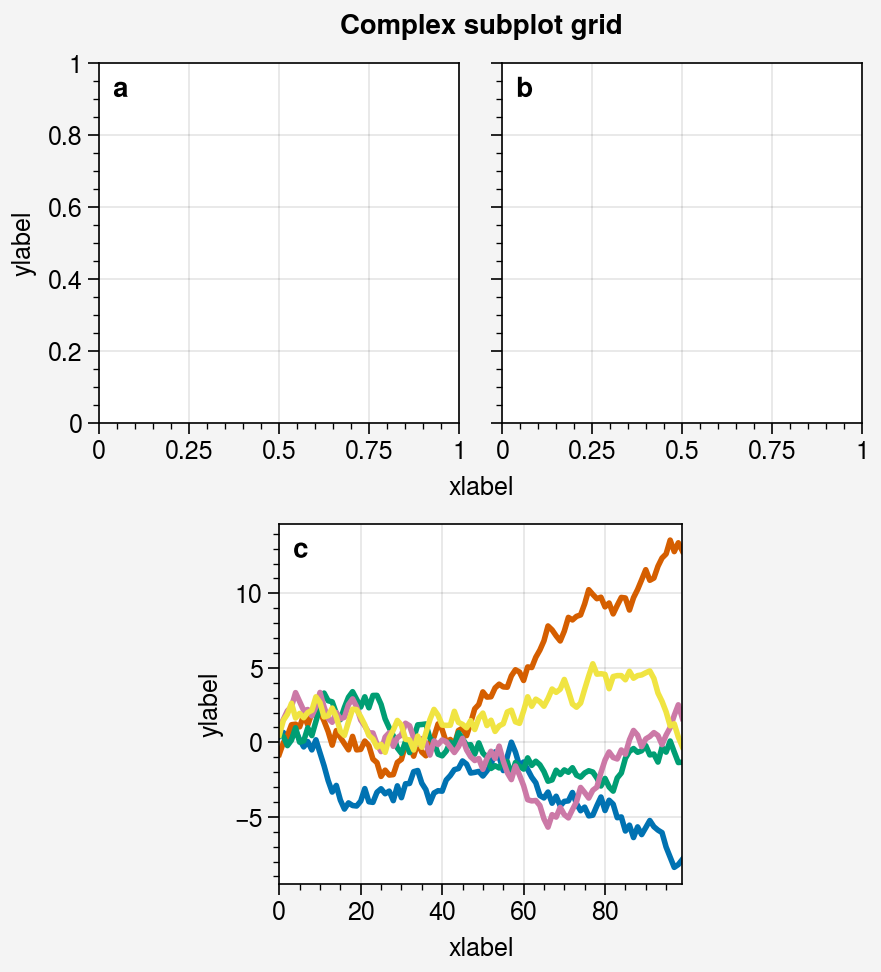
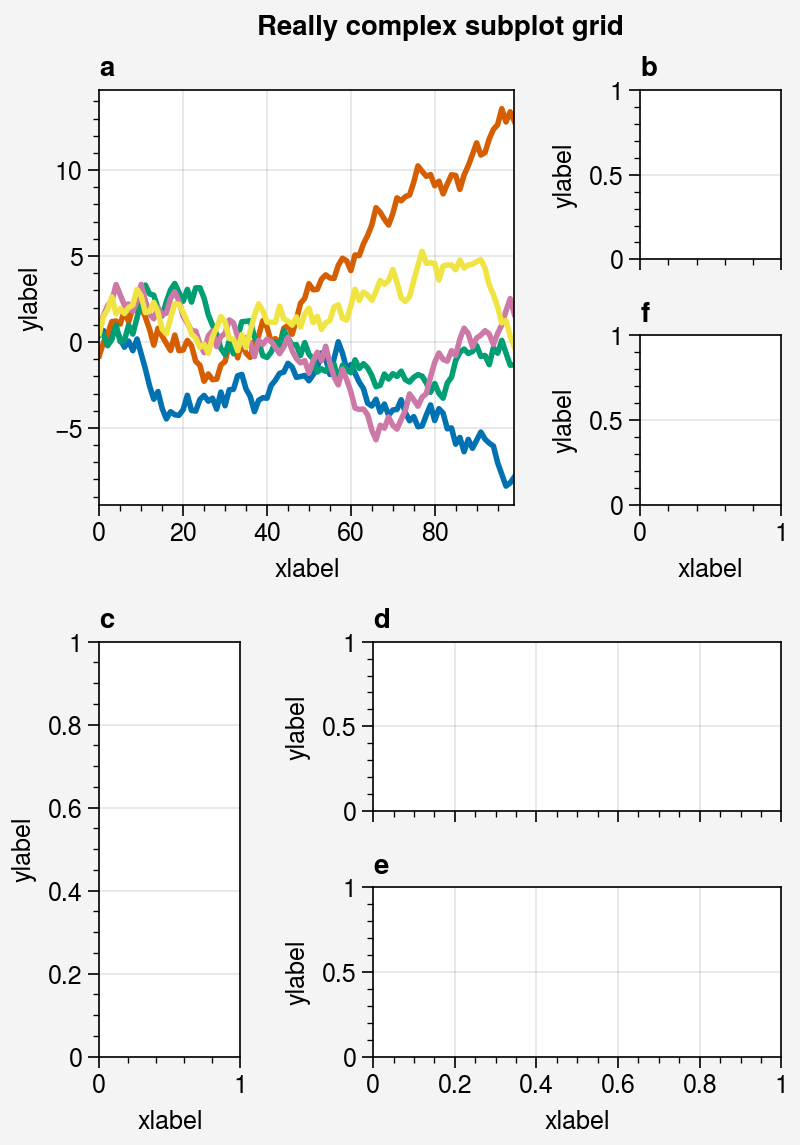
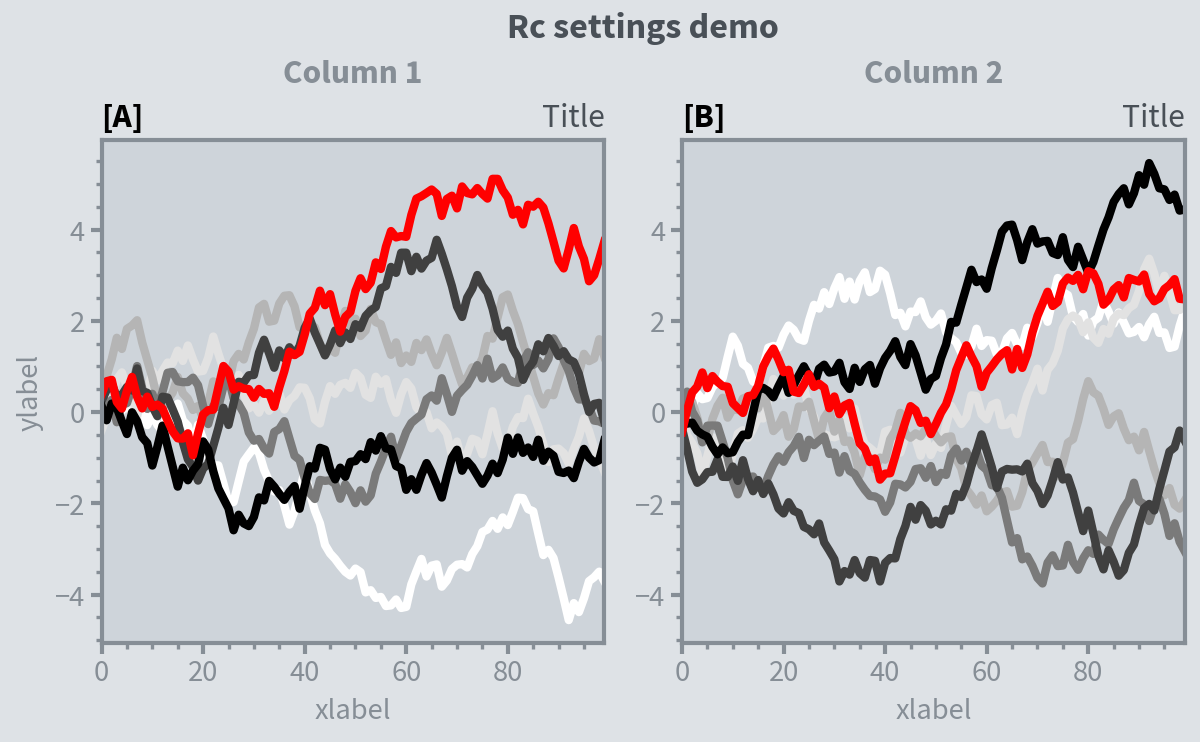
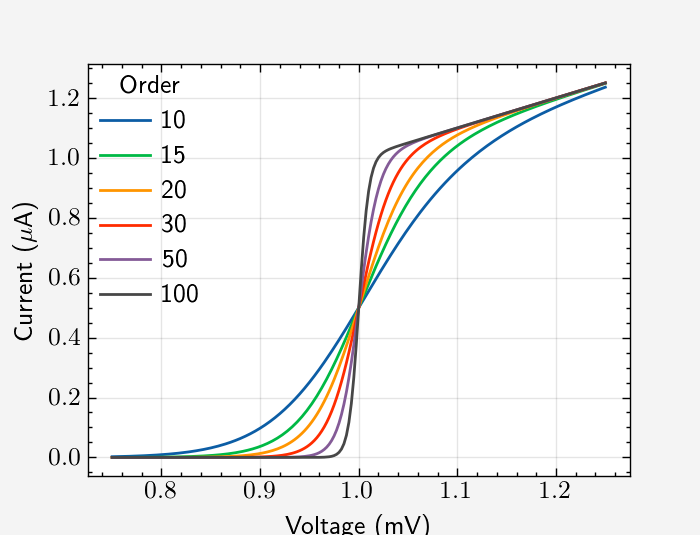

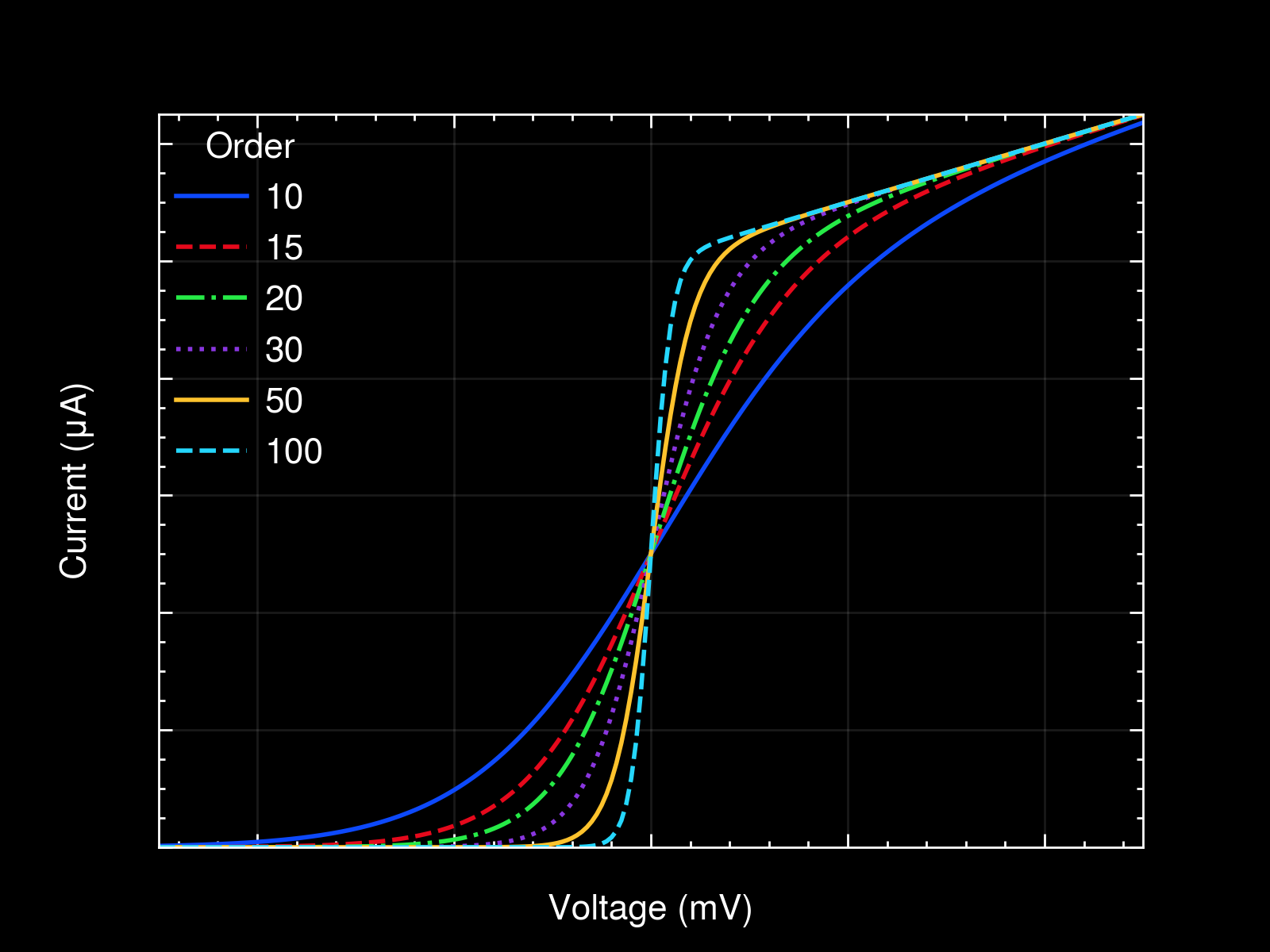
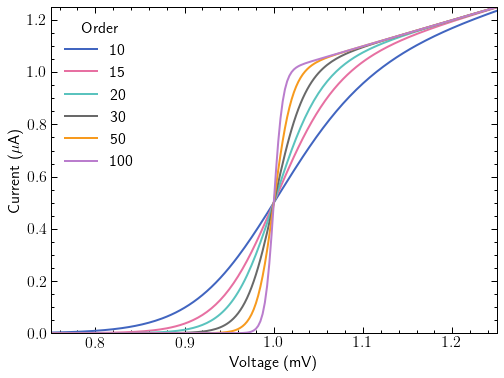
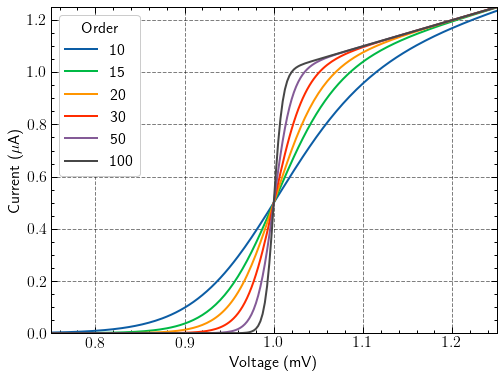
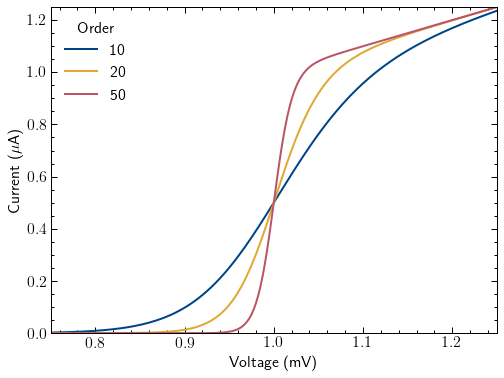
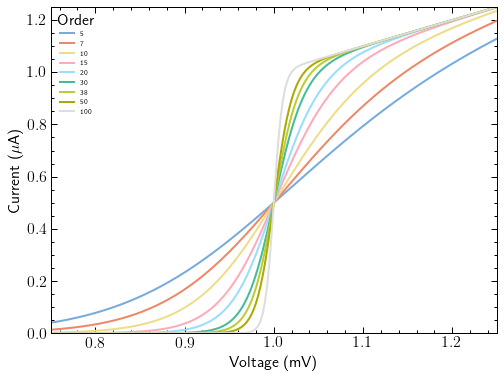
                        <![CDATA[<p>欢迎关注笔者的微信公众号<br /><img src="https://img-blog.csdnimg.cn/20190513170937504.jpg" width="100px" height="100px"></p><hr><h1 id="proplot" tabindex="-1">Proplot</h1><h2 id="%E5%AE%89%E8%A3%85" tabindex="-1">安装</h2><pre><code class="language-shell">pip install proplotconda install -c conda-forge proplot</code></pre><blockquote><p>要使用proplot绘图，必须先调用 figure 或 subplots 。这些是根据同名的 pyplot 命令建模的。跟matplotlib.pyplot 一样，subplots 一次创建一个图形和一个子图网格，而 figure 创建一个空图形，之后可以用子图填充。下面显示了一个只有一个子图的最小示例。</p></blockquote><pre><code class="language-python"># Simple subplot gridimport numpy as npimport proplot as ppltimport warningswarnings.filterwarnings(&#39;ignore&#39;)state = np.random.RandomState(51423)data = 2 * (state.rand(100, 5) - 0.5).cumsum(axis=0)fig = pplt.figure()ax = fig.subplot(121)ax.plot(data, lw=2)ax = fig.subplot(122)fig.format(    suptitle=&#39;Simple subplot grid&#39;, title=&#39;Title&#39;,    xlabel=&#39;x axis&#39;, ylabel=&#39;y axis&#39;)# fig.save(&#39;~/example1.png&#39;)  # save the figure# fig.savefig(&#39;~/example1.png&#39;)  # alternative</code></pre><img src="output_1_1.png" alt="png" style="zoom: 50%;" /><pre><code class="language-python"># Complex gridimport numpy as npimport proplot as ppltstate = np.random.RandomState(51423)data = 2 * (state.rand(100, 5) - 0.5).cumsum(axis=0)array = [  # the &quot;picture&quot; (0 == nothing, 1 == subplot A, 2 == subplot B, etc.)    [1, 1, 2, 2],    [0, 3, 3, 0],]fig = pplt.figure(refwidth=1.8)axs = fig.subplots(array)axs.format(    abc=True, abcloc=&#39;ul&#39;, suptitle=&#39;Complex subplot grid&#39;,    xlabel=&#39;xlabel&#39;, ylabel=&#39;ylabel&#39;)axs[2].plot(data, lw=2)# fig.save(&#39;~/example2.png&#39;)  # save the figure# fig.savefig(&#39;~/example2.png&#39;)  # alternative</code></pre>   <img src="https://itbird.oss-cn-beijing.aliyuncs.com/img/2022/05/24/output_2_1.png" style="zoom:33%;" /><pre><code class="language-python"># Really complex gridimport numpy as npimport proplot as ppltstate = np.random.RandomState(51423)data = 2 * (state.rand(100, 5) - 0.5).cumsum(axis=0)array = [  # the &quot;picture&quot; (1 == subplot A, 2 == subplot B, etc.)    [1, 1, 2],    [1, 1, 6],    [3, 4, 4],    [3, 5, 5],]fig, axs = pplt.subplots(array, figwidth=5, span=False)axs.format(    suptitle=&#39;Really complex subplot grid&#39;,    xlabel=&#39;xlabel&#39;, ylabel=&#39;ylabel&#39;, abc=True)axs[0].plot(data, lw=2)# fig.save(&#39;~/example3.png&#39;)  # save the figure# fig.savefig(&#39;~/example3.png&#39;)  # alternative</code></pre>  <img src="https://itbird.oss-cn-beijing.aliyuncs.com/img/2022/05/24/output_3_1.png" style="zoom:50%;" /><pre><code class="language-python"># Using a GridSpecimport numpy as npimport proplot as ppltstate = np.random.RandomState(51423)data = 2 * (state.rand(100, 5) - 0.5).cumsum(axis=0)gs = pplt.GridSpec(nrows=2, ncols=2, pad=1)fig = pplt.figure(span=False, refwidth=2)ax = fig.subplot(gs[:, 0])ax.plot(data, lw=2)ax = fig.subplot(gs[0, 1])ax = fig.subplot(gs[1, 1])fig.format(    suptitle=&#39;Subplot grid with a GridSpec&#39;,    xlabel=&#39;xlabel&#39;, ylabel=&#39;ylabel&#39;, abc=True)# fig.save(&#39;~/example4.png&#39;)  # save the figure# fig.savefig(&#39;~/example4.png&#39;)  # alternative</code></pre><p>​    <img src="https://itbird.oss-cn-beijing.aliyuncs.com/img/2022/05/24/output_4_0.png" style="zoom:50%;" /><br />​</p><pre><code class="language-python">import proplot as ppltimport numpy as npstate = np.random.RandomState(51423)# Selected subplots in a simple gridfig, axs = pplt.subplots(ncols=4, nrows=4, refwidth=1.2, span=True)axs.format(xlabel=&#39;xlabel&#39;, ylabel=&#39;ylabel&#39;, suptitle=&#39;Simple SubplotGrid&#39;)axs.format(grid=False, xlim=(0, 50), ylim=(-4, 4))axs[:, 0].format(facecolor=&#39;blush&#39;, edgecolor=&#39;gray7&#39;, linewidth=1)  # eauivalentaxs[:, 0].format(fc=&#39;blush&#39;, ec=&#39;gray7&#39;, lw=1)axs[0, :].format(fc=&#39;sky blue&#39;, ec=&#39;gray7&#39;, lw=1)axs[0].format(ec=&#39;black&#39;, fc=&#39;gray5&#39;, lw=1.4)axs[1:, 1:].format(fc=&#39;gray1&#39;)for ax in axs[1:, 1:]:    ax.plot((state.rand(50, 5) - 0.5).cumsum(axis=0), cycle=&#39;Grays&#39;, lw=2)# Selected subplots in a complex gridfig = pplt.figure(refwidth=1, refnum=5, span=False)axs = fig.subplots([[1, 1, 2], [3, 4, 2], [3, 4, 5]], hratios=[2.2, 1, 1])axs.format(xlabel=&#39;xlabel&#39;, ylabel=&#39;ylabel&#39;, suptitle=&#39;Complex SubplotGrid&#39;)axs[0].format(ec=&#39;black&#39;, fc=&#39;gray1&#39;, lw=1.4)axs[1, 1:].format(fc=&#39;blush&#39;)axs[1, :1].format(fc=&#39;sky blue&#39;)axs[-1, -1].format(fc=&#39;gray4&#39;, grid=False)axs[0].plot((state.rand(50, 10) - 0.5).cumsum(axis=0), cycle=&#39;Grays_r&#39;, lw=2)</code></pre><img src="https://itbird.oss-cn-beijing.aliyuncs.com/img/2022/05/24/output_5_1.png" style="zoom: 33%;" /><img src="https://itbird.oss-cn-beijing.aliyuncs.com/img/2022/05/24/output_5_2.png" style="zoom:33%;" /><pre><code class="language-python">import proplot as ppltimport numpy as np# Sample dataN = 20state = np.random.RandomState(51423)data = N + (state.rand(N, N) - 0.55).cumsum(axis=0).cumsum(axis=1)# Example plotscycle = pplt.Cycle(&#39;greys&#39;, left=0.2, N=5)fig, axs = pplt.subplots(ncols=2, nrows=2, figwidth=5, share=False)axs[0].plot(data[:, :5], linewidth=2, linestyle=&#39;--&#39;, cycle=cycle)axs[1].scatter(data[:, :5], marker=&#39;x&#39;, cycle=cycle)axs[2].pcolormesh(data, cmap=&#39;greys&#39;)m = axs[3].contourf(data, cmap=&#39;greys&#39;)axs.format(    abc=&#39;a.&#39;, titleloc=&#39;l&#39;, title=&#39;Title&#39;,    xlabel=&#39;xlabel&#39;, ylabel=&#39;ylabel&#39;, suptitle=&#39;Quick plotting demo&#39;)fig.colorbar(m, loc=&#39;b&#39;, label=&#39;label&#39;)</code></pre><img src="https://itbird.oss-cn-beijing.aliyuncs.com/img/2022/05/24/output_6_1.png" style="zoom: 33%;" /><pre><code class="language-python">import proplot as ppltimport numpy as npfig, axs = pplt.subplots(ncols=2, nrows=2, refwidth=2, share=False)state = np.random.RandomState(51423)N = 60x = np.linspace(1, 10, N)y = (state.rand(N, 5) - 0.5).cumsum(axis=0)axs[0].plot(x, y, linewidth=1.5)axs.format(    suptitle=&#39;Format command demo&#39;,    abc=&#39;A.&#39;, abcloc=&#39;ul&#39;,    title=&#39;Main&#39;, ltitle=&#39;Left&#39;, rtitle=&#39;Right&#39;,  # different titles    ultitle=&#39;Title 1&#39;, urtitle=&#39;Title 2&#39;, lltitle=&#39;Title 3&#39;, lrtitle=&#39;Title 4&#39;,    toplabels=(&#39;Column 1&#39;, &#39;Column 2&#39;),    leftlabels=(&#39;Row 1&#39;, &#39;Row 2&#39;),    xlabel=&#39;xaxis&#39;, ylabel=&#39;yaxis&#39;,    xscale=&#39;log&#39;,    xlim=(1, 10), xticks=1,    ylim=(-3, 3), yticks=pplt.arange(-3, 3),    yticklabels=(&#39;a&#39;, &#39;bb&#39;, &#39;c&#39;, &#39;dd&#39;, &#39;e&#39;, &#39;ff&#39;, &#39;g&#39;),    ytickloc=&#39;both&#39;, yticklabelloc=&#39;both&#39;,    xtickdir=&#39;inout&#39;, xtickminor=False, ygridminor=True,)</code></pre><p>​    <img src="https://itbird.oss-cn-beijing.aliyuncs.com/img/2022/05/24/output_7_0.png" style="zoom:40%;" /><br />​</p><pre><code class="language-python">import proplot as ppltimport numpy as np# Update global settings in several different wayspplt.rc.metacolor = &#39;gray6&#39;pplt.rc.update({&#39;fontname&#39;: &#39;Source Sans Pro&#39;, &#39;fontsize&#39;: 11})pplt.rc[&#39;figure.facecolor&#39;] = &#39;gray3&#39;pplt.rc.axesfacecolor = &#39;gray4&#39;# pplt.rc.save()  # save the current settings to ~/.proplotrc# Apply settings to figure with context()with pplt.rc.context({&#39;suptitle.size&#39;: 13}, toplabelcolor=&#39;gray6&#39;, metawidth=1.5):    fig = pplt.figure(figwidth=6, sharey=&#39;limits&#39;, span=False)    axs = fig.subplots(ncols=2)# Plot lines with a custom cyclerN, M = 100, 7state = np.random.RandomState(51423)values = np.arange(1, M + 1)cycle = pplt.get_colors(&#39;grays&#39;, M - 1) + [&#39;red&#39;]for i, ax in enumerate(axs):    data = np.cumsum(state.rand(N, M) - 0.5, axis=0)    lines = ax.plot(data, linewidth=3, cycle=cycle)# Apply settings to axes with format()axs.format(    grid=False, xlabel=&#39;xlabel&#39;, ylabel=&#39;ylabel&#39;,    toplabels=(&#39;Column 1&#39;, &#39;Column 2&#39;),    suptitle=&#39;Rc settings demo&#39;,    suptitlecolor=&#39;gray7&#39;,    abc=&#39;[A]&#39;, abcloc=&#39;l&#39;,    title=&#39;Title&#39;, titleloc=&#39;r&#39;, titlecolor=&#39;gray7&#39;)# Reset persistent modifications from head of cellpplt.rc.reset()</code></pre><p>​    <img src="https://itbird.oss-cn-beijing.aliyuncs.com/img/2022/05/24/output_8_0.png" style="zoom:33%;" /></p><pre><code class="language-python">import proplot as ppltimport numpy as np# pplt.rc.style = &#39;style&#39;  # set the style everywhere# Sample datastate = np.random.RandomState(51423)data = state.rand(10, 5)# Set up figurefig, axs = pplt.subplots(ncols=2, nrows=2, span=False, share=False)axs.format(suptitle=&#39;Stylesheets demo&#39;)styles = (&#39;ggplot&#39;, &#39;seaborn&#39;, &#39;538&#39;, &#39;bmh&#39;)# Apply different styles to different axes with format()for ax, style in zip(axs, styles):    ax.format(style=style, xlabel=&#39;xlabel&#39;, ylabel=&#39;ylabel&#39;, title=style)    ax.plot(data, linewidth=3)</code></pre><p>​    <img src="https://itbird.oss-cn-beijing.aliyuncs.com/img/2022/05/24/output_9_0.png" style="zoom:33%;" /><br />​</p><h1 id="scienceplots" tabindex="-1">SciencePlots</h1><h2 id="%E5%AE%89%E8%A3%85-1" tabindex="-1">安装</h2><pre><code class="language-shell"># to install the lastest release (from PyPI)pip install SciencePlots# to install the latest commit (from GitHub)pip install git+https://github.com/garrettj403/SciencePlots# to clone and install from a local copygit clone https://github.com/garrettj403/SciencePlots.gitcd SciencePlotspip install -e .</code></pre><blockquote><p>根据系统不同，需要提前安装latex环境</p></blockquote><h2 id="%E4%BE%8B%E5%AD%90" tabindex="-1">例子</h2><pre><code class="language-python">import numpy as npimport matplotlibimport matplotlib.pyplot as pltmatplotlib.style.reload_library()matplotlib.rcParams[&#39;axes.unicode_minus&#39;] = Falsedef model(x, p):    return x ** (2 * p + 1) / (1 + x ** (2 * p))pparam = dict(xlabel=&#39;Voltage (mV)&#39;, ylabel=&#39;Current ($\mu$A)&#39;)x = np.linspace(0.75, 1.25, 201)</code></pre><pre><code class="language-python">with plt.style.context([&#39;science&#39;]):    fig, ax = plt.subplots()    for p in [10, 15, 20, 30, 50, 100]:        ax.plot(x, model(x, p), label=p)    ax.legend(title=&#39;Order&#39;)    # ax.autoscale(tight=True)    ax.set(**pparam)    # fig.savefig(&#39;figures/fig1.pdf&#39;)    fig.savefig(&#39;figures/fig1.jpg&#39;, dpi=300)</code></pre><img src="https://itbird.oss-cn-beijing.aliyuncs.com/img/2022/05/24/output_13_0.png" style="zoom:50%;" /><pre><code class="language-python">with plt.style.context([&#39;science&#39;, &#39;ieee&#39;, &#39;notebook&#39;]):    fig, ax = plt.subplots()    for p in [10, 20, 40, 100]:        ax.plot(x, model(x, p), label=p)    ax.legend(title=&#39;Order&#39;)    ax.autoscale(tight=True)    ax.set(**pparam)    # Note: $\mu$ doesn&#39;t work with Times font (used by ieee style)    ax.set_ylabel(r&#39;$Current (\mu A)$&#39;)      # fig.savefig(&#39;figures/fig2a.pdf&#39;)    fig.savefig(&#39;figures/fig2a.jpg&#39;, dpi=300)</code></pre><p>​    <img src="https://itbird.oss-cn-beijing.aliyuncs.com/img/2022/05/24/output_14_0.png" style="zoom: 5%;" /><br />​</p><pre><code class="language-python">with plt.style.context([&#39;science&#39;, &#39;ieee&#39;, &#39;std-colors&#39;, &#39;notebook&#39;]):    fig, ax = plt.subplots()    for p in [10, 15, 20, 30, 50, 100]:        ax.plot(x, model(x, p), label=p)    ax.legend(title=&#39;Order&#39;)    ax.autoscale(tight=True)    ax.set(**pparam)    # Note: $\mu$ doesn&#39;t work with Times font (used by ieee style)    ax.set_ylabel(r&#39;$Current (\mu A)$&#39;)      # fig.savefig(&#39;figures/fig2b.pdf&#39;)    fig.savefig(&#39;figures/fig2b.jpg&#39;, dpi=300)</code></pre><p>​    <img src="https://itbird.oss-cn-beijing.aliyuncs.com/img/2022/05/24/output_15_0.png" style="zoom:5%;" /></p><pre><code class="language-python">with plt.style.context([&#39;science&#39;, &#39;high-vis&#39;, &#39;notebook&#39;]):    fig, ax = plt.subplots()    for p in [10, 15, 20, 30, 50, 100]:        ax.plot(x, model(x, p), label=p)    ax.legend(title=&#39;Order&#39;)    ax.autoscale(tight=True)    ax.set(**pparam)    # fig.savefig(&#39;figures/fig4.pdf&#39;)    fig.savefig(&#39;figures/fig4.jpg&#39;, dpi=300)</code></pre><p>​    <img src="output_16_0.png" alt="png" style="zoom: 67%;" /></p><pre><code class="language-python">with plt.style.context([&#39;dark_background&#39;, &#39;science&#39;, &#39;high-vis&#39;, &#39;notebook&#39;]):    fig, ax = plt.subplots()    for p in [10, 15, 20, 30, 50, 100]:        ax.plot(x, model(x, p), label=p)    ax.legend(title=&#39;Order&#39;)    ax.autoscale(tight=True)    ax.set(**pparam)    # fig.savefig(&#39;figures/fig5.pdf&#39;)    fig.savefig(&#39;figures/fig5.jpg&#39;, dpi=300)</code></pre><p>​    <img src="https://itbird.oss-cn-beijing.aliyuncs.com/img/2022/05/24/output_17_0.png" style="zoom: 25%;" /><br />​</p><pre><code class="language-python">with plt.style.context([&#39;science&#39;, &#39;notebook&#39;]):    fig, ax = plt.subplots()    for p in [10, 15, 20, 30, 50, 100]:        ax.plot(x, model(x, p), label=p)    ax.legend(title=&#39;Order&#39;)    ax.autoscale(tight=True)    ax.set(**pparam)    # fig.savefig(&#39;figures/fig10.pdf&#39;)    fig.savefig(&#39;figures/fig10.jpg&#39;, dpi=300)</code></pre><p>​    <img src="output_18_0.png" style="zoom:25%;" /><br />​</p><pre><code class="language-python">with plt.style.context([&#39;science&#39;, &#39;bright&#39;, &#39;notebook&#39;]):    fig, ax = plt.subplots()    for p in [5, 10, 15, 20, 30, 50, 100]:        ax.plot(x, model(x, p), label=p)    ax.legend(title=&#39;Order&#39;)    ax.autoscale(tight=True)    ax.set(**pparam)    # fig.savefig(&#39;figures/fig6.pdf&#39;)    fig.savefig(&#39;figures/fig6.jpg&#39;, dpi=300)</code></pre><p>​    <img src="output_19_0.png" style="zoom: 25%;" /><br />​    <img src="https://itbird.oss-cn-beijing.aliyuncs.com/img/2022/05/24/output_20_0.png" style="zoom:70%;" /><br />​</p><pre><code class="language-python">with plt.style.context([&#39;science&#39;, &#39;muted&#39;, &#39;notebook&#39;]):    fig, ax = plt.subplots()    for p in [5, 7, 10, 15, 20, 30, 38, 50, 100, 500]:        ax.plot(x, model(x, p), label=p)    ax.legend(title=&#39;Order&#39;, fontsize=7)    ax.autoscale(tight=True)    ax.set(**pparam)    # fig.savefig(&#39;figures/fig8.pdf&#39;)    fig.savefig(&#39;figures/fig8.jpg&#39;, dpi=300)</code></pre><p><img src="https://itbird.oss-cn-beijing.aliyuncs.com/img/2022/05/24/output_21_0.png" style="zoom:67%;" /> <img src="https://itbird.oss-cn-beijing.aliyuncs.com/img/2022/05/24/output_22_0.png" style="zoom:67%;" /></p><pre><code class="language-python">with plt.style.context([&#39;science&#39;, &#39;grid&#39;, &#39;notebook&#39;]):    fig, ax = plt.subplots()    for p in [10, 15, 20, 30, 50, 100]:        ax.plot(x, model(x, p), label=p)    ax.legend(title=&#39;Order&#39;)    ax.autoscale(tight=True)    ax.set(**pparam)    # fig.savefig(&#39;figures/fig11.pdf&#39;)    fig.savefig(&#39;figures/fig11.jpg&#39;, dpi=300)</code></pre><p>​    <img src="https://itbird.oss-cn-beijing.aliyuncs.com/img/2022/05/24/output_23_0.png" style="zoom:67%;" /><br />​</p><pre><code class="language-python">with plt.style.context([&#39;science&#39;, &#39;high-contrast&#39;, &#39;notebook&#39;]):    fig, ax = plt.subplots()    for p in [10, 20, 50]:        ax.plot(x, model(x, p), label=p)    ax.legend(title=&#39;Order&#39;)    ax.autoscale(tight=True)    ax.set(**pparam)    # fig.savefig(&#39;figures/fig12.pdf&#39;)    fig.savefig(&#39;figures/fig12.jpg&#39;, dpi=300)</code></pre><p>​    <img src="https://itbird.oss-cn-beijing.aliyuncs.com/img/2022/05/24/output_24_0.png" style="zoom:67%;" /></p><pre><code class="language-python">with plt.style.context([&#39;science&#39;, &#39;light&#39;, &#39;notebook&#39;]):    fig, ax = plt.subplots()    for p in [5, 7, 10, 15, 20, 30, 38, 50, 100]:        ax.plot(x, model(x, p), label=p)    ax.legend(title=&#39;Order&#39;, fontsize=7)    ax.autoscale(tight=True)    ax.set(**pparam)    # fig.savefig(&#39;figures/fig13.pdf&#39;)    fig.savefig(&#39;figures/fig13.jpg&#39;, dpi=300)</code></pre><p>​    <img src="https://itbird.oss-cn-beijing.aliyuncs.com/img/2022/05/24/output_25_0.png" style="zoom:67%;" /><br />​</p><h1 id="%E5%8F%82%E8%80%83%E8%B5%84%E6%96%99" tabindex="-1">参考资料</h1><ul><li><a href="https://proplot.readthedocs.io" target="_blank">https://proplot.readthedocs.io</a></li><li><a href="https://github.com/garrettj403/SciencePlots" target="_blank">https://github.com/garrettj403/SciencePlots</a></li></ul>]]>
                </content>
            </entry>
            <entry>
                <title><![CDATA[可交互绘图-Plotly]]></title>
                <link rel="alternate" type="text/html" href="https://lymboy.com/archives/ke-jiao-hu-hui-tu--plotly" />
                <id>tag:https://lymboy.com,2022-05-07:ke-jiao-hu-hui-tu--plotly</id>
                <published>2022-05-07T23:42:32+08:00</published>
                <updated>2022-05-07T23:43:27+08:00</updated>
                <author>
                    <name>sairo</name>
                    <uri>https://lymboy.com</uri>
                </author>
                <content type="html">
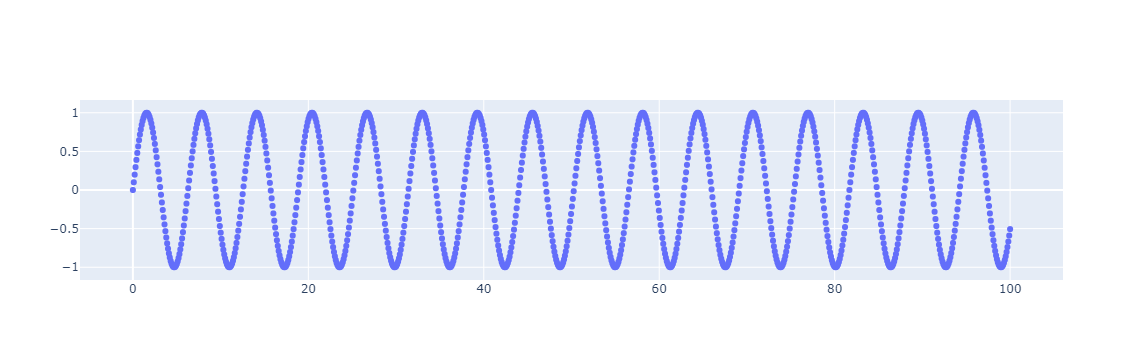
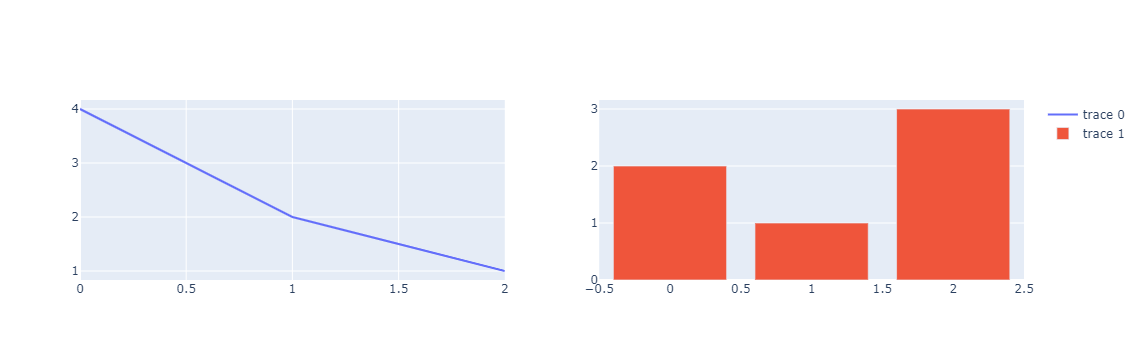
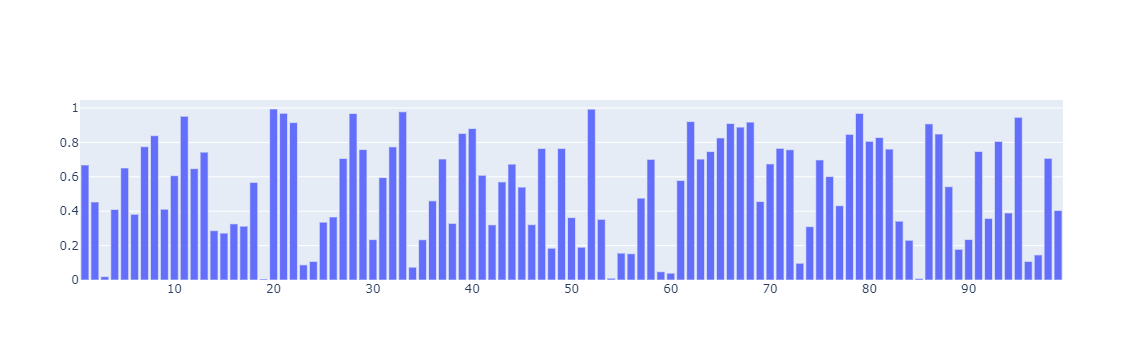
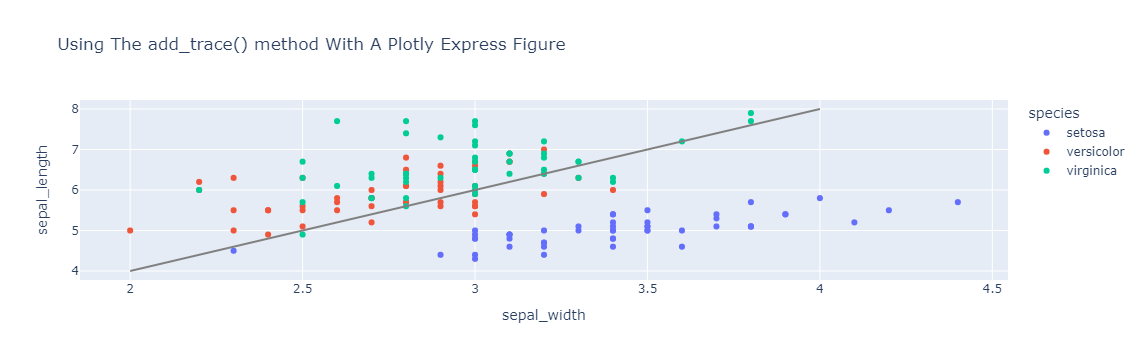
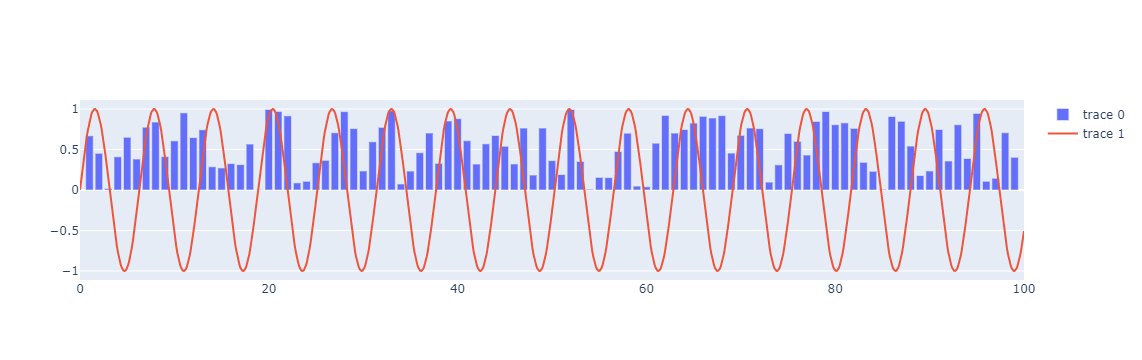
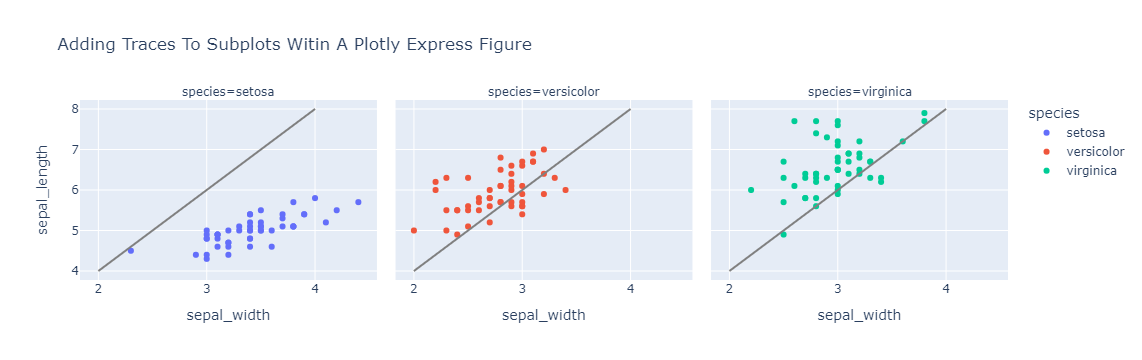
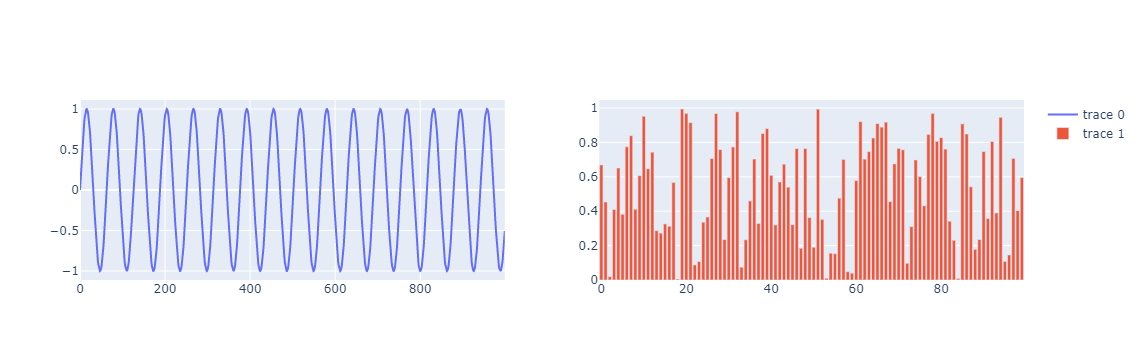
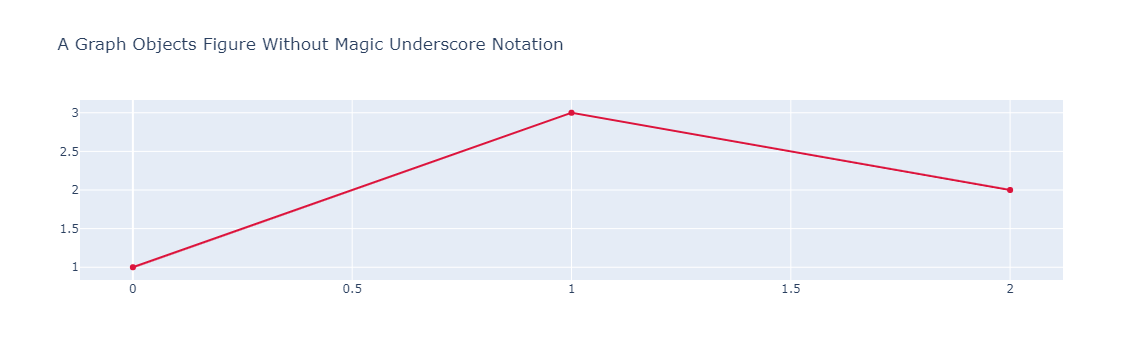
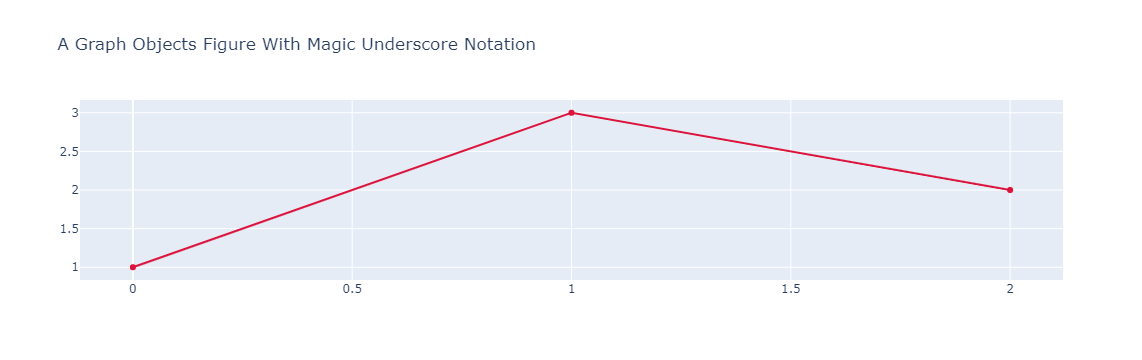
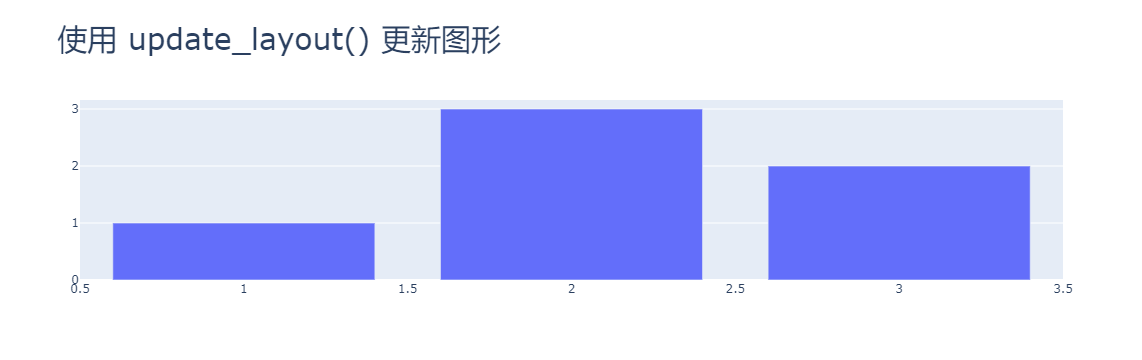
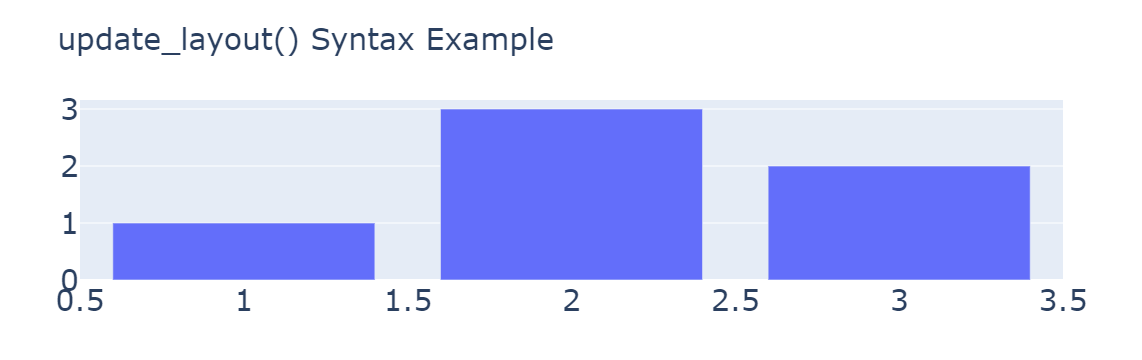
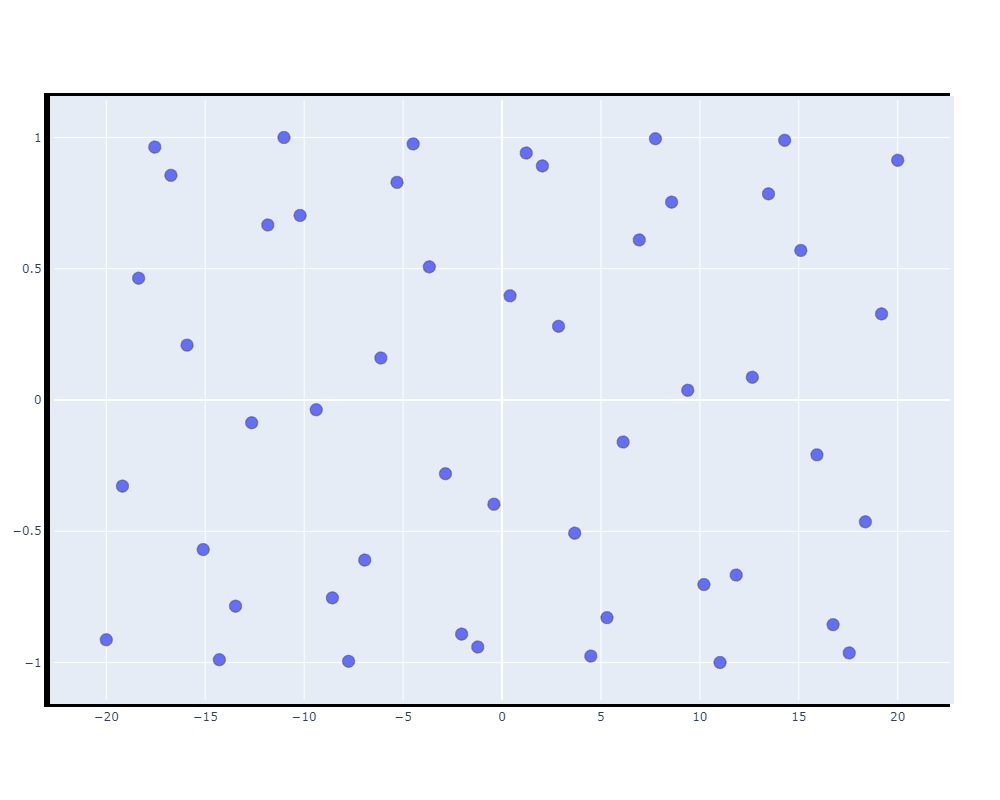
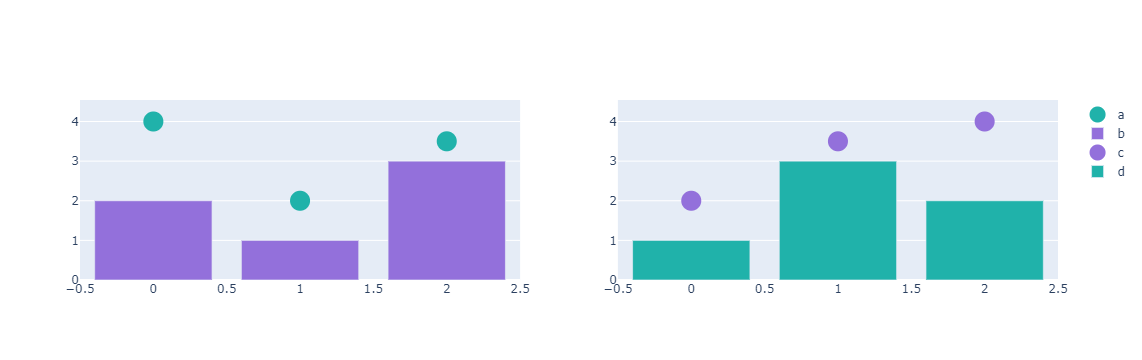
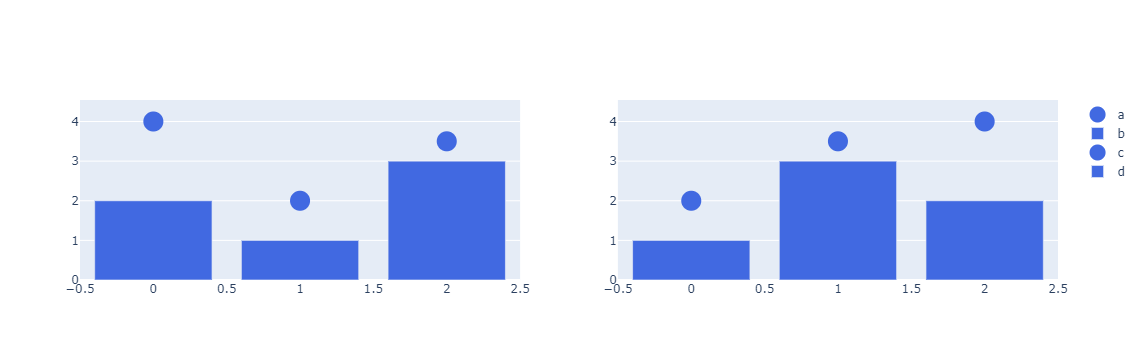
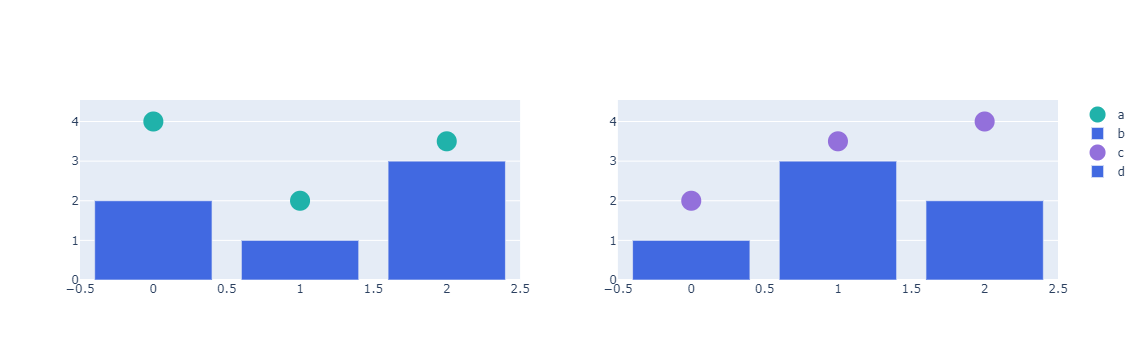
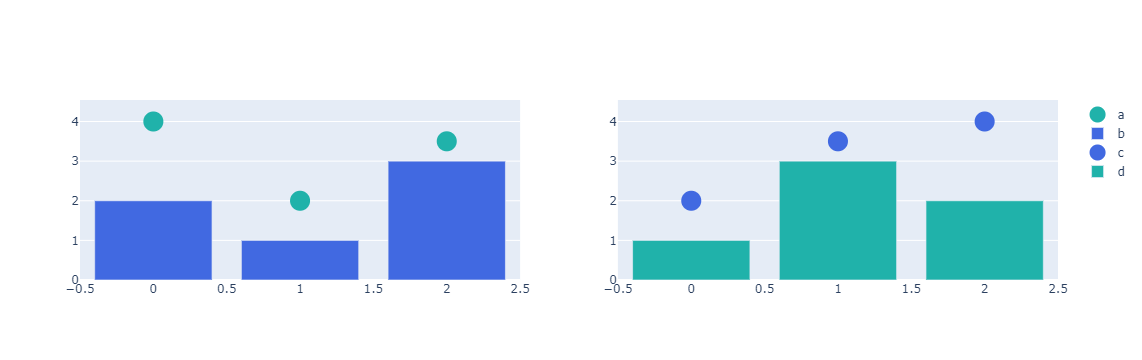
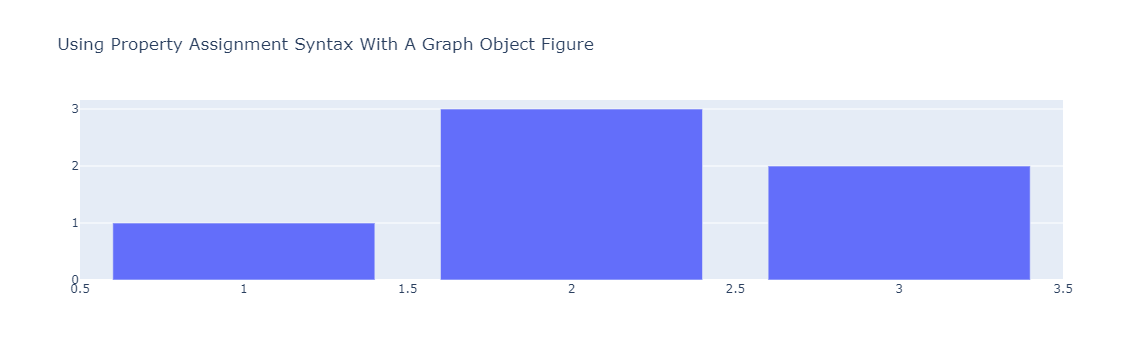
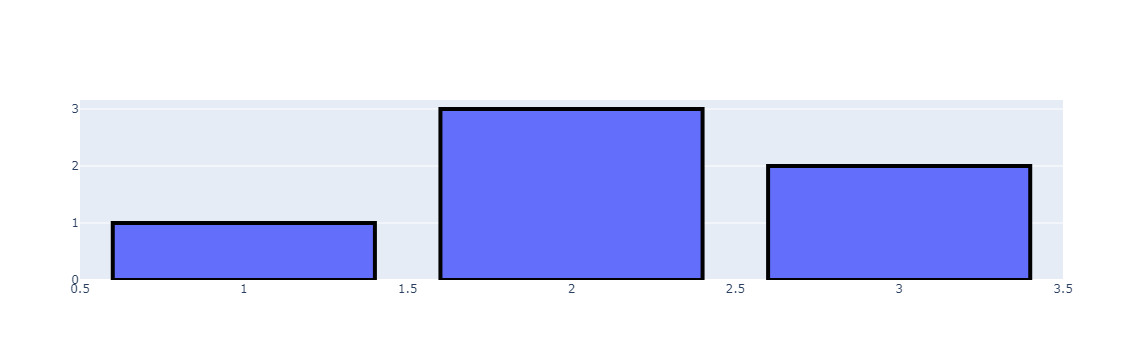
                        <![CDATA[<p>欢迎关注笔者的微信公众号<br /><img src="https://img-blog.csdnimg.cn/20190513170937504.jpg" width="100px" height="100px"></p><hr>Plotly 是一个 Python 库，用于设计图形，尤其是交互式图形。它可以绘制各种图形和图表，如直方图、条形图、箱线图、展开图等等。它主要用于数据分析以及财务分析。<p>plotly 是一个交互式可视化库。</p><h1 id="1.-plotly%E5%AE%89%E8%A3%85" tabindex="-1">1. plotly安装</h1><pre><code class="language-python">pip install plotly# 或conda install -c plotly plotly=5.4.0</code></pre><h2 id="1.1.-%E5%AE%89%E8%A3%85jupyter-lab%E6%94%AF%E6%8C%81" tabindex="-1">1.1. 安装jupyter lab支持</h2><pre><code class="language-python">pip install &quot;jupyterlab&gt;=3&quot; &quot;ipywidgets&gt;=7.6&quot;# 或conda install &quot;jupyterlab&gt;=3&quot; &quot;ipywidgets&gt;=7.6&quot;jupyter labextension install jupyterlab-plotly@5.4.0 @jupyter-widgets/jupyterlab-manager</code></pre><h2 id="1.2.-%E5%AE%89%E8%A3%85jupyter%E6%94%AF%E6%8C%81" tabindex="-1">1.2. 安装jupyter支持</h2><pre><code class="language-python">pip install &quot;notebook&gt;=5.3&quot; &quot;ipywidgets&gt;=7.5&quot;# 或conda install &quot;notebook&gt;=5.3&quot; &quot;ipywidgets&gt;=7.5&quot;</code></pre><h1 id="2.-plotly-%E7%94%9F%E6%80%81" tabindex="-1">2. Plotly 生态</h1><p>Plotly 是绘图基础库，它可以深度定制调整绘图，但是 API 复杂学习成本较高。 Plotly_exprress 则是对 Plotly 的高级封装，上手容易，它对 Plotly 的常用绘图函数进行了封装。缺点是没有 plotly 那样自由度高，个人感觉类似 Seaborn 和 Matplotlib 的关系。本文不以express为主。 Dash 用于创建交互式绘图工具，可以方便地用它来探索数据，其绘图基于 Plotly。使用 Dash 需要注册并购买套餐，也就是常说的“在线模式”，一般，我们在 Jupyter 内本地绘图就够用了，这是“离线模式”。</p><h1 id="3.-%E7%94%BB%E5%9B%BE%E6%A1%88%E4%BE%8B" tabindex="-1">3. 画图案例</h1><p>在画图之前需要先创建画布<code>go.Figure</code>，可以在构造参数中通过data参数指定相关图形也可以后续通过<code>add_trace</code>方法添加</p><h2 id="3.1.-%E6%95%A3%E7%82%B9%E5%9B%BE" tabindex="-1">3.1. 散点图</h2><pre><code class="language-python">import numpy as npimport plotly.graph_objects as gox = np.linspace(0, 100, 1000)y = np.sin(x)x1 = np.arange(1, 100)y1 = np.random.random(100)# 创建画布，在构造函数中通过data参数指定图形fig = go.Figure(data=go.Scatter(x=x, y=y, mode=&quot;markers&quot;, name=&quot;sign&quot;))# fig.add_trace(go.Scatter(x=x1, y=y1, name=&#39;random&#39;))# 显示图像fig.show()</code></pre><p><img src="https://itbird.oss-cn-beijing.aliyuncs.com/img/2022/05/07/newplot.png" alt="" /></p><h2 id="3.2.-%E6%8A%98%E7%BA%BF%E5%9B%BE" tabindex="-1">3.2. 折线图</h2><pre><code class="language-python"># 创建画布fig = go.Figure()# 添加图层fig.add_trace(go.Scatter(x=x1, y=y1, name=&quot;折线图&quot;))fig.show()</code></pre><p><img src="https://itbird.oss-cn-beijing.aliyuncs.com/img/2022/05/07/plot-%E6%8A%98%E7%BA%BF%E5%9B%BE.png" alt="" /></p><h2 id="3.3.-%E6%B7%BB%E5%8A%A0%E5%AD%90%E5%9B%BE" tabindex="-1">3.3. 添加子图</h2><p><code>plotly.subplots.make_subplots()</code> 函数生成一个图形对象图形，该图形对象图形预先配置了可以添加跟踪的子图网格。 <code>add_trace()</code> 函数将在下面详细讨论。</p><pre><code class="language-python">from plotly.subplots import make_subplotsfig = make_subplots(rows=1, cols=2)fig.add_trace(go.Scatter(y=[4, 2, 1], mode=&quot;lines&quot;), row=1, col=1)fig.add_trace(go.Bar(y=[2, 1, 3]), row=1, col=2)fig.show()</code></pre><p><img src="https://itbird.oss-cn-beijing.aliyuncs.com/img/2022/05/07/plotly-add_trace.png" alt="" /></p><h2 id="3.4.-%E6%B7%BB%E5%8A%A0%E8%B7%9F%E8%B8%AA%EF%BC%88%E5%9B%BE%E5%B1%82%EF%BC%89" tabindex="-1">3.4. 添加跟踪（图层）</h2><p>可以使用 add_trace() 方法将新跟踪添加到图形对象图形中。此方法接受图形对象跟踪（go.Scatter、go.Bar 等的实例）并将其添加到图形中。这允许您从一个空图形开始，并按顺序向其中添加跟踪。 append_trace() 方法做同样的事情，虽然它不返回数字。</p><pre><code class="language-python"># 创建画布（空图层）fig = go.Figure()fig.add_trace(go.Bar(x=x1, y=y1))fig.show()</code></pre><p><img src="https://itbird.oss-cn-beijing.aliyuncs.com/img/2022/05/07/plotly-add_trace1.png" alt="" /></p><pre><code class="language-python">import plotly.express as pxdf = px.data.iris()fig = px.scatter(    df,    x=&quot;sepal_width&quot;,    y=&quot;sepal_length&quot;,    color=&quot;species&quot;,    title=&quot;Using The add_trace() method With A Plotly Express Figure&quot;,)fig.add_trace(    go.Scatter(        x=[2, 4],        y=[4, 8],        mode=&quot;lines&quot;,        line=go.scatter.Line(color=&quot;gray&quot;),        showlegend=False,    ))fig.show()</code></pre><p><img src="https://itbird.oss-cn-beijing.aliyuncs.com/img/2022/05/07/plotly-add_trace2.png" alt="" /></p><p>多次调用<code>add_trace</code>可添加多个图层</p><pre><code class="language-python">fig = go.Figure()fig.add_trace(go.Bar(x=x1, y=y1))fig.add_trace(go.Scatter(x=x, y=y))fig.show()</code></pre><p><img src="https://itbird.oss-cn-beijing.aliyuncs.com/img/2022/05/07/plotly-add_trace3.png" alt="" /></p><h2 id="3.5.-%E5%90%91%E5%AD%90%E5%9B%BE%E6%B7%BB%E5%8A%A0trace%EF%BC%88%E5%9B%BE%E5%B1%82%EF%BC%89" tabindex="-1">3.5. 向子图添加Trace（图层）</h2><p>向子图添加跟踪 如果图形是使用 <code>plotly.subplots.make_subplots()</code> 创建的，则向 <code>add_trace()</code> 提供 <code>row</code> 和 <code>col</code> 参数可用于向特定子图添加跟踪。</p><pre><code class="language-python">from plotly.subplots import make_subplotsfig = make_subplots(rows=1, cols=2)fig.add_trace(go.Scatter(y=[4, 2, 1], mode=&quot;lines&quot;), row=1, col=1)fig.add_trace(go.Bar(y=[2, 1, 3]), row=1, col=2)fig.show()</code></pre><p><img src="https://itbird.oss-cn-beijing.aliyuncs.com/img/2022/05/07/plotly-subplot-add_trace.png" alt="" /></p><p>这也适用于 Plotly Express 使用 <code>facet_row</code> 和或 <code>facet_col</code> 参数创建的图形。</p><pre><code class="language-python">import plotly.express as pxdf = px.data.iris()fig = px.scatter(    df,    x=&quot;sepal_width&quot;,    y=&quot;sepal_length&quot;,    color=&quot;species&quot;,    facet_col=&quot;species&quot;,    title=&quot;Adding Traces To Subplots Witin A Plotly Express Figure&quot;,)reference_line = go.Scatter(    x=[2, 4],    y=[4, 8],    mode=&quot;lines&quot;,    line=go.scatter.Line(color=&quot;gray&quot;),    showlegend=False,)fig.add_trace(reference_line, row=1, col=1)fig.add_trace(reference_line, row=1, col=2)fig.add_trace(reference_line, row=1, col=3)fig.show()</code></pre><p><img src="https://itbird.oss-cn-beijing.aliyuncs.com/img/2022/05/07/plotly-subplot-add_trace1.png" alt="" /></p><h2 id="3.6.-%E6%B7%BB%E5%8A%A0%E5%9B%BE%E5%B1%82%E7%AE%80%E4%BE%BF%E6%96%B9%E6%B3%95" tabindex="-1">3.6. 添加图层简便方法</h2><p>作为 <code>add_trace()</code> 方法的替代方法，图形对象图形具有一系列形式为 <code>add_{trace}</code>（其中 {trace} 是跟踪类型的名称）的方法，用于构建和添加每种跟踪类型的跟踪。 这是前面的子图示例，适用于使用 <code>fig.add_scatter()</code> 添加散点跟踪并使用 <code>fig.add_bar()</code> 添加条形跟踪。</p><pre><code class="language-python">from plotly.subplots import make_subplotsfig = make_subplots(rows=1, cols=2)fig.add_scatter(y=y, mode=&quot;lines&quot;, row=1, col=1)fig.add_bar(y=y1, row=1, col=2)fig.show()</code></pre><p><img src="https://itbird.oss-cn-beijing.aliyuncs.com/img/2022/05/07/plotly-add_trace-simple.png" alt="" /></p><h2 id="3.7.-%E9%AD%94%E6%9C%AF%E4%B8%8B%E5%88%92%E7%BA%BF%E7%AC%A6%E5%8F%B7" tabindex="-1">3.7. 魔术下划线符号</h2><p>为了更轻松地使用嵌套属性，图形对象构造函数和许多图形对象方法支持魔术下划线表示法。</p><p>这允许您通过将多个嵌套属性名称与下划线连接在一起来引用嵌套属性。</p><p>例如，在没有魔术下划线符号的图形构造函数中指定图形标题需要将布局参数设置为 <code>dict(title=dict(text=&quot;A Chart&quot;))</code>。 同样，设置散点轨迹的线条颜色需要将标记属性设置为 <code>dict(color=&quot;crimson&quot;)</code>。</p><pre><code class="language-python">import plotly.graph_objects as gofig = go.Figure(    data=[go.Scatter(y=[1, 3, 2], line=dict(color=&quot;crimson&quot;))],    layout=dict(        title=dict(text=&quot;A Graph Objects Figure Without Magic Underscore Notation&quot;)    ),)fig.show()</code></pre><p><img src="https://itbird.oss-cn-beijing.aliyuncs.com/img/2022/05/07/plotly-magicsymbel.png" alt="" /></p><p>使用魔术下划线表示法，您可以通过向图形构造函数传递名为 <code>layout_title_text</code> 的关键字参数，并通过向 <code>go.Scatter</code> 构造函数传递名为 <code>line_color</code> 的关键字参数来完成相同的事情。</p><pre><code class="language-python">import plotly.graph_objects as gofig = go.Figure(    data=[go.Scatter(y=[1, 3, 2], line_color=&quot;crimson&quot;)],    layout_title_text=&quot;A Graph Objects Figure With Magic Underscore Notation&quot;,)fig.show()</code></pre><p><img src="https://itbird.oss-cn-beijing.aliyuncs.com/img/2022/05/07/plotly-magicsymbel-line_color.png" alt="" /></p><p>整个图形对象 API 都支持魔术下划线符号，它通常可以显着简化涉及深度嵌套属性的操作。</p><blockquote><p>注意：当您看到传递给图形对象构造函数或方法的带下划线的关键字参数时，几乎总是可以安全地假设它是魔术下划线符号的应用。我们不得不说“几乎总是”而不是“总是”，因为 plotly 模式中有一些属性名称包含下划线：error_x、error_y、error_z、copy_xstyle、copy_ystyle、copy_zstyle、paper_bgcolor 和 plot_bgcolor。这些是在图书馆的早期（2012-2013）添加回来的，然后我们标准化了禁止属性名称中的下划线。</p></blockquote><h2 id="3.8.-%E6%9B%B4%E6%96%B0%E5%9B%BE%E5%BD%A2%EF%BC%88%E7%94%BB%E5%B8%83%EF%BC%89%E5%B8%83%E5%B1%80" tabindex="-1">3.8. 更新图形（画布）布局</h2><p>图形对象图形支持 <code>update_layout()</code> 方法，该方法可用于更新图形布局的多个嵌套属性。 这是使用 <code>update_layout()</code> 更新图形标题的文本和字体大小的示例。</p><pre><code class="language-python">import plotly.graph_objects as gofig = go.Figure(data=go.Bar(x=[1, 2, 3], y=[1, 3, 2]))fig.update_layout(title_text=&quot;使用 update_layout() 更新图形&quot;, title_font_size=30)fig.show()</code></pre><p><img src="https://itbird.oss-cn-beijing.aliyuncs.com/img/2022/05/07/plotly-update_layout.png" alt="" /></p><p>请注意，以下 <code>update_layout()</code> 操作是等效的：</p><pre><code class="language-python">fig.update_layout(title_text=&quot;update_layout() Syntax Example&quot;, title_font_size=30)fig.update_layout(title_text=&quot;update_layout() Syntax Example&quot;, title_font=dict(size=30))fig.update_layout(title=dict(text=&quot;update_layout() Syntax Example&quot;), font=dict(size=30))fig.update_layout(    {&quot;title&quot;: {&quot;text&quot;: &quot;update_layout() Syntax Example&quot;, &quot;font&quot;: {&quot;size&quot;: 30}}})fig.update_layout(    title=go.layout.Title(        text=&quot;update_layout() Syntax Example&quot;, font=go.layout.title.Font(size=30)    ))</code></pre><p><img src="https://itbird.oss-cn-beijing.aliyuncs.com/img/2022/05/07/plotly-update_layout1.png" alt="" /></p><p>更新图层（trace）大小</p><pre><code class="language-python">import numpy as npimport plotly.graph_objs as gox = np.linspace(-20, 20)y = np.sin(x)trace1 = go.Scatter(    x=x,  # x-coordinates of trace    y=y,  # y-coordinates of trace    mode=&quot;markers +text &quot;,  # scatter mode (more in UG section 1)    opacity=1,    textposition=&quot;top center&quot;,    marker=dict(size=12, line=dict(width=0.5)),    textfont=dict(        color=&quot;black&quot;,        size=18,  # can change the size of font here        family=&quot;Times New Roman&quot;,    ),)data = [trace1]layout = go.Layout(    autosize=False,    width=1000,  # 设置画布宽度    height=800,  # 设置画布高度    xaxis=go.layout.XAxis(        linecolor=&quot;black&quot;, linewidth=3, mirror=True  # 设置X轴线宽    ),  # 上下X轴是否一样    yaxis=go.layout.YAxis(        linecolor=&quot;black&quot;, linewidth=6, mirror=False  # 设置Y轴线宽    ),  # 左右Y轴是否一样    margin=go.layout.Margin(l=50, r=50, b=100, t=100, pad=4),)fig = go.Figure(data=data, layout=layout)fig.show()</code></pre><p><img src="https://itbird.oss-cn-beijing.aliyuncs.com/img/2022/05/07/plotly-update_layout_size.png" alt="" /></p><h2 id="3.9.-%E6%89%B9%E9%87%8F%E6%9B%B4%E6%96%B0%E8%BF%BD%E8%B8%AA%EF%BC%88%E5%9B%BE%E5%B1%82%EF%BC%89" tabindex="-1">3.9. 批量更新追踪（图层）</h2><p>图形对象图形支持 <code>update_traces()</code> 方法，该方法可用于更新图形的一个或多个轨迹的多个嵌套属性。 为了展示一些示例，我们将从一个包含跨越两个子图的条形和散点轨迹的图形开始。</p><pre><code class="language-python">from plotly.subplots import make_subplotsfig = make_subplots(rows=1, cols=2)fig.add_scatter(    y=[4, 2, 3.5],    mode=&quot;markers&quot;,    marker=dict(size=20, color=&quot;LightSeaGreen&quot;),    name=&quot;a&quot;,    row=1,    col=1,)fig.add_bar(y=[2, 1, 3], marker=dict(color=&quot;MediumPurple&quot;), name=&quot;b&quot;, row=1, col=1)fig.add_scatter(    y=[2, 3.5, 4],    mode=&quot;markers&quot;,    marker=dict(size=20, color=&quot;MediumPurple&quot;),    name=&quot;c&quot;,    row=1,    col=2,)fig.add_bar(y=[1, 3, 2], marker=dict(color=&quot;LightSeaGreen&quot;), name=&quot;d&quot;, row=1, col=2)fig.show()</code></pre><p><img src="https://itbird.oss-cn-beijing.aliyuncs.com/img/2022/05/07/plotly-update_traces.png" alt="" /></p><p>请注意，散点图和条形图都有一个<code>marker.color</code> 属性来控制它们的颜色。以下是使用 <code>update_traces()</code> 修改所有轨迹颜色的示例。</p><pre><code class="language-python">from plotly.subplots import make_subplotsfig = make_subplots(rows=1, cols=2)fig.add_scatter(    y=[4, 2, 3.5],    mode=&quot;markers&quot;,    marker=dict(size=20, color=&quot;LightSeaGreen&quot;),    name=&quot;a&quot;,    row=1,    col=1,)fig.add_bar(y=[2, 1, 3], marker=dict(color=&quot;MediumPurple&quot;), name=&quot;b&quot;, row=1, col=1)fig.add_scatter(    y=[2, 3.5, 4],    mode=&quot;markers&quot;,    marker=dict(size=20, color=&quot;MediumPurple&quot;),    name=&quot;c&quot;,    row=1,    col=2,)fig.add_bar(y=[1, 3, 2], marker=dict(color=&quot;LightSeaGreen&quot;), name=&quot;d&quot;, row=1, col=2)fig.update_traces(marker=dict(color=&quot;RoyalBlue&quot;))fig.show()</code></pre><p><img src="https://itbird.oss-cn-beijing.aliyuncs.com/img/2022/05/07/plotly-update_traces1.png" alt="" /></p><p><code>update_traces()</code> 方法支持一个选择器参数来控制应该更新哪些跟踪。只有具有与<strong>选择器</strong>匹配的属性的跟踪才会更新。这是使用选择器仅更新条形轨迹颜色的示例。</p><pre><code class="language-python">from plotly.subplots import make_subplotsfig = make_subplots(rows=1, cols=2)fig.add_scatter(    y=[4, 2, 3.5],    mode=&quot;markers&quot;,    marker=dict(size=20, color=&quot;LightSeaGreen&quot;),    name=&quot;a&quot;,    row=1,    col=1,)fig.add_bar(y=[2, 1, 3], marker=dict(color=&quot;MediumPurple&quot;), name=&quot;b&quot;, row=1, col=1)fig.add_scatter(    y=[2, 3.5, 4],    mode=&quot;markers&quot;,    marker=dict(size=20, color=&quot;MediumPurple&quot;),    name=&quot;c&quot;,    row=1,    col=2,)fig.add_bar(y=[1, 3, 2], marker=dict(color=&quot;LightSeaGreen&quot;), name=&quot;d&quot;, row=1, col=2)fig.update_traces(marker=dict(color=&quot;RoyalBlue&quot;), selector=dict(type=&quot;bar&quot;))fig.show()</code></pre><p><img src="https://itbird.oss-cn-beijing.aliyuncs.com/img/2022/05/07/plotly-update_traces2.png" alt="" /></p><p>可以在选择器中使用魔术下划线符号来匹配嵌套属性。这是一个更新所有正式着色为 <code>&quot;MediumPurple&quot;</code> 的跟踪颜色的示例。</p><pre><code class="language-python">from plotly.subplots import make_subplotsfig = make_subplots(rows=1, cols=2)fig.add_scatter(    y=[4, 2, 3.5],    mode=&quot;markers&quot;,    marker=dict(size=20, color=&quot;LightSeaGreen&quot;),    name=&quot;a&quot;,    row=1,    col=1,)fig.add_bar(y=[2, 1, 3], marker=dict(color=&quot;MediumPurple&quot;), name=&quot;b&quot;, row=1, col=1)fig.add_scatter(    y=[2, 3.5, 4],    mode=&quot;markers&quot;,    marker=dict(size=20, color=&quot;MediumPurple&quot;),    name=&quot;c&quot;,    row=1,    col=2,)fig.add_bar(y=[1, 3, 2], marker=dict(color=&quot;LightSeaGreen&quot;), name=&quot;d&quot;, row=1, col=2)fig.update_traces(marker_color=&quot;RoyalBlue&quot;, selector=dict(marker_color=&quot;MediumPurple&quot;))fig.show()</code></pre><p><img src="https://itbird.oss-cn-beijing.aliyuncs.com/img/2022/05/07/plotly-update_traces3.png" alt="" /></p><p>对于带有子图的图形，update_traces() 方法还支持 row 和 col 参数来控制应更新哪些跟踪。只会更新指定子图行和列中的轨迹。这是<strong>更新第二个子图列</strong>中所有轨迹颜色的示例。</p><pre><code class="language-python">from plotly.subplots import make_subplotsfig = make_subplots(rows=1, cols=2)fig.add_scatter(    y=[4, 2, 3.5],    mode=&quot;markers&quot;,    marker=dict(size=20, color=&quot;LightSeaGreen&quot;),    name=&quot;a&quot;,    row=1,    col=1,)fig.add_bar(y=[2, 1, 3], marker=dict(color=&quot;MediumPurple&quot;), name=&quot;b&quot;, row=1, col=1)fig.add_scatter(    y=[2, 3.5, 4],    mode=&quot;markers&quot;,    marker=dict(size=20, color=&quot;MediumPurple&quot;),    name=&quot;c&quot;,    row=1,    col=2,)fig.add_bar(y=[1, 3, 2], marker=dict(color=&quot;LightSeaGreen&quot;), name=&quot;d&quot;, row=1, col=2)fig.update_traces(marker=dict(color=&quot;RoyalBlue&quot;), col=2)fig.show()</code></pre><p><img src="https://itbird.oss-cn-beijing.aliyuncs.com/img/2022/05/07/plotly-update_traces4.png" alt="" /></p><p><code>update_traces()</code> 方法也可用于图形工厂或 Plotly Express 生成的图形。这是将 Plotly Express 生成的回归线更新为虚线的示例。</p><pre><code class="language-python">import pandas as pdimport plotly.express as pxdf = px.data.iris()fig = px.scatter(    df,    x=&quot;sepal_width&quot;,    y=&quot;sepal_length&quot;,    color=&quot;species&quot;,    facet_col=&quot;species&quot;,    trendline=&quot;ols&quot;,    title=&quot;Using update_traces() With Plotly Express Figures&quot;,)fig.update_traces(    line=dict(dash=&quot;dot&quot;, width=4), selector=dict(type=&quot;scatter&quot;, mode=&quot;lines&quot;))fig.show()</code></pre><p><img src="https://itbird.oss-cn-beijing.aliyuncs.com/img/2022/05/07/plotly-update_traces5.png" alt="" /></p><h1 id="4.-%E4%BD%BF%E7%94%A8%E6%9B%B4%E6%96%B0%E6%96%B9%E6%B3%95%E6%97%B6%E8%A6%86%E7%9B%96%E7%8E%B0%E6%9C%89%E5%B1%9E%E6%80%A7" tabindex="-1">4. 使用更新方法时覆盖现有属性</h1><p><code>update_layout()</code> 和 <code>update_traces()</code> 有一个 <code>overwrite</code> 关键字参数，默认为 <code>False</code>，在这种情况下，更新将递归应用于现有的嵌套属性结构。设置为 True 时，现有属性的先前值将被提供的值覆盖。</p><p>在下面的示例中，在 <code>update_traces()</code> 中使用 <code>overwrite=True</code> 更新标记时，标记的红色会被覆盖。请注意，使用魔术下划线代替<code>marker_opacity</code>设置不会覆盖<code>marker_color</code>，因为属性将仅在<code>marker.opacity</code> 级别开始被覆盖。</p><pre><code class="language-python">import plotly.graph_objects as gofig = go.Figure(    go.Bar(x=[1, 2, 3], y=[6, 4, 9], marker_color=&quot;red&quot;))  # will be overwritten belowfig.update_traces(overwrite=True, marker={&quot;opacity&quot;: 0.4})fig.show()</code></pre><p><img src="https://itbird.oss-cn-beijing.aliyuncs.com/img/2022/05/07/plotly-update_traces-overwrite.png" alt="" /></p><h2 id="4.1.-%E6%9C%89%E6%9D%A1%E4%BB%B6%E5%9C%B0%E6%9B%B4%E6%96%B0%E8%B7%9F%E8%B8%AA" tabindex="-1">4.1. 有条件地更新跟踪</h2><p>假设您要对跟踪集合进行的更新取决于某些跟踪属性的当前值。 <code>update_traces()</code> 方法不能处理这种情况，但是 <code>for_each_trace()</code> 方法可以！</p><p>作为它的第一个参数，<code>for_each_trace()</code> 方法接受一个函数，该函数一次接受和更新一个跟踪。与 update_traces() 一样，<code>for_each_trace()</code> 也接受选择器、行和列参数来控制应考虑哪些跟踪。</p><p>这是使用 <code>for_each_trace()</code> 将“setosa”的唯一标记转换为 Plotly Express 图形中的方形符号的示例。</p><pre><code class="language-python">import pandas as pdimport plotly.express as pxdf = px.data.iris()fig = px.scatter(    df,    x=&quot;sepal_width&quot;,    y=&quot;sepal_length&quot;,    color=&quot;species&quot;,    title=&quot;Conditionally Updating Traces In A Plotly Express Figure With for_each_trace()&quot;,)fig.for_each_trace(    lambda trace: trace.update(marker_symbol=&quot;square&quot;)    if trace.name == &quot;setosa&quot;    else (),)fig.show()</code></pre><p><img src="https://itbird.oss-cn-beijing.aliyuncs.com/img/2022/05/07/plotly-update_traces-conditionally.png" alt="" /></p><h2 id="4.2.-%E6%9B%B4%E6%96%B0%E5%9B%BE%E5%BD%A2%E8%BD%B4" tabindex="-1">4.2. 更新图形轴</h2><p>图形对象图形支持 <code>update_xaxes()</code> 和 <code>update_yaxes()</code> 方法，这些方法可用于更新图形的一个或多个轴的多个嵌套属性。这是使用 <code>update_xaxes()</code> 禁用 Plotly Express 生成的图中所有子图中的垂直网格线的示例。</p><pre><code class="language-python">import pandas as pdimport plotly.express as pxdf = px.data.iris()fig = px.scatter(    df,    x=&quot;sepal_width&quot;,    y=&quot;sepal_length&quot;,    color=&quot;species&quot;,    facet_col=&quot;species&quot;,    title=&quot;Using update_xaxes() With A Plotly Express Figure&quot;,)fig.update_xaxes(showgrid=False)fig.show()</code></pre><p><img src="https://itbird.oss-cn-beijing.aliyuncs.com/img/2022/05/07/plotly-update_xaxes.png" alt="" /></p><p>还有类似于上述 <code>for_each_trace()</code> 方法的 <code>for_each_xaxis()</code> 和 <code>for_each_yaxis()</code> 方法。对于非笛卡尔子图类型（例如 polar），还有额外的 <code>update_{type}</code> 和 <code>for_each_{type}</code> 方法（例如 <code>update_polar()</code>、<code>for_each_polar()</code>）。</p><h1 id="5.-%E9%93%BE%E5%BC%8F%E8%A1%A8%E8%BE%BE" tabindex="-1">5. 链式表达</h1><p>上面描述的所有图形更新操作都是返回对正在修改的图形的引用的方法。这使得可以将多个图形修改操作链接到单个表达式中。</p><pre><code class="language-python">import plotly.express as pxdf = px.data.iris()(    px.scatter(        df,        x=&quot;sepal_width&quot;,        y=&quot;sepal_length&quot;,        color=&quot;species&quot;,        facet_col=&quot;species&quot;,        trendline=&quot;ols&quot;,        title=&quot;Chaining Multiple Figure Operations With A Plotly Express Figure&quot;,    )    .update_layout(title_font_size=24)    .update_xaxes(showgrid=False)    .update_traces(        line=dict(dash=&quot;dot&quot;, width=4), selector=dict(type=&quot;scatter&quot;, mode=&quot;lines&quot;)    )).show()</code></pre><p><img src="https://itbird.oss-cn-beijing.aliyuncs.com/img/2022/05/07/plotly-chain.png" alt="" /></p><h1 id="6.-%E5%B1%9E%E6%80%A7%E5%88%86%E9%85%8D" tabindex="-1">6. 属性分配</h1><p>可以使用属性分配语法更新跟踪和布局属性。这是使用属性分配设置图形标题的示例。</p><h2 id="6.1.-%E4%BF%AE%E6%94%B9%E5%9B%BE%E5%BD%A2%E6%A0%B7%E5%BC%8F%EF%BC%8C%E9%A2%9C%E8%89%B2" tabindex="-1">6.1. 修改图形样式，颜色</h2><pre><code class="language-python">import plotly.graph_objects as gofig = go.Figure(data=go.Bar(x=[1, 2, 3], y=[1, 3, 2]))fig.layout.title.text = &quot;Using Property Assignment Syntax With A Graph Object Figure&quot;fig.show()</code></pre><p><img src="https://itbird.oss-cn-beijing.aliyuncs.com/img/2022/05/07/plotly-attr.png" alt="" /></p><p>这是使用属性分配更新条形轮廓的示例。</p><pre><code class="language-python">import plotly.graph_objects as gofig = go.Figure(data=go.Bar(x=[1, 2, 3], y=[1, 3, 2]))fig.data[0].marker.line.width = 4fig.data[0].marker.line.color = &quot;black&quot;fig.show()</code></pre><p><img src="https://itbird.oss-cn-beijing.aliyuncs.com/img/2022/05/07/plotly-line-width.png" alt="" /></p><p>That’s all!</p>]]>
                </content>
            </entry>
            <entry>
                <title><![CDATA[Docker配置远程访问]]></title>
                <link rel="alternate" type="text/html" href="https://lymboy.com/archives/docker-pei-zhi-yuan-cheng-fang-wen" />
                <id>tag:https://lymboy.com,2022-05-02:docker-pei-zhi-yuan-cheng-fang-wen</id>
                <published>2022-05-02T23:20:40+08:00</published>
                <updated>2022-05-02T23:20:40+08:00</updated>
                <author>
                    <name>sairo</name>
                    <uri>https://lymboy.com</uri>
                </author>
                <content type="html">
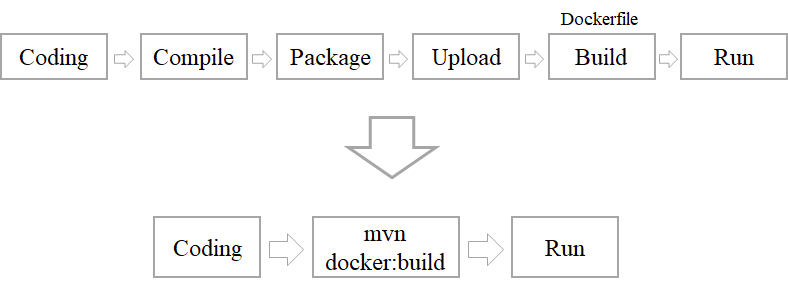
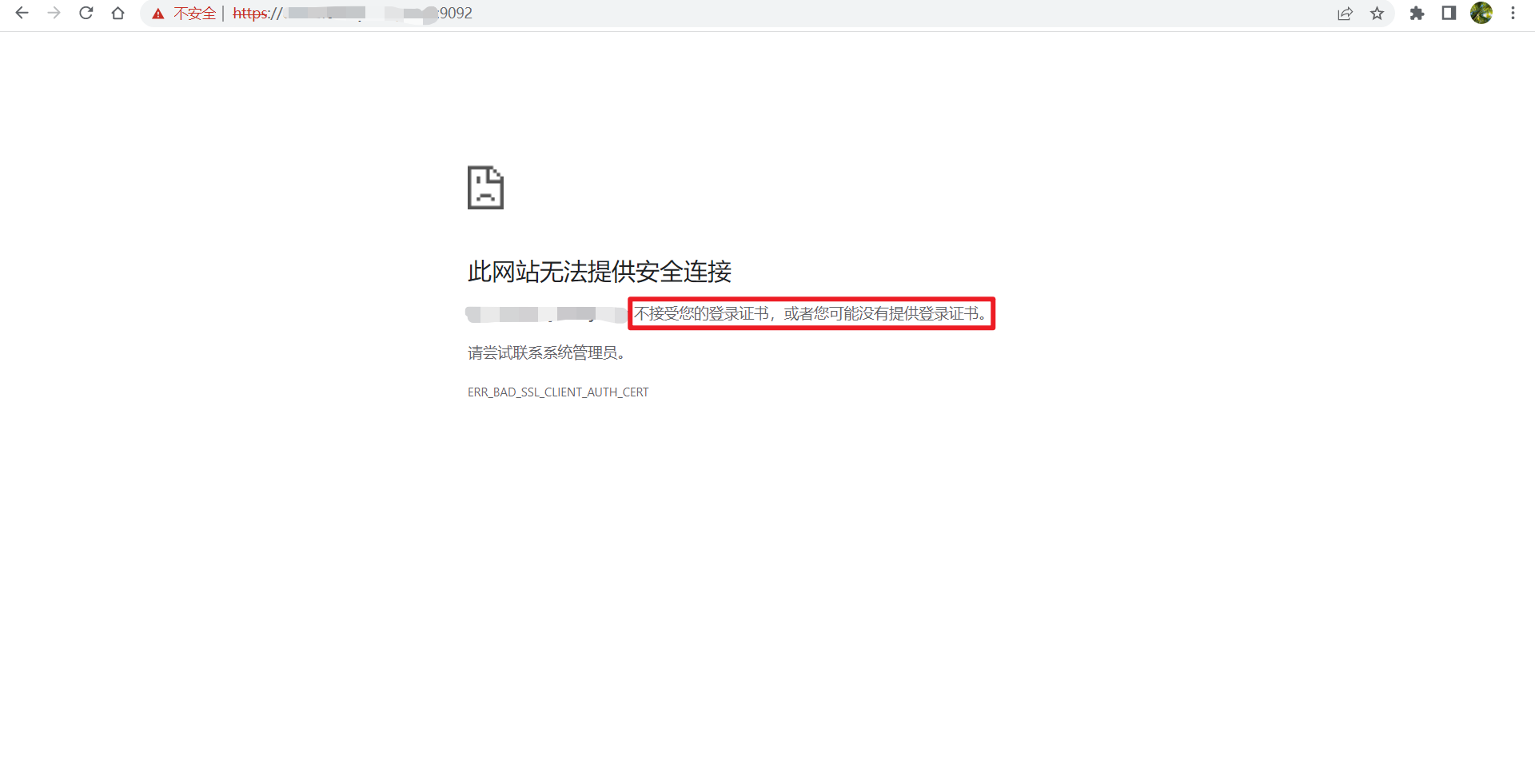
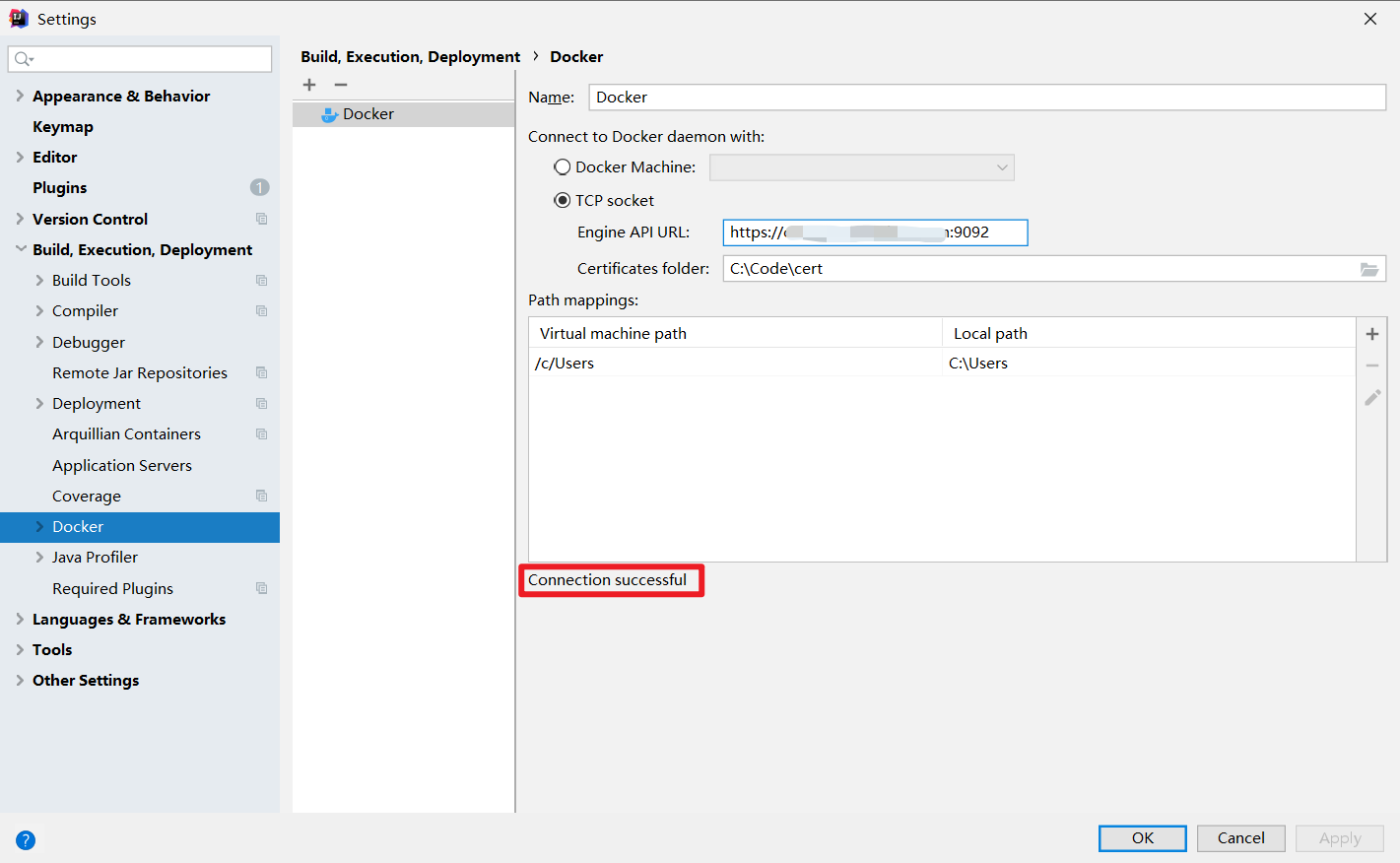
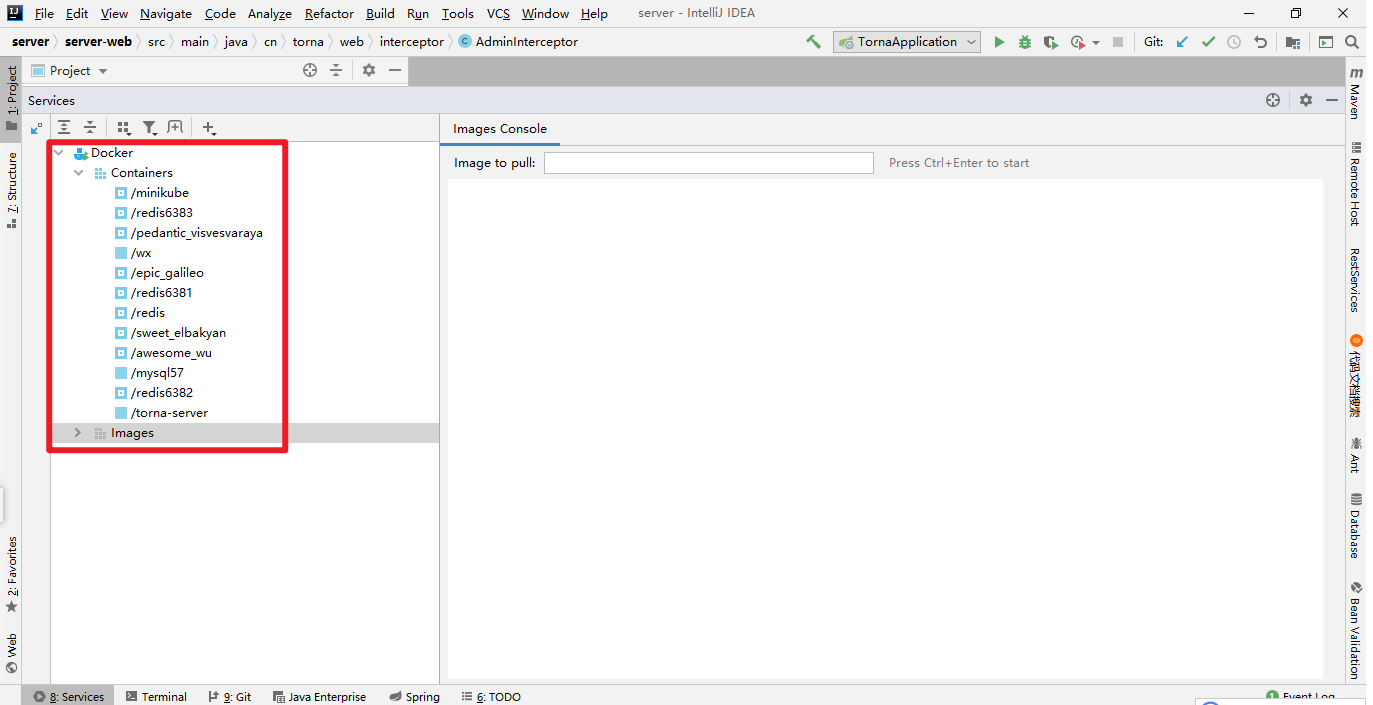
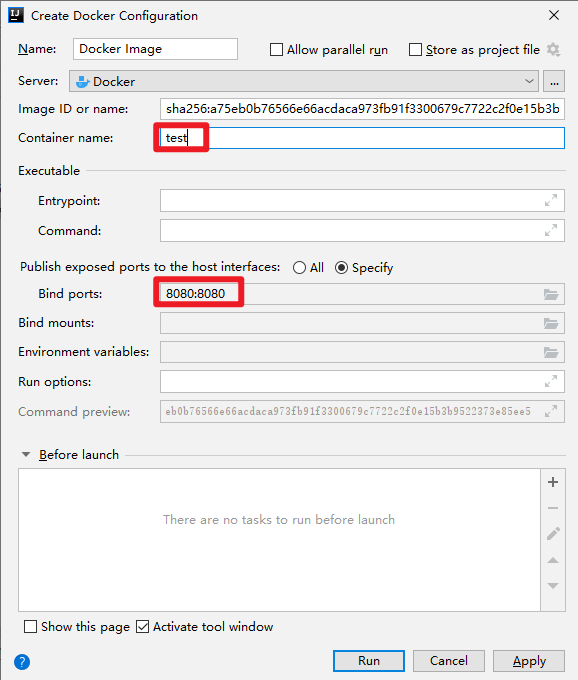
                        <![CDATA[<h2 id="%E5%89%8D%E8%A8%80" tabindex="-1">前言</h2><p>通常我们使用<code>docker</code> 都是在服务器端<code>pull</code>镜像然后根据镜像创建容器。对于自开发的应用，如果想要将其创建为<code>docker</code>镜像一般需要将应用编译打包后编写<code>Dockerfile</code>文件使用<code>docker build</code>命令构建成docker镜像。对于每次的版本升级和功能迭代都需要重复这些步骤，因此最好将这些操作流程化和自动化。</p><p><img src="https://itbird.oss-cn-beijing.aliyuncs.com/img/2022/05/02/image-20220502215207486.png" alt="image-20220502215207486" /></p><p>可以对docker进行相关配置，客户端可远程对docker服务进行操作。</p><blockquote><p>If you need to access the Docker daemon remotely, you need to enable the <code>tcp</code> Socket. Beware that the default setup provides un-encrypted and un-authenticated direct access to the Docker daemon - and should be secured either using the <a href="https://docs.docker.com/engine/security/https/" target="_blank">built in HTTPS encrypted socket</a>, or by putting a secure web proxy in front of it. You can listen on port <code>2375</code> on all network interfaces with <code>-H tcp://0.0.0.0:2375</code>, or on a particular network interface using its IP address: <code>-H tcp://192.168.59.103:2375</code>. It is conventional to use port <code>2375</code> for un-encrypted, and port <code>2376</code> for encrypted communication with the daemon.</p></blockquote><p>最简单的方式就是将docker向外暴露。</p><pre><code class="language-shell"># vim /usr/lib/systemd/system/docker.service...第13行ExecStart=/usr/bin/dockerd -H fd:// \    -H tcp://0.0.0.0:2375 \    --containerd=/run/containerd/containerd.sock...# service docker restart</code></pre><p>但是，这样的方式没有任何防护，是非常不安全的，因为docker默认是以<code>root</code>用户启动的，一旦黑客通过docker服务对服务器进行攻击，很容易拿到服务器的<code>root</code>权限从而造成严重的后果。因此最好对docker服务进行加密，只有拿到加密证书的客户端才能对服务端进行操作。</p><h2 id="%E5%85%B7%E4%BD%93%E6%AD%A5%E9%AA%A4" tabindex="-1">具体步骤</h2><ul><li>创建加密证书</li><li>配置docker服务使用加密方式</li><li>客户端连接时指定证书</li></ul><p><strong>官方文档：</strong></p><ul><li><a href="https://docs.docker.com/engine/reference/commandline/dockerd/#:~:text=Examples-,Daemon%20socket%20option,-%F0%9F%94%97" target="_blank">https://docs.docker.com/engine/reference/commandline/dockerd/#:~:text=Examples-,Daemon socket option,-🔗</a></li><li><a href="https://docs.docker.com/engine/security/protect-access/#:~:text=C%0AControlPersist%20%20%20%20yes-,Use%20TLS%20(HTTPS)%20to%20protect%20the%20Docker%20daemon%20socket,-%F0%9F%94%97" target="_blank">https://docs.docker.com/engine/security/protect-access/#:~:text=CControlPersist    yes-,Use TLS (HTTPS) to protect the Docker daemon socket,-🔗</a></li></ul><h3 id="%E7%94%9F%E6%88%90%E8%AF%81%E4%B9%A6" tabindex="-1">生成证书</h3><pre><code class="language-shell">$ HOST=example.com$ openssl genrsa -aes256 -out ca-key.pem 4096Generating RSA private key, 4096 bit long modulus (2 primes)..........++++.........................................................................................................................................................................................++++e is 65537 (0x010001)Enter pass phrase for ca-key.pem:Verifying - Enter pass phrase for ca-key.pem:$ openssl req -new -x509 -days 365 -key ca-key.pem -sha256 -out ca.pemEnter pass phrase for ca-key.pem:You are about to be asked to enter information that will be incorporatedinto your certificate request.What you are about to enter is what is called a Distinguished Name or a DN.There are quite a few fields but you can leave some blankFor some fields there will be a default value,If you enter &#39;.&#39;, the field will be left blank.-----Country Name (2 letter code) [AU]:CNState or Province Name (full name) [Some-State]:BeijingLocality Name (eg, city) []:ChaoyangOrganization Name (eg, company) [Internet Widgits Pty Ltd]:ZNHOrganizational Unit Name (eg, section) []:Common Name (e.g. server FQDN or YOUR name) []:Email Address []:alayama@163.com$ openssl genrsa -out server-key.pem 4096Generating RSA private key, 4096 bit long modulus (2 primes)........................................................................................................................................................++++...............................................++++e is 65537 (0x010001)$ openssl req -subj &quot;/CN=$HOST&quot; -sha256 -new -key server-key.pem -out server.csr$ echo subjectAltName = DNS:$HOST,IP:127.0.0.1 &gt;&gt; extfile.cnf$ echo extendedKeyUsage = serverAuth &gt;&gt; extfile.cnf$ openssl x509 -req -days 365 -sha256 -in server.csr -CA ca.pem -CAkey ca-key.pem -CAcreateserial -out server-cert.pem -extfile extfile.cnfSignature oksubject=CN = example.comGetting CA Private KeyEnter pass phrase for ca-key.pem:$ openssl genrsa -out key.pem 4096Generating RSA private key, 4096 bit long modulus (2 primes).........................................................................................................................................................................................++++................++++e is 65537 (0x010001)$ openssl req -subj &#39;/CN=client&#39; -new -key key.pem -out client.csr$ echo extendedKeyUsage = clientAuth &gt; extfile-client.cnf$ openssl x509 -req -days 365 -sha256 -in client.csr -CA ca.pem -CAkey ca-key.pem -CAcreateserial -out cert.pem -extfile extfile-client.cnfSignature oksubject=CN = clientGetting CA Private KeyEnter pass phrase for ca-key.pem:$ rm -v client.csr server.csr extfile.cnf extfile-client.cnfrm: remove regular file ‘client.csr’? yremoved ‘client.csr’rm: remove regular file ‘server.csr’? yremoved ‘server.csr’rm: remove regular file ‘extfile.cnf’? yremoved ‘extfile.cnf’rm: remove regular file ‘extfile-client.cnf’? yremoved ‘extfile-client.cnf’$ chmod -v 0400 ca-key.pem key.pem server-key.pemmode of ‘ca-key.pem’ changed from 0600 (rw-------) to 0400 (r--------)mode of ‘key.pem’ changed from 0600 (rw-------) to 0400 (r--------)mode of ‘server-key.pem’ changed from 0600 (rw-------) to 0400 (r--------)$ chmod -v 0444 ca.pem server-cert.pem cert.pemmode of ‘ca.pem’ changed from 0644 (rw-r--r--) to 0444 (r--r--r--)mode of ‘server-cert.pem’ changed from 0644 (rw-r--r--) to 0444 (r--r--r--)mode of ‘cert.pem’ changed from 0644 (rw-r--r--) to 0444 (r--r--r--)</code></pre><h3 id="%E9%85%8D%E7%BD%AEdocker%E4%BD%BF%E7%94%A8%E5%8A%A0%E5%AF%86%E6%96%B9%E5%BC%8F" tabindex="-1">配置docker使用加密方式</h3><pre><code class="language-shell">$ vim /usr/lib/systemd/system/docker.service...第左右13行ExecStart=/usr/bin/dockerd -H fd:// \--tlsverify --tlscacert=/data/docker_cert/ca.pem \--tlscert=/data/docker_cert/server-cert.pem \--tlskey=/data/docker_cert/server-key.pem \-H tcp://0.0.0.0:2376 \--containerd=/run/containerd/containerd.sock...$ service docker restart</code></pre><p>按照官方说法，docker默认使用<code>2375</code>端口作为非加密方式的访问端口，<code>2376</code>端口作为加密端口，且不支持自定义修改。</p><p>对于云服务器，需要放开相关的端口外部才可以访问。</p><blockquote><p>对于公司内网环境，直接使用默认端口就好，但是对于外网环境建议再对2376端口进行转发避免黑客对指定端口进行攻击。</p></blockquote><p>可以在浏览器使用<code>https://$HOST:PORT</code>进行测试，如果提示证书不正确说明配置成功，只有拿到证书的客户端才可以访问远程docker服务。</p><p><img src="https://itbird.oss-cn-beijing.aliyuncs.com/img/2022/05/02/image-20220501210845486.png" alt="image-20220501210845486" /></p><h2 id="idea%E8%BF%9E%E6%8E%A5%E8%BF%9C%E7%A8%8Bdocker" tabindex="-1">IDEA连接远程Docker</h2><p>将<code>ca.pem</code>，<code>cert.pem</code>，<code>key.pem</code>三个证书下载到本地。</p><p>在IDEA中打开File-&gt;Settings-&gt;Docker，填写URL和证书目录，</p><p><img src="https://itbird.oss-cn-beijing.aliyuncs.com/img/2022/05/02/image-20220502220249698.png" alt="image-20220502220249698" /></p><p><img src="https://itbird.oss-cn-beijing.aliyuncs.com/img/2022/05/02/image-20220502220338543.png" alt="image-20220502220338543" /></p><h2 id="%E9%85%8D%E7%BD%AEmaven-docker%E6%8F%92%E4%BB%B6" tabindex="-1">配置maven docker插件</h2><pre><code class="language-xml">&lt;plugin&gt;&lt;groupId&gt;io.fabric8&lt;/groupId&gt;    &lt;artifactId&gt;docker-maven-plugin&lt;/artifactId&gt;&lt;/plugin&gt;</code></pre><p>这个插件功能很丰富，可定制化程度更高，具体配置如下：</p><pre><code class="language-xml">&lt;plugin&gt;    &lt;groupId&gt;io.fabric8&lt;/groupId&gt;    &lt;artifactId&gt;docker-maven-plugin&lt;/artifactId&gt;    &lt;version&gt;0.39.1&lt;/version&gt;    &lt;configuration&gt;        &lt;certPath&gt;C:\Code\cert&lt;/certPath&gt;        &lt;dockerHost&gt;https://xxxxxxxxxx:9092&lt;/dockerHost&gt;        &lt;useColor&gt;true&lt;/useColor&gt;        &lt;images&gt;            &lt;image&gt;                &lt;alias&gt;${project.name}&lt;/alias&gt;                &lt;name&gt;lymboy/${project.name}&lt;/name&gt;                &lt;build&gt;                    &lt;from&gt;ccr.ccs.tencentyun.com/lymboy/java8:1.0&lt;/from&gt;                    &lt;maintainer&gt;alayama@163.com&lt;/maintainer&gt;                    &lt;tags&gt;                        &lt;tag&gt;${project.version}&lt;/tag&gt;                    &lt;/tags&gt;                    &lt;workdir&gt;/opt/&lt;/workdir&gt;                    &lt;ports&gt;                        &lt;port&gt;8080&lt;/port&gt;                    &lt;/ports&gt;                    &lt;entryPoint&gt;                        &lt;exec&gt;                            &lt;arg&gt;java&lt;/arg&gt;                            &lt;arg&gt;-jar&lt;/arg&gt;                            &lt;arg&gt;/opt/${project.name}.jar&lt;/arg&gt;                        &lt;/exec&gt;                    &lt;/entryPoint&gt;                    &lt;assembly&gt;                        &lt;mode&gt;dir&lt;/mode&gt;                        &lt;targetDir&gt;/opt&lt;/targetDir&gt;                        &lt;descriptorRef&gt;artifact&lt;/descriptorRef&gt;                    &lt;/assembly&gt;                &lt;/build&gt;            &lt;/image&gt;        &lt;/images&gt;    &lt;/configuration&gt;    &lt;dependencies&gt;        &lt;dependency&gt;            &lt;groupId&gt;commons-codec&lt;/groupId&gt;            &lt;artifactId&gt;commons-codec&lt;/artifactId&gt;            &lt;version&gt;1.15&lt;/version&gt;        &lt;/dependency&gt;    &lt;/dependencies&gt;&lt;/plugin&gt;</code></pre><p>添加上述maven插件后，通过maven命令就可以直接将项目构建成docker镜像并推送到远程docker服务。</p><pre><code class="language-shell">mvn clean package -Dfile.encoding=UTF-8 docker:build</code></pre><p>上述的插件配置等价于如下<code>Dockerfile</code></p><pre><code class="language-text">FROM ccr.ccs.tencentyun.com/lymboy/java8:1.0MAINTAINER alayama@163.comEXPOSE 8080COPY maven /opt/WORKDIR /opt/ENTRYPOINT [&quot;java&quot;,&quot;-jar&quot;,&quot;/opt/example.jar&quot;]</code></pre><p>当应用镜像推送到远程docker服务后，可以在IDEA Services直接运行指定的镜像。</p><p><img src="https://itbird.oss-cn-beijing.aliyuncs.com/img/2022/05/02/image-20220502221552563.png" alt="image-20220502221552563" /></p><p>这样，将原本为复杂的应用部署过程直接使用鼠标点击几下就可以解决，非常方便。</p><p>如果在构建镜像中有用到jdk8，可以使用笔者构建的jdk8基础镜像<code>ccr.ccs.tencentyun.com/lymboy/java8:1.0</code></p><h1 id="" tabindex="-1"></h1>]]>
                </content>
            </entry>
            <entry>
                <title><![CDATA[箱线图的几种画法-Python]]></title>
                <link rel="alternate" type="text/html" href="https://lymboy.com/archives/xiang-xian-tu-de-ji-zhong-hua-fa--python" />
                <id>tag:https://lymboy.com,2021-12-24:xiang-xian-tu-de-ji-zhong-hua-fa--python</id>
                <published>2021-12-24T21:07:23+08:00</published>
                <updated>2021-12-24T21:07:23+08:00</updated>
                <author>
                    <name>sairo</name>
                    <uri>https://lymboy.com</uri>
                </author>
                <content type="html">
                        <![CDATA[<h1 id="箱线图的几种画法-python">箱线图的几种画法-Python</h1><p>好久没写文章了，科研?真难。</p><img src="https://itbird.oss-cn-beijing.aliyuncs.com/img-md/2021/12/24/head1-头秃.jpeg" style="zoom: 33%;" /><p>箱线图是一种强大的数据可视化工具，用于了解数据的分布。它将数据分成四分位数，并根据从这些四分位数得出的五个数字对其进行汇总：</p><ul><li><p>中位数：数据的中间值。标记为 Q2，描绘了第 50 个百分点。</p></li><li><p>第一个四分位数：“最小非异常值”和中位数之间的中间值。标记为 Q1，描绘了第 25 个百分点。</p></li><li><p>第三四分位数：“最大非异常值”和中位数之间的中间值。标记为 Q3，描绘了第 75 个百分点。</p></li><li><p>“最大非异常值”：按 (Q3 + 1.5*IQR) 计算。高于此值的所有值都被视为异常值。</p></li><li><p>“最小非异常值”：按 (Q1 – 1.5*IQR) 计算。低于此值的所有值都被视为异常值。</p></li></ul><p>它还可以表示数据的对称性、偏度和分布。</p><p><img src="https://itbird.oss-cn-beijing.aliyuncs.com/img-md/2021/12/24/image-20211224194443712.png" alt="" /></p><p><strong>箱型图的功能：</strong></p><ul><li>直观明了地识别数据批中的异常值</li><li>利用箱线图判断数据批的偏态和尾重</li><li>比较几批数据的形状</li></ul><h2 id="使用pandas--seaborn绘制箱型图">使用Pandas + Seaborn绘制箱型图</h2><ul><li>导入相关库</li></ul><pre><code class="language-python">%matplotlib inlineimport matplotlib.pyplot as pltimport numpy as npimport pandas as pdimport plotly.express as pximport plotly.graph_objects as goimport seaborn as snsimport warningswarnings.filterwarnings(&quot;ignore&quot;)sns.set(font=&quot;SimHei&quot;)plt.rcParams[&quot;font.sans-serif&quot;] = [&quot;SimHei&quot;]plt.rcParams[&quot;axes.unicode_minus&quot;] = False</code></pre><h3 id="pandas绘图">Pandas绘图</h3><pre><code class="language-python"># load the datasetdf = sns.load_dataset('tips')df.head(10)</code></pre><p><img src="https://itbird.oss-cn-beijing.aliyuncs.com/img-md/2021/12/24/image-20211224200344352.png" alt="" /></p><blockquote><p><code>tips</code>是Seaborn官方的一个数据集，首次会从github远程仓库下载到用户目录，如果出现超时可手动使用下面的镜像加速网址下载官方数据集并放到用户目录下，如<code>/home/sairo/seaborn-data</code></p><p><a href="https://github.com.cnpmjs.org/mwaskom/seaborn-data.git">https://github.com.cnpmjs.org/mwaskom/seaborn-data.git</a></p><p><img src="https://itbird.oss-cn-beijing.aliyuncs.com/img-md/2021/12/24/image-20211224201014879.png" alt="" /></p></blockquote><pre><code class="language-python">df.boxplot(by=&quot;day&quot;, column=[&quot;total_bill&quot;])df.boxplot(by=&quot;size&quot;, column=[&quot;tip&quot;], grid=False)</code></pre><p><img src="https://itbird.oss-cn-beijing.aliyuncs.com/img-md/2021/12/24/img123.png" alt="" /> <img src="https://itbird.oss-cn-beijing.aliyuncs.com/img-md/2021/12/24/img124.png" alt="" /></p><h3 id="使用seaborn画箱型图">使用Seaborn画箱型图</h3><pre><code class="language-python">tips = sns.load_dataset(&quot;tips&quot;)tips.head()</code></pre><p><img src="https://itbird.oss-cn-beijing.aliyuncs.com/img-md/2021/12/24/image-20211224200344352.png" alt="" /></p><pre><code class="language-python"># Draw a vertical boxplot grouped# by a categorical variable:sns.set_style(&quot;whitegrid&quot;)sns.boxplot(x=&quot;day&quot;, y=&quot;total_bill&quot;, data=tips)</code></pre><p><img src="https://itbird.oss-cn-beijing.aliyuncs.com/img-md/2021/12/24/img125.png" alt="" /></p><h2 id="seaborn绘制水平箱型图">Seaborn绘制水平箱型图</h2><p>箱线图用于可视化数据分布，这在需要比较数据时非常有用。有时，箱线图也称为箱线图。该框显示了数据集的四分位数，而胡须延伸以显示分布的其余部分。在本文中，我们将使用 python 使用 seaborn 实现水平箱线图。</p><h3 id="水平箱线图">水平箱线图</h3><p>Seaborn 使用 boxplot() 方法绘制箱线图。我们可以通过两种方法将箱线图变成水平箱线图，我们需要切换x和y属性并将其传递给boxplot()方法，另一种是使用<code>orient=&quot;h&quot;</code>选项传递给boxplot() 方法。</p><ul><li><strong>方法一：切换x和y属性</strong></li></ul><pre><code class="language-python"># import library &amp; datasetimport seaborn as snsdf = sns.load_dataset(&quot;iris&quot;)# Just switch x and yplt.Figure(dpi=300)sns.boxplot(y=df[&quot;species&quot;], x=df[&quot;sepal_length&quot;])</code></pre><p><img src="https://itbird.oss-cn-beijing.aliyuncs.com/img-md/2021/12/24/img126.png" alt="" /></p><ul><li><strong>方法 2：使用 <code>orient = h</code></strong></li></ul><pre><code class="language-python"># import library &amp; datasetimport seaborn as snstips = sns.load_dataset(&quot;tips&quot;)ax = sns.boxplot(data=tips, orient=&quot;h&quot;, palette=&quot;Set2&quot;)</code></pre><p><img src="https://itbird.oss-cn-beijing.aliyuncs.com/img-md/2021/12/24/img127.png" alt="" /></p><h2 id="seaborn--使用调色板为箱线图着色">Seaborn – 使用调色板为箱线图着色</h2><p>为您的数据可视化添加正确的颜色集使其更令人印象深刻和可读，seaborn 调色板使您可以轻松地在您的可视化中使用颜色。在本文中，我们将看到如何使用 seaborn 调色板为箱线图着色，还将了解 seaborn 调色板的用途，它也可以应用于其他绘图。</p><pre><code class="language-python"># import librariesimport matplotlib.pyplot as pltimport seaborn as snsds = sns.load_dataset(&quot;iris&quot;)ax = sns.boxplot(data=tips, orient=&quot;h&quot;)</code></pre><p><img src="https://itbird.oss-cn-beijing.aliyuncs.com/img-md/2021/12/24/img128.png" alt="" /></p><p><strong>Seaborn boxplot() 函数有调色板参数，在这个例子中我们设置了palette=”Set1″，它使用定性调色板来给boxplot中的框上色。所以在 boxplot 方法中添加调色板参数。</strong></p><pre><code class="language-python"># use palette methodax = sns.boxplot(data=ds, orient=&quot;h&quot;, palette=&quot;Set1&quot;)</code></pre><p><img src="https://itbird.oss-cn-beijing.aliyuncs.com/img-md/2021/12/24/img129.png" alt="" /></p><h2 id="如何在-python-中使用-seaborn-在-boxplot-上显示均值">如何在 Python 中使用 Seaborn 在 Boxplot 上显示均值？</h2><p>本节使用官方提供的泰坦尼克数据集</p><pre><code class="language-python"># importing useful librariesimport matplotlib.pyplot as pltimport seaborn as sns# using titanic dataset from# seaborn librarydf = sns.load_dataset(&quot;titanic&quot;)# to see first 5 rows of datasetdf.head()</code></pre><p><img src="https://itbird.oss-cn-beijing.aliyuncs.com/img-md/2021/12/24/image-20211224202310874.png" alt="" /></p><pre><code class="language-python"># to plot a boxplot of# age vs survived featureplt.figure(figsize=(10, 8))sns.boxplot(x=&quot;survived&quot;, y=&quot;age&quot;, data=df)plt.ylabel(&quot;Age&quot;, size=14)plt.xlabel(&quot;Survived&quot;, size=14)plt.title(&quot;Titanic Dataset&quot;, size=18)</code></pre><p><img src="https://itbird.oss-cn-beijing.aliyuncs.com/img-md/2021/12/24/img130.png" alt="" /></p><p>我们观察到中位数显示为四分位线，但未显示平均值。</p><ul><li>为了显示均值，我们在 boxplot 函数中使用了一个额外的关键字参数。我们将 <code>showmeans</code> 设置为 True。</li></ul><pre><code class="language-python"># boxplot with showmeansplt.figure(figsize=(10, 8))sns.boxplot(x=&quot;survived&quot;, y=&quot;age&quot;, data=df, showmeans=True)  # notice the changeplt.ylabel(&quot;Age&quot;, size=14)plt.xlabel(&quot;Survived&quot;, size=14)plt.title(&quot;Titanic Dataset&quot;, size=18)</code></pre><p><img src="https://itbird.oss-cn-beijing.aliyuncs.com/img-md/2021/12/24/img131.png" alt="" /></p><ul><li>要设置我们自定义的标记和标记颜色，我们将使用<code>meanprops</code>关键字参数，如下面的代码所示。</li></ul><pre><code class="language-python"># customizing using meanpropsplt.figure(figsize=(10, 8))sns.boxplot(    x=&quot;survived&quot;,    y=&quot;age&quot;,    data=df,    showmeans=True,    meanprops={&quot;marker&quot;: &quot;+&quot;, &quot;markeredgecolor&quot;: &quot;black&quot;, &quot;markersize&quot;: &quot;10&quot;},)plt.ylabel(&quot;Age&quot;, size=14)plt.xlabel(&quot;Survived&quot;, size=14)plt.title(&quot;Titanic Dataset&quot;, size=18)</code></pre><p><img src="https://itbird.oss-cn-beijing.aliyuncs.com/img-md/2021/12/24/img132.png" alt="" /></p><h2 id="如何在-seaborn-中手动排序-boxplot">如何在 Seaborn 中手动排序 Boxplot？</h2><pre><code class="language-python"># import required modulesimport matplotlib.pyplot as pltimport numpy as npimport pandas as pdimport seaborn as sns# load datasettips = sns.load_dataset(&quot;tips&quot;)# display top most rowstips.head()# illustrate box plotfx = sns.boxplot(x=&quot;day&quot;, y=&quot;total_bill&quot;, data=tips, hue=&quot;sex&quot;, palette=&quot;Set2&quot;)</code></pre><p><img src="https://itbird.oss-cn-beijing.aliyuncs.com/img-md/2021/12/24/img133.png" alt="" /></p><ul><li>使用 seaborn 绘制箱线图。看上图的顺序和根据我们的需要设置顺序后的区别。 Palette 将改变图形的颜色（您也可以尝试 Set1 和 Set3）</li></ul><pre><code class="language-python"># illustrating box plot with orderfx = sns.boxplot(    x=&quot;day&quot;,    y=&quot;total_bill&quot;,    data=tips,    order=[&quot;Sun&quot;, &quot;Sat&quot;, &quot;Fri&quot;, &quot;Thur&quot;],    hue=&quot;sex&quot;,    palette=&quot;Set2&quot;,)</code></pre><p><img src="https://itbird.oss-cn-beijing.aliyuncs.com/img-md/2021/12/24/img134.png" alt="" /></p><h2 id="使用-seaborn-在-python-中分组箱线图">使用 Seaborn 在 Python 中分组箱线图</h2><p>分组箱线图用于可视化具有多个子组的数据。此外，我们可以使用分组箱线图一次可视化三个变量，其中一个变量是数字变量，另外两个变量是分类变量。 我们将使用 Python 的 Seaborn 库来创建分组箱线图。我们将使用来自 Seaborn 库的tip数据集。</p><pre><code class="language-python"># import seaborn libraryimport seaborn as sns# load the datasetdata = sns.load_dataset(&quot;tips&quot;)data.head(5)</code></pre><p><strong>示例 1</strong>：让我们创建一个箱线图来了解“tips”数据集的每一“天”上“total_bill”的分布。但我们也想根据“性别”属性对其进行分组。因此，我们将为这三个属性绘制分组箱线图，其中“sex”和“day”是分类属性，“total_bill”是数值属性。</p><pre><code class="language-python">sns.boxplot(x=data[&quot;day&quot;], y=data[&quot;total_bill&quot;], hue=data[&quot;sex&quot;])</code></pre><p><img src="https://itbird.oss-cn-beijing.aliyuncs.com/img-md/2021/12/24/img135.png" alt="" /></p><p><strong>示例 2</strong>：下一个示例与上一个示例类似。唯一的区别是作为&quot;smoker&quot;属性的&quot;hue&quot;参数的值。在这里，我们想根据一个人是否吸烟来了解&quot;total_bill&quot;与&quot;day&quot;组的分布。</p><pre><code class="language-python"># create another grouped boxplotsns.boxplot(x=data[&quot;day&quot;], y=data[&quot;total_bill&quot;], hue=data[&quot;smoker&quot;], palette=&quot;Set2&quot;)</code></pre><p><img src="https://itbird.oss-cn-beijing.aliyuncs.com/img-md/2021/12/24/img136.png" alt="" /></p><p><strong>示例 3</strong>：在本示例中，我们将介绍如何绘制 2 个以上的分组箱线图。如果&quot;hue&quot;参数的值有 2 个以上的类别，那么我们可以绘制 2 个以上的分组箱线图，如下所示。 在这里，'hue' = data['size'] 有六个类别，因此我们可以使用与上述相同的方法看到 2 个以上的分组箱线图。</p><pre><code class="language-python">sns.boxplot(x=data[&quot;day&quot;], y=data[&quot;total_bill&quot;], hue=data[&quot;size&quot;], palette=&quot;husl&quot;)</code></pre><p><img src="https://itbird.oss-cn-beijing.aliyuncs.com/img-md/2021/12/24/img137.png" alt="" /></p><h2 id="使用-graph-objects-类在-plotly-中绘制箱线图">使用 graph_objects 类在 Plotly 中绘制箱线图</h2><p>Plotly 是一个 Python 库，用于设计图形，尤其是交互式图形。它可以绘制各种图形和图表，如直方图、条形图、箱线图、展开图等等。它主要用于数据分析以及财务分析。</p><h3 id="使用graph-objects类的箱线图">使用<code>graph_objects</code>类的箱线图</h3><pre><code class="language-python">import plotly.graph_objects as goimport numpy as np# creating random data through randomint# function of numpy.randomnp.random.seed(42)random_y1= np.random.randint(1,101,100)random_y2= np.random.randint(1,101,100)x = ['A', 'B', 'C', 'D']fig = go.Figure()fig.add_trace(go.Box(y=random_y1))fig.add_trace(go.Box(y=random_y2))fig.show()</code></pre><p><img src="https://itbird.oss-cn-beijing.aliyuncs.com/img-md/2021/12/24/img138.png" alt="" /></p><h3 id="水平箱线图-1">水平箱线图</h3><p>水平箱线图是一种箱线图，其中 x 变量和 y 值在图中水平显示。它可以通过传递箱线图的 x 参数来创建。</p><pre><code class="language-python">import plotly.graph_objects as goimport numpy as np# creating random data through randomint# function of numpy.randomnp.random.seed(42)random_x1= np.random.randint(1,101,100)random_x2= np.random.randint(1,101,100)x = ['A', 'B', 'C', 'D']fig = go.Figure()fig.add_trace(go.Box(x=random_x1))fig.add_trace(go.Box(x=random_x2))fig.show()</code></pre><p><img src="https://itbird.oss-cn-beijing.aliyuncs.com/img-md/2021/12/24/img139.png" alt="" /></p><h3 id="寻找均值和标准差">寻找均值和标准差</h3><p>可以使用 boxmean 参数找到由<code>boxplot</code>绘制的数据的平均值和标准偏差。它可以取两个值:</p><p><code>True</code>: 显示均值</p><p><code>sd</code>: 为标准差。</p><pre><code class="language-python">import plotly.graph_objects as goimport numpy as np# creating random data through randomint# function of numpy.randomnp.random.seed(42)random_x1= np.random.randint(1,101,100)random_x2= np.random.randint(1,101,100)x = ['A', 'B', 'C', 'D']fig = go.Figure()fig.add_trace(go.Box(x=random_x1, marker_color = 'indianred', boxmean=True))fig.add_trace(go.Box(x=random_x2, marker_color='royalblue', boxmean='sd'))fig.show()</code></pre><p><img src="https://itbird.oss-cn-beijing.aliyuncs.com/img-md/2021/12/24/img140.png" alt="" /></p><h3 id="更改四分位数的算法">更改四分位数的算法</h3><p>选择四分位数的算法也可以在plotly中选择。默认使用线性算法计算。然而，它提供了两种以上的算法来做同样的事情，即包容性和排斥性。可以通过传递 <code>quartilemethod</code> 参数来完成。</p><pre><code class="language-python">import plotly.graph_objects as goimport numpy as np# creating random data through randomint# function of numpy.randomnp.random.seed(42)random_y= np.random.randint(1,101,100)x = ['A', 'B', 'C', 'D']fig = go.Figure()fig.add_trace(go.Box(y=random_y, quartilemethod=&quot;linear&quot;, name=&quot;linear&quot;))fig.add_trace(go.Box(y=random_y, quartilemethod=&quot;inclusive&quot;, name=&quot;inclusive&quot;))fig.add_trace(go.Box(y=random_y, quartilemethod=&quot;exclusive&quot;, name=&quot;exclusive&quot;))fig.show()</code></pre><p><img src="https://itbird.oss-cn-beijing.aliyuncs.com/img-md/2021/12/24/img141.png" alt="" /></p><h3 id="显示基础数据">显示基础数据</h3><p>可以使用 <code>boxpoints</code> 参数显示基础数据。这个参数的值可以是三种类型——</p><p><code>all</code>为所有点</p><p><code>outliers</code> 仅异常值</p><p><code>false</code> 不是以上任何一种</p><pre><code class="language-python">import plotly.graph_objects as goimport numpy as np# creating random data through randomint# function of numpy.randomnp.random.seed(42)random_y1= np.random.randint(1,101,100)random_y2= np.random.randint(1,101,100)x = ['A', 'B', 'C', 'D']fig = go.Figure()fig.add_trace(go.Box(y=random_y1, boxpoints=&quot;all&quot;))fig.add_trace(go.Box(y=random_y2, boxpoints=&quot;outliers&quot;))fig.show()</code></pre><p><img src="https://itbird.oss-cn-beijing.aliyuncs.com/img-md/2021/12/24/img141.png" alt="" /></p><h2 id="参考文献">参考文献</h2><ul><li><a href="https://www.geeksforgeeks.org/horizontal-boxplots-with-seaborn-in-python/?ref=lbp">https://www.geeksforgeeks.org/horizontal-boxplots-with-seaborn-in-python/?ref=lbp</a></li></ul>]]>
                </content>
            </entry>
            <entry>
                <title><![CDATA[云服务器环境下搭建kafka测试环境]]></title>
                <link rel="alternate" type="text/html" href="https://lymboy.com/archives/云服务器环境下搭建kafka测试环境" />
                <id>tag:https://lymboy.com,2021-12-23:云服务器环境下搭建kafka测试环境</id>
                <published>2021-12-23T18:35:49+08:00</published>
                <updated>2021-12-23T18:52:22+08:00</updated>
                <author>
                    <name>sairo</name>
                    <uri>https://lymboy.com</uri>
                </author>
                <content type="html">
                        <![CDATA[<p>欢迎关注笔者的微信公众号<br /><img src="https://img-blog.csdnimg.cn/20190513170937504.jpg" width="100px" height="100px"></p><hr>今天在云服务器搭建kafka测试环境然后远程连接出现问题，在命令行中可以正常创建生产者，消费者以及topic,但是通过代码远程连接是就出现问题。经过排查最终发现是`advertised.listeners`和`listeners`这两个配置的原因。出现这个问题的原因是云服务器通常都有两个IP,一个公网ip，一个内网ip.之前在虚拟机或者局域网环境中搭建kafka环境时都是用同一个ip，所以没有出现这个问题。## 解决办法```propertieslisteners=PLAINTEXT://0.0.0.0:9092advertised.listeners=PLAINTEXT://公网ip/域名:9092```![](https://itbird.oss-cn-beijing.aliyuncs.com/halo/25340037-0d74-442d-a3e4-ab4372f43e3e_1640255736660.png)<h2 id="原理剖析">原理剖析</h2><p><code>listeners</code>: 学名叫监听器，其实就是告诉外部连接者要通过什么协议访问指定主机名和端口开放的 Kafka 服务。<br /><code>advertised.listeners</code>：和 <code>listeners</code> 相比多了个 <code>advertised</code>。Advertised 的含义表示宣称的、公布的，就是说这组监听器是 Broker 用于对外发布的。<br />kafka 节点启动后，会向 zookeeper 注册自己，<strong>同时告诉 zookeeper 自身的通信地址，这个地址就是配置文件中的 advertised.listeners，如果没有配置 advertised.listeners，就会使用listeners</strong>。同时从 zookeeper 中获取兄弟节点的这个地址，以便与兄弟节点通信。即 kafka 节点是从 zookeeper 获取的其他节点的通信地址。<br />我们使用客户端以一个 ip 地址首次连接 kafka 节点后，<strong>节点返回给客户端的 kafka 集群地址就是从 zookeeper 中获得的这些地址</strong>，也就是各个节点配置的 advertised.listeners，包括当前连接的节点。所以可能客户端后续访问当前节点的 ip 地址有可能和首次连接的 ip 地址并不一样。</p><p><strong>为什么客户端需要在第一次请求中获取 kafka 各个节点的服务 ip</strong><br />因为你可以在启动客户端时只配置一个 kafka 节点的地址而不是列出所有节点（这样是不推荐的），但是客户端必须具有访问集群中的每一个节点的能力（收消息、发消息都可能面向所有节点）。<br />如果不配置<code>advertised.listeners</code>, 你会发现虽然你在启动 kafka 客户端时配置的访问地址是101.89.163.1:9092，但是 kafka 客户端启动时报错：</p><pre><code>Connection to node -1[192.168.0.213:9092] could not be established. Broker may not be available.</code></pre><p>为什么明明配置的是101.89.163.1:9092启动时连接的是192.168.0.213？这就是因为不配置advertised.listeners 则使用listeners 代替并注册到zookeeper 中，客户端拿到的 kafka 节点 ip 就是listeners配置的内网 ip 192.168.0.213。</p><h2 id="参考文献">参考文献</h2><ul><li><a href="https://juejin.cn/post/6893410969611927566">https://juejin.cn/post/6893410969611927566</a></li><li><a href="https://blog.csdn.net/weixin_38251332/article/details/105638535">https://blog.csdn.net/weixin_38251332/article/details/105638535</a></li></ul>]]>
                </content>
            </entry>
            <entry>
                <title><![CDATA[12. 整数转罗马数字]]></title>
                <link rel="alternate" type="text/html" href="https://lymboy.com/archives/12zheng-shu-zhuan-luo-ma-shu-zi" />
                <id>tag:https://lymboy.com,2021-12-19:12zheng-shu-zhuan-luo-ma-shu-zi</id>
                <published>2021-12-19T14:03:58+08:00</published>
                <updated>2021-12-19T14:03:58+08:00</updated>
                <author>
                    <name>sairo</name>
                    <uri>https://lymboy.com</uri>
                </author>
                <content type="html">
                        <![CDATA[<p>链接：<a href="https://leetcode-cn.com/problems/integer-to-roman">https://leetcode-cn.com/problems/integer-to-roman</a><br />罗马数字包含以下七种字符： I， V， X， L，C，D 和 M。</p><p>字符          数值</p><pre><code>I             1V             5X             10L             50C             100D             500M             1000</code></pre><p>例如， 罗马数字 2 写做 II ，即为两个并列的 1。12 写做 XII ，即为 X + II 。 27 写做  XXVII, 即为 XX + V + II 。</p><p>通常情况下，罗马数字中小的数字在大的数字的右边。但也存在特例，例如 4 不写做 IIII，而是 IV。数字 1 在数字 5 的左边，所表示的数等于大数 5 减小数 1 得到的数值 4 。同样地，数字 9 表示为 IX。这个特殊的规则只适用于以下六种情况：</p><pre><code>I 可以放在 V (5) 和 X (10) 的左边，来表示 4 和 9。X 可以放在 L (50) 和 C (100) 的左边，来表示 40 和 90。 C 可以放在 D (500) 和 M (1000) 的左边，来表示 400 和 900。</code></pre><p>给你一个整数，将其转为罗马数字。</p><blockquote><p>示例 1:</p><p>输入: num = 3<br />输出: &quot;III&quot;</p></blockquote><blockquote><p>示例 2:</p><p>输入: num = 4<br />输出: &quot;IV&quot;</p></blockquote><blockquote><p>示例 3:</p><p>输入: num = 9<br />输出: &quot;IX&quot;</p></blockquote><blockquote><p>示例 4:</p><p>输入: num = 58<br />输出: &quot;LVIII&quot;<br />解释: L = 50, V = 5, III = 3.</p></blockquote><blockquote><p>示例 5:</p><p>输入: num = 1994<br />输出: &quot;MCMXCIV&quot;<br />解释: M = 1000, CM = 900, XC = 90, IV = 4.</p></blockquote><blockquote><p>提示：</p><p>1 &lt;= num &lt;= 3999</p></blockquote><h2 id="ac代码">AC代码</h2><pre><code class="language-java">class Solution {    public String intToRoman(int num) {        StringBuffer ret = new StringBuffer();        Map&lt;Integer, String&gt; romansNum = new LinkedHashMap&lt;&gt;();        romansNum.put(1000, &quot;M&quot;);        romansNum.put(900, &quot;CM&quot;);        romansNum.put(500, &quot;D&quot;);        romansNum.put(400, &quot;CD&quot;);        romansNum.put(100, &quot;C&quot;);        romansNum.put(90, &quot;XC&quot;);        romansNum.put(50, &quot;L&quot;);        romansNum.put(40, &quot;XL&quot;);        romansNum.put(10, &quot;X&quot;);        romansNum.put(9, &quot;IX&quot;);        romansNum.put(5, &quot;V&quot;);        romansNum.put(4, &quot;IV&quot;);        romansNum.put(1, &quot;I&quot;);                if (romansNum.containsKey(num)) {            ret.append(romansNum.get(num));        } else {            for (int n : romansNum.keySet()){                if (num == 0) {                    break;                }                int div = num / n;                int mod = num % n;                if (div != 0) {                    for (int i = 0; i &lt; div; i++) {                        ret.append(romansNum.get(n));                    }                }                if (mod != 0) {                    if (romansNum.containsKey(mod)) {                        ret.append(romansNum.get(mod));                        mod = mod / n;                    }                }                num = mod;            }        }        return ret.toString();    }}</code></pre>]]>
                </content>
            </entry>
            <entry>
                <title><![CDATA[Linux安装字体]]></title>
                <link rel="alternate" type="text/html" href="https://lymboy.com/archives/linux-an-zhuang-zi-ti" />
                <id>tag:https://lymboy.com,2021-11-26:linux-an-zhuang-zi-ti</id>
                <published>2021-11-26T15:29:10+08:00</published>
                <updated>2021-11-26T15:29:23+08:00</updated>
                <author>
                    <name>sairo</name>
                    <uri>https://lymboy.com</uri>
                </author>
                <content type="html">
                        <![CDATA[<p>有时服务器中会缺少一些字体，例如matplotlib绘图缺少SimHei中文字体等， 此时就需要手动安装字体。</p><ul><li>将字体文件拷贝到 <code>/usr/share/fonts/</code> 目录下，可以在此目录下建子目录，系统会扫描<code>/usr/share/fonts/</code> 目录下的所有字体。</li></ul><blockquote><p>提前安装<br />使mkfontscale和mkfontdir命令正常运行<br />yum install mkfontscale<br />使fc-cache命令正常运行。如果提示 fc-cache: command not found<br />yum install fontconfig</p></blockquote><ul><li>执行以下三条命令</li></ul><pre><code class="language-shell">mkfontdir   mkfontscalefc-cache -fv</code></pre><p>输出：</p><pre><code>/usr/share/fonts: 正在生成缓存，新增缓存内容：0 个字体，40 个目录/usr/share/fonts/cjkuni-uming: 正在生成缓存，新增缓存内容：4 个字体，0 个目录/usr/share/fonts/dejavu: 正在生成缓存，新增缓存内容：21 个字体，0 个目录/usr/share/fonts/gnu-free: 正在生成缓存，新增缓存内容：12 个字体，0 个目录/usr/share/fonts/google-crosextra-caladea: 正在生成缓存，新增缓存内容：4 个字体，0 个目录/usr/share/fonts/google-crosextra-carlito: 正在生成缓存，新增缓存内容：4 个字体，0 个目录/usr/share/fonts/google-noto-emoji: 正在生成缓存，新增缓存内容：1 个字体，0 个目录/usr/share/fonts/jomolhari: 正在生成缓存，新增缓存内容：1 个字体，0 个目录/usr/share/fonts/khmeros: 正在生成缓存，新增缓存内容：3 个字体，0 个目录/usr/share/fonts/liberation: 正在生成缓存，新增缓存内容：12 个字体，0 个目录/usr/share/fonts/lklug: 正在生成缓存，新增缓存内容：1 个字体，0 个目录....../usr/share/fonts/urw-base35: 跳过，探测到循环目录/usr/share/fonts/vlgothic: 跳过，探测到循环目录/usr/share/fonts/wqy-microhei: 跳过，探测到循环目录/usr/share/fonts/wqy-zenhei: 跳过，探测到循环目录/opt/Anaconda3/var/cache/fontconfig: cleaning cache directory/home/sairo/.cache/fontconfig: cleaning cache directory/home/sairo/.fontconfig: not cleaning non-existent cache directoryfc-cache: 缓存生成成功</code></pre>]]>
                </content>
            </entry>
            <entry>
                <title><![CDATA[Docker 网络创建与修改]]></title>
                <link rel="alternate" type="text/html" href="https://lymboy.com/archives/docker网络创建与修改" />
                <id>tag:https://lymboy.com,2021-11-16:docker网络创建与修改</id>
                <published>2021-11-16T22:13:35+08:00</published>
                <updated>2021-11-26T14:43:34+08:00</updated>
                <author>
                    <name>sairo</name>
                    <uri>https://lymboy.com</uri>
                </author>
                <content type="html">
                        <![CDATA[<p>Docker安装后，默认会创建下面三种网络类型：</p><pre><code class="language-shell">➜  ~ docker network lsNETWORK ID          NAME                DRIVER              SCOPEc9e0ba5e6caa        bridge              bridge              localc1c6888f498a        host                host                local50a084d0ef9f        none                null                local</code></pre><ul><li><p>bridge：桥接网络<br />默认情况下启动的Docker容器，都是使用 bridge，Docker安装时创建的桥接网络，每次Docker容器重启时，会按照顺序获取对应的IP地址，这个就导致重启下，Docker的IP地址就变了</p></li><li><p>none：无指定网络<br />使用 <code>--network=none</code> ，docker 容器就不会分配局域网的IP</p></li><li><p>host： 主机网络<br />使用 <code>--network=host</code>，此时，Docker 容器的网络会附属在主机上，两者是互通的。<br />例如，在容器中运行一个Web服务，监听8080端口，则主机的8080端口就会自动映射到容器中。</p></li></ul><h2 id="创建自定义网络设置固定ip">创建自定义网络：（设置固定IP）</h2><blockquote><p>启动Docker容器的时候，使用默认的网络是不支持指派固定IP的，所以需要创建自定义网络</p></blockquote><p>创建自定义网络，并且指定网段：172.18.0.0/16，并取名为<code>mynetwork</code></p><pre><code class="language-shell">➜  ~ docker network create --subnet=172.18.0.0/16 mynetwork</code></pre><p>docker中已经有4个网络了</p><pre><code class="language-shell">➜  ~ docker network ls                                                                                                           NETWORK ID     NAME        DRIVER    SCOPEc9e0ba5e6caa   bridge      bridge    localc1c6888f498a   host        host      localc6e14fdaf31a   mynetwork   bridge    local50a084d0ef9f   none        null      local</code></pre><h2 id="创建容器时给容器指定ip">创建容器时给容器指定IP</h2><p>以mysql为例</p><pre><code class="language-shell">➜  ~ docker run -it --name mysql_test -e MYSQL_ROOT_PASSWORD=123456 --net mynetwork --ip 172.18.0.66 -p 3312:3306 -d 2c9028880e58</code></pre><ul><li><code>--net</code> 指定网络名</li><li><code>--ip</code> 指定ip</li></ul><p><img src="https://itbird.oss-cn-beijing.aliyuncs.com/img-md/2021/11/16/image-20211116220429057.png" alt="" /></p><p>可以看到容器ip正是在创建时指定的ip</p><pre><code class="language-shell">➜  ~ mycli -h 172.18.0.66 -uroot -p123456 -P3306                 MySQL mycli 1.24.1Home: http://mycli.netBug tracker: https://github.com/dbcli/mycli/issuesThanks to the contributor - SeamileMySQL root@172.18.0.66:(none)&gt;</code></pre><pre><code class="language-shell">➜  ~ mycli -h 192.168.0.179 -uroot -p123456 -P3312MySQL mycli 1.24.1Home: http://mycli.netBug tracker: https://github.com/dbcli/mycli/issuesThanks to the contributor - Abirami PMySQL root@192.168.0.179:(none)&gt; exitGoodbye!</code></pre><p>两种方式都可以连接容器内的mysql</p><blockquote><ul><li>mycli 是第三方的myql客户端工具</li><li>当使用容器内ip时对应的端口也应该是容器内端口，不是映射后的宿主机端口</li></ul></blockquote><h2 id="修改已存在的容器ip">修改已存在的容器ip</h2><ul><li>断开容器原本的网络</li></ul><pre><code class="language-shell">➜  ~ docker network disconnect mynetwork mysql_test</code></pre><ul><li><p>给容器指定新的网络</p><p>简单起见，这里使用刚才的网络，不创建新的</p></li></ul><pre><code class="language-shell">➜  ~ docker network connect mynetwork mysql_test --ip 172.18.0.66</code></pre><blockquote><p><code>--ip</code> 可选，分配指定ip</p></blockquote><ul><li>重启容器</li></ul><pre><code class="language-shell">➜  ~ docker restart mysql_test   </code></pre><p><img src="https://itbird.oss-cn-beijing.aliyuncs.com/img-md/2021/11/16/image-20211116221049193.png" alt="" /></p><p>可以重新连接了！</p>]]>
                </content>
            </entry>
            <entry>
                <title><![CDATA[服务器安装Anaconda并配置]]></title>
                <link rel="alternate" type="text/html" href="https://lymboy.com/archives/服务器安装anaconda并配置" />
                <id>tag:https://lymboy.com,2021-11-02:服务器安装anaconda并配置</id>
                <published>2021-11-02T16:14:35+08:00</published>
                <updated>2021-11-02T16:52:04+08:00</updated>
                <author>
                    <name>sairo</name>
                    <uri>https://lymboy.com</uri>
                </author>
                <content type="html">
                        <![CDATA[<h1 id="配置jupyter远程访问">配置jupyter远程访问</h1><ul><li>生成配置文件</li></ul><pre><code class="language-shell">jupyter notebook --generate-config --allow-config</code></pre><ul><li>允许远程访问</li></ul><pre><code>c.NotebookApp.ip='*'</code></pre><ul><li>设置密码</li></ul><pre><code class="language-python">from notebook.auth import passwdpasswd()Enter password:Verify password:'argon2:$argon2id$v=19$m=10240,t=10,p=8$wLvn9j4SchZazAnfllMEcA$XI6jNtzZx8LpOOY9L8oR0A'</code></pre><pre><code>c.NotebookApp.password = u'sha:ce...刚才复制的那个密文'</code></pre><ul><li>关闭自动打开浏览器</li></ul><pre><code>c.NotebookApp.open_browser = False</code></pre><ul><li>指定远程访问端口，默认是8888</li></ul><pre><code>c.NotebookApp.port =8888 #可自行指定一个端口, 访问时使用该端口</code></pre><ul><li>后台挂起jupyter服务</li></ul><pre><code class="language-shell">nohup jupyter notebook &amp;</code></pre><h1 id="解决anaconda多环境environmentlocationnotfound-not-a-conda-environment-homesairocondaenvsanaconda3">解决anaconda多环境EnvironmentLocationNotFound: Not a conda environment: /home/sairo/.conda/envs/anaconda3</h1><p><strong>原因</strong><br />之前版本conda是envs=[],而4.4版本之后envs=[root_env_dir]，然而这个目录通常并不是空的，官方可能在后续的更新中解决这个问题。<br /><strong>解决方法</strong></p><ul><li>进入/opt/anaconda3/pkgs/nb_conda-2.2.1-py38_1/lib/python3.8/site-packages/nb_conda/(根据版本可能会有不同)</li><li>打开envmanager.py文件<br />查找这一句:(大概第83行)</li></ul><pre><code class="language-python">return {    &quot;environments&quot;: [root_env] + [get_info(env)                                  for env in info['envs']]}</code></pre><p>改成：</p><pre><code class="language-python">return {    &quot;environments&quot;: [root_env] + [get_info(env) for env in info['envs']                                  if env != root_env['dir']]}</code></pre>]]>
                </content>
            </entry>
            <entry>
                <title><![CDATA[Python使用杂记]]></title>
                <link rel="alternate" type="text/html" href="https://lymboy.com/archives/python-shi-yong-za-ji" />
                <id>tag:https://lymboy.com,2021-10-28:python-shi-yong-za-ji</id>
                <published>2021-10-28T13:00:13+08:00</published>
                <updated>2021-11-05T11:14:11+08:00</updated>
                <author>
                    <name>sairo</name>
                    <uri>https://lymboy.com</uri>
                </author>
                <content type="html">
                        <![CDATA[<h1 id="python画动态可交互图">python画动态可交互图</h1><p>一般<code>matplotlib</code> 或<code>seaborn</code> 只能画静态图表，<strong><code>plotly</code></strong> <a href="https://plotly.com/python/line-charts/">https://plotly.com/python/line-charts/</a> 可以画可交互式图表。</p><pre><code class="language-python">import plotly.express as pxdf = px.data.gapminder().query(&quot;continent=='Oceania'&quot;)fig = px.line(df, x=&quot;year&quot;, y=&quot;lifeExp&quot;, color='country')fig.show()</code></pre><p><img src="https://itbird.oss-cn-beijing.aliyuncs.com/halo/2021-10-28-12_52_46_1635396782483.png" alt="" /></p><h2 id="滑动图像">滑动图像</h2><p><a href="https://plotly.com/python/range-slider/">https://plotly.com/python/range-slider/</a><br /><img src="https://itbird.oss-cn-beijing.aliyuncs.com/halo/2021-10-28-13_39_08_1635399562460.png" alt="" /></p><h1 id="pandas时间格式列转换">pandas时间格式列转换</h1><pre><code class="language-python">from datetime import datetimeimport pandas as pdtran['date'] = tran['date'].astype('datetime64[ns]')# 或者tran['date'] = pd.to_datetime(tran['date']) # date转为时间格式</code></pre><h1 id="折线图分段画不同颜色">折线图分段画不同颜色</h1><p><strong>方法一：</strong><br />指定c 颜色参数<br /><strong>方法二：</strong><br />前一段数据置位None</p><pre><code class="language-python">from pandas import read_csvfrom matplotlib import pyplotseries = read_csv('sunspots.csv', header=0, index_col=0)X = series.valuestrain_size = int(len(X) * 0.66)train, test = X[0:train_size], X[train_size:len(X)]print('Observations: %d' % (len(X)))print('Training Observations: %d' % (len(train)))print('Testing Observations: %d' % (len(test)))pyplot.plot(train)pyplot.plot([None for i in train] + [x for x in test])pyplot.show()</code></pre><p><img src="https://machinelearningmastery.com/wp-content/uploads/2016/12/Sunspot-Dataset-Train-Test-Split.png" alt="" /></p><h1 id="pandas-统计不同值出现的次数">pandas 统计不同值出现的次数</h1><pre><code class="language-python">y.value_counts()</code></pre><p><img src="https://itbird.oss-cn-beijing.aliyuncs.com/img-md/2021/11/05/20211105104216.png" alt="" /></p>]]>
                </content>
            </entry>
            <entry>
                <title><![CDATA[pytorch使用杂记]]></title>
                <link rel="alternate" type="text/html" href="https://lymboy.com/archives/pytorch使用记录" />
                <id>tag:https://lymboy.com,2021-10-26:pytorch使用记录</id>
                <published>2021-10-26T22:10:42+08:00</published>
                <updated>2021-10-29T17:10:21+08:00</updated>
                <author>
                    <name>sairo</name>
                    <uri>https://lymboy.com</uri>
                </author>
                <content type="html">
                        <![CDATA[<h1 id="矩阵转换">矩阵转换</h1><pre><code class="language-python">Tensor.transpose(dim0, dim1) → Tensor</code></pre><p>对<code>dim0</code>, <code>dim1</code>维度分别转置然后返回，只能操作两维，且会直接修改底层数据<br /><img src="https://itbird.oss-cn-beijing.aliyuncs.com/halo/2021-10-26-22_04_54_1635257108512.png" alt="" /></p><pre><code class="language-python">torch.permute(input, dims) → Tensor</code></pre><p>翻转多维数组，返回视图。参数指定原张量的哪一维翻转到新维度上。<br /><img src="https://itbird.oss-cn-beijing.aliyuncs.com/halo/2021-10-26-22_07_39_1635257271455.png" alt="" /></p><h1 id="矩阵运算">矩阵运算</h1><pre><code class="language-python">torch.matmul(input, other, *, out=None) → Tensor</code></pre><p>矩阵乘法<br /><img src="https://itbird.oss-cn-beijing.aliyuncs.com/halo/2021-10-26-22_10_13_1635257433374.png" alt="" /></p>]]>
                </content>
            </entry>
</feed>